

List View
List View
The List View in SolidX is a powerful, metadata-driven interface that presents model records in a tabular format. It is auto-generated based on the model and field definitions and is fully configurable through a structured JSON layout.
This view supports robust features such as searching, filtering, sorting, pagination, data import/export, and custom actions-making it ideal for managing large collections of data with ease and flexibility.
Key Features
Search
Enabled via enableGlobalSearch: true, this allows users to search across multiple searchable fields quickly. Fields marked with isSearchable: true participate in this feature.
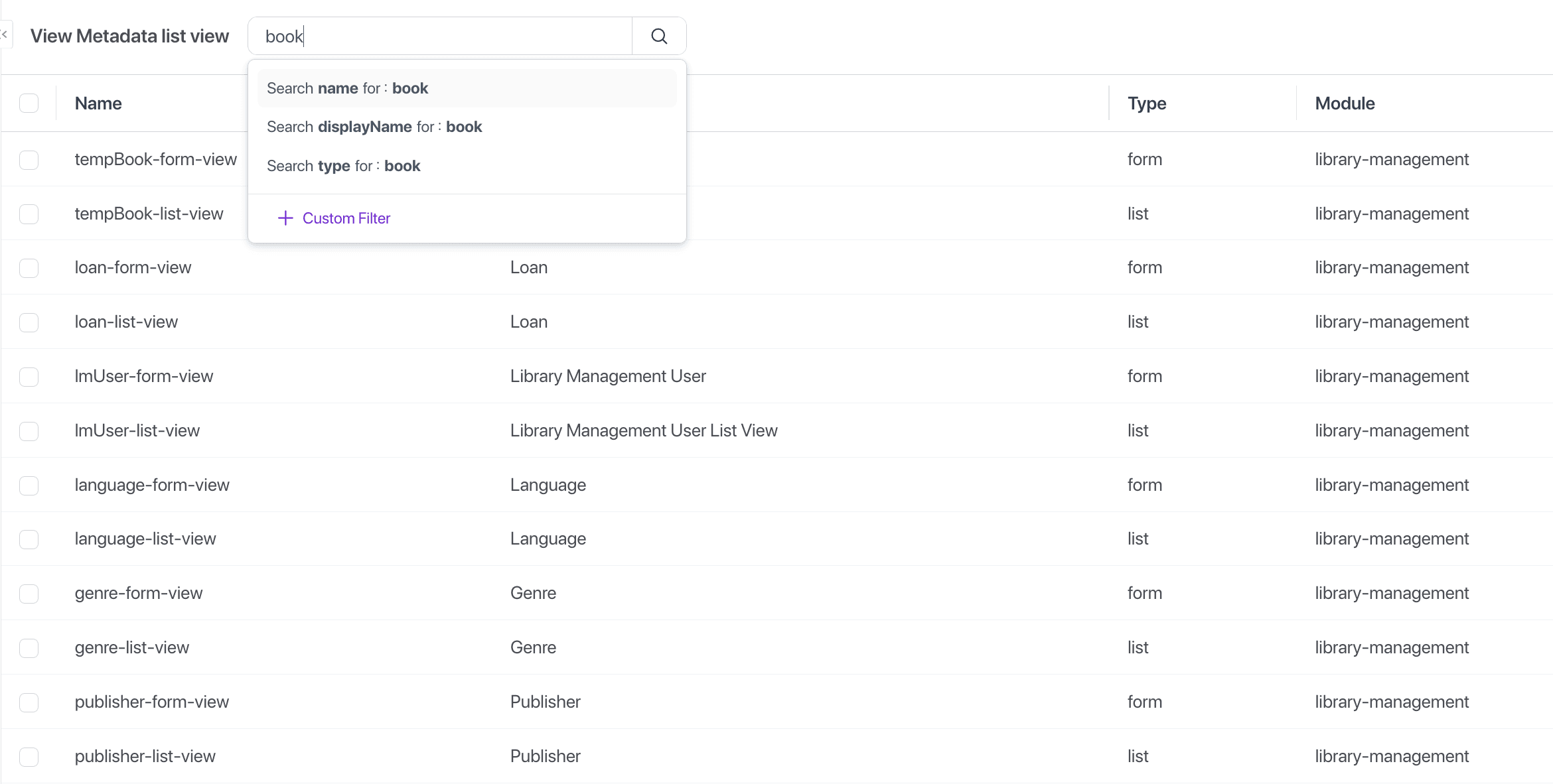
After applying the search it is visible in the search box, if search is applied on multiple fields then this results in an automatic AND clause being applied between the fields on which the search was applied.
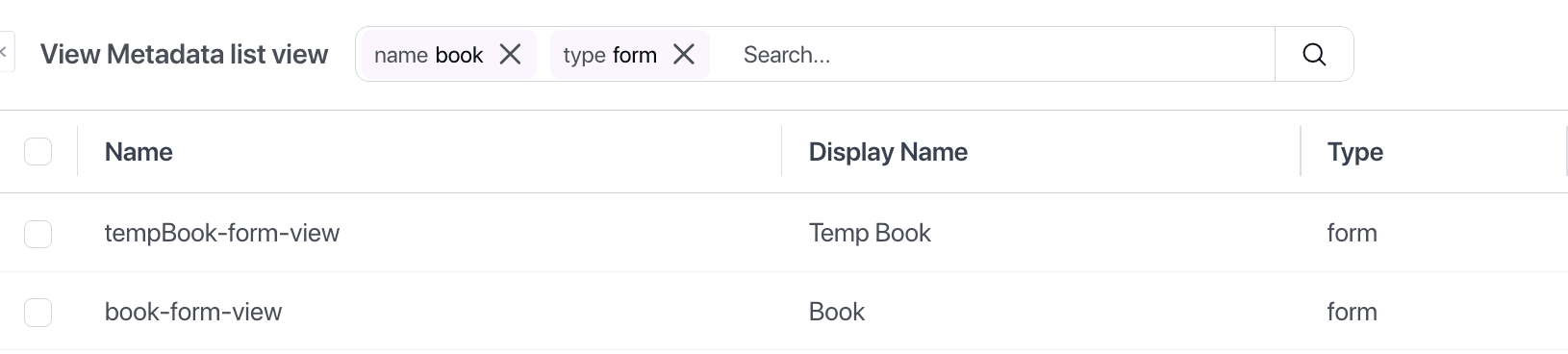
Filtering
Each field type supports type-specific filters:
Eg.
- Numeric : greater than, less than, between
- Date/Time : before, after, between, today, last X days
- Selection : is one of, is not one of
- Boolean : true, false
- Text : contains, does not contain
To open the filter dialog you need to click on "Custom Filter" in the drop down that opens after clicking the "lens" icon or when applying Search.
You can form an arbitrarily complex filter using the available fields.
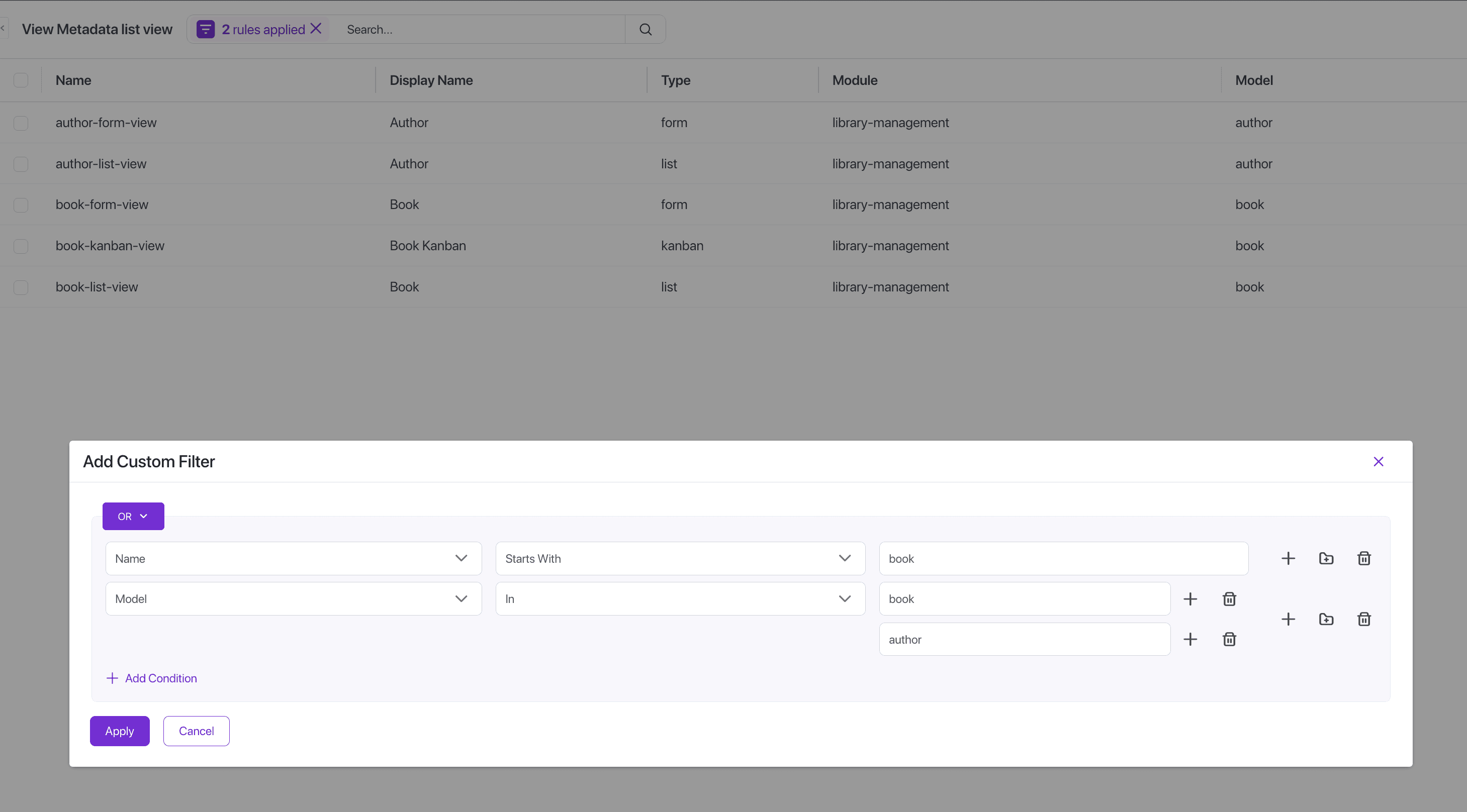
TODO: Below table summarises the different operators available against each field type.
| Field Type | Available Operators |
|---|---|
| Integer | EqualsNot EqualsLess ThanLess Than Or EqualGreater ThanGreater Than Or EqualInNot InBetween |
| Big Integer | Same as Integer |
| Decimal | Same as Integer |
| Short Text | Starts WithContainsNot ContainsEnds WithEqualsNot EqualsInNot In |
| ... | ... |
| ... | ... |
| ... | ... |
Sorting
Enable sorting per field using sortable: true. Clicking column headers toggles ascending/descending order.
Pagination
Paginate large datasets efficiently with options to set default and allowed pageSizeOptions. Server-side pagination is supported for performance on large datasets.
Export
Data can be exported in standard formats such as CSV or Excel. This allows external analysis or record-keeping. The export functionality is completely dynamic and metadata driven based on how you have configured your model & fields.
Step 1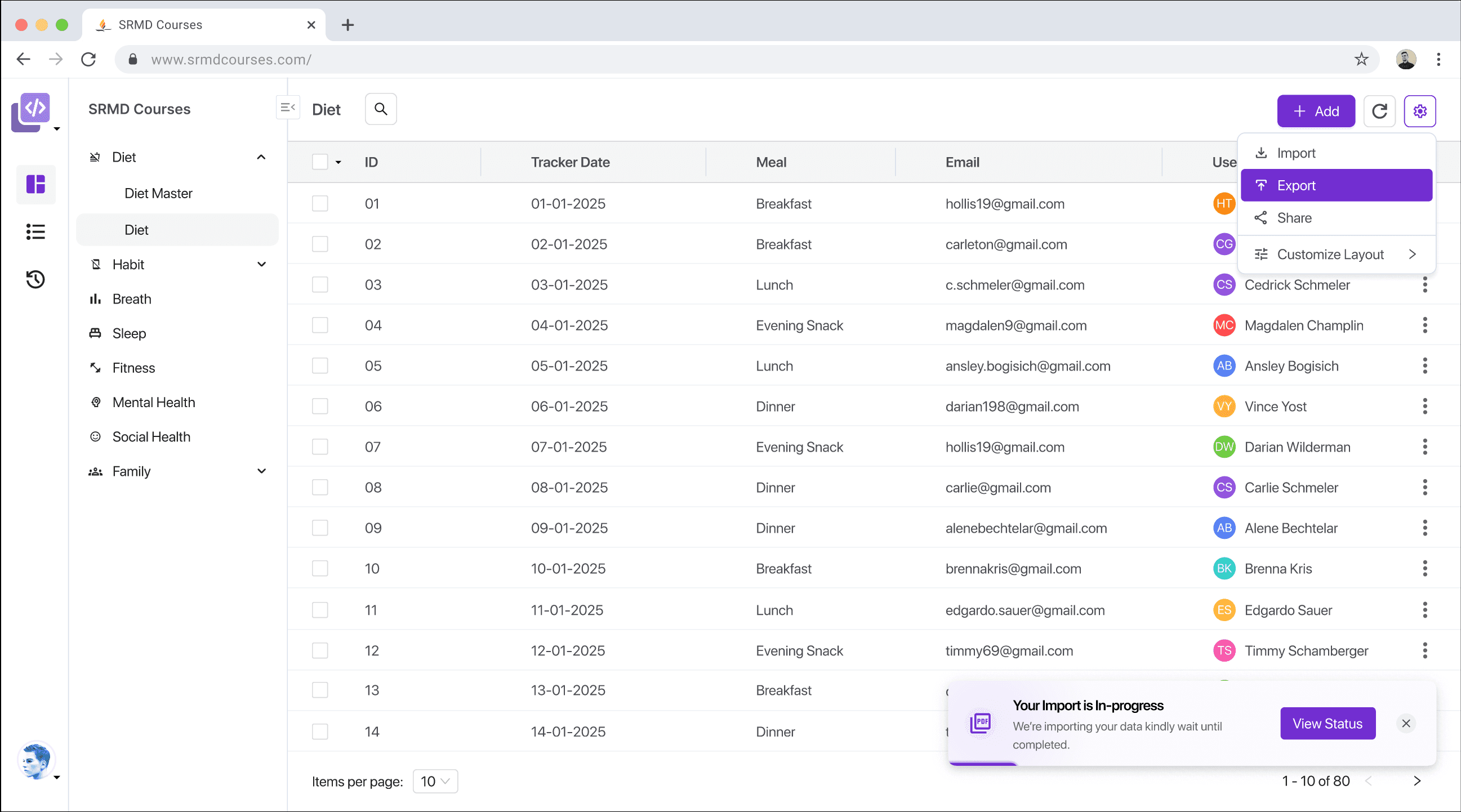
DEV TODO: Make export button access controlled by roles & permissions. We should have a custom permission called export in all models I believe?
Step 2Based on the models metadata the user can select the fields that they would like to include in the export. This screen has 2 sections Available and Selected. The Selected fields are based on the currently configured list view, so the columns displayed in the list view are by default included in the export.
Also note that all fields are exportable except for media fields. Media fields are skipped as part of the export.
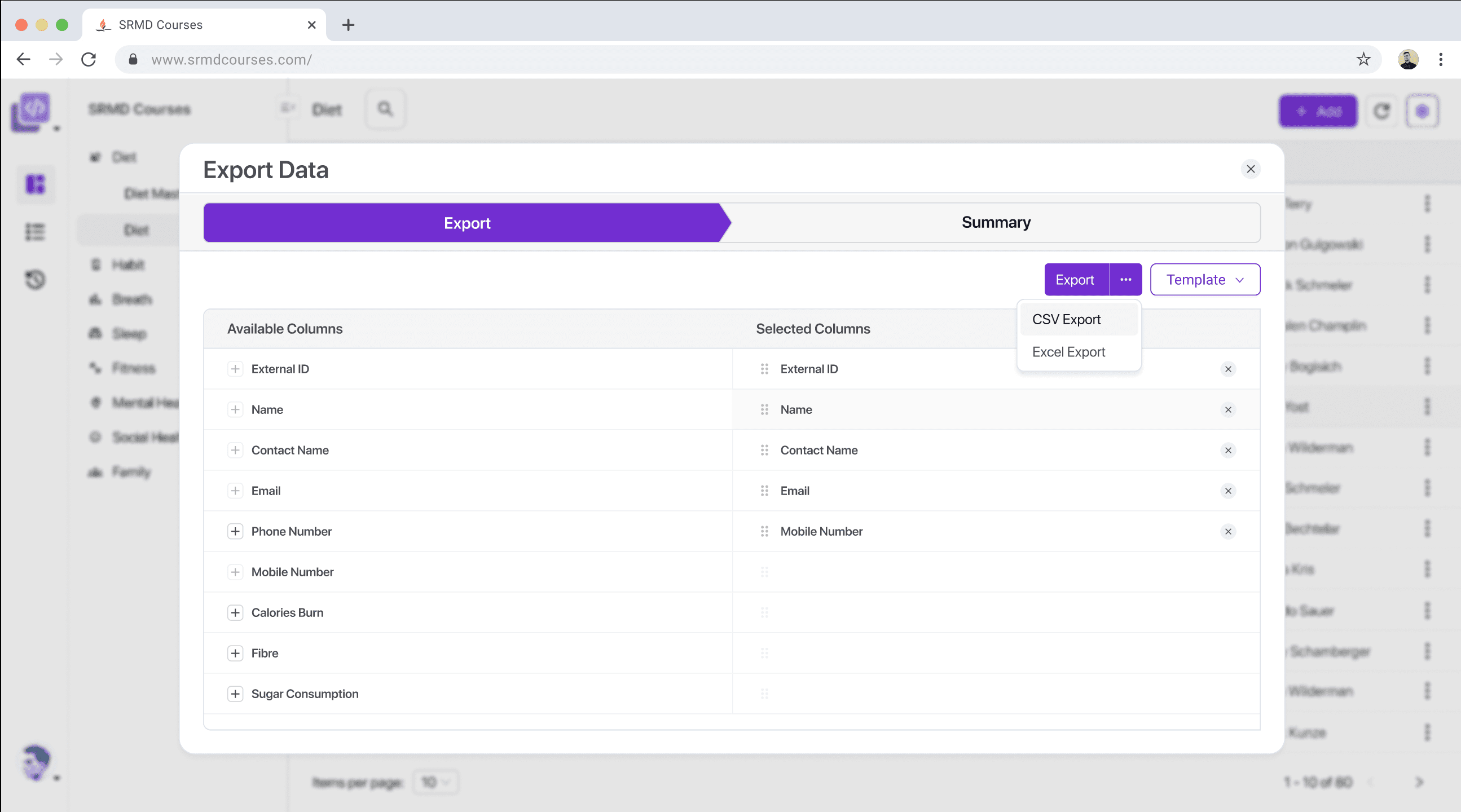
Step 3One can choose to save this export configuration as a named template to be re-used later.
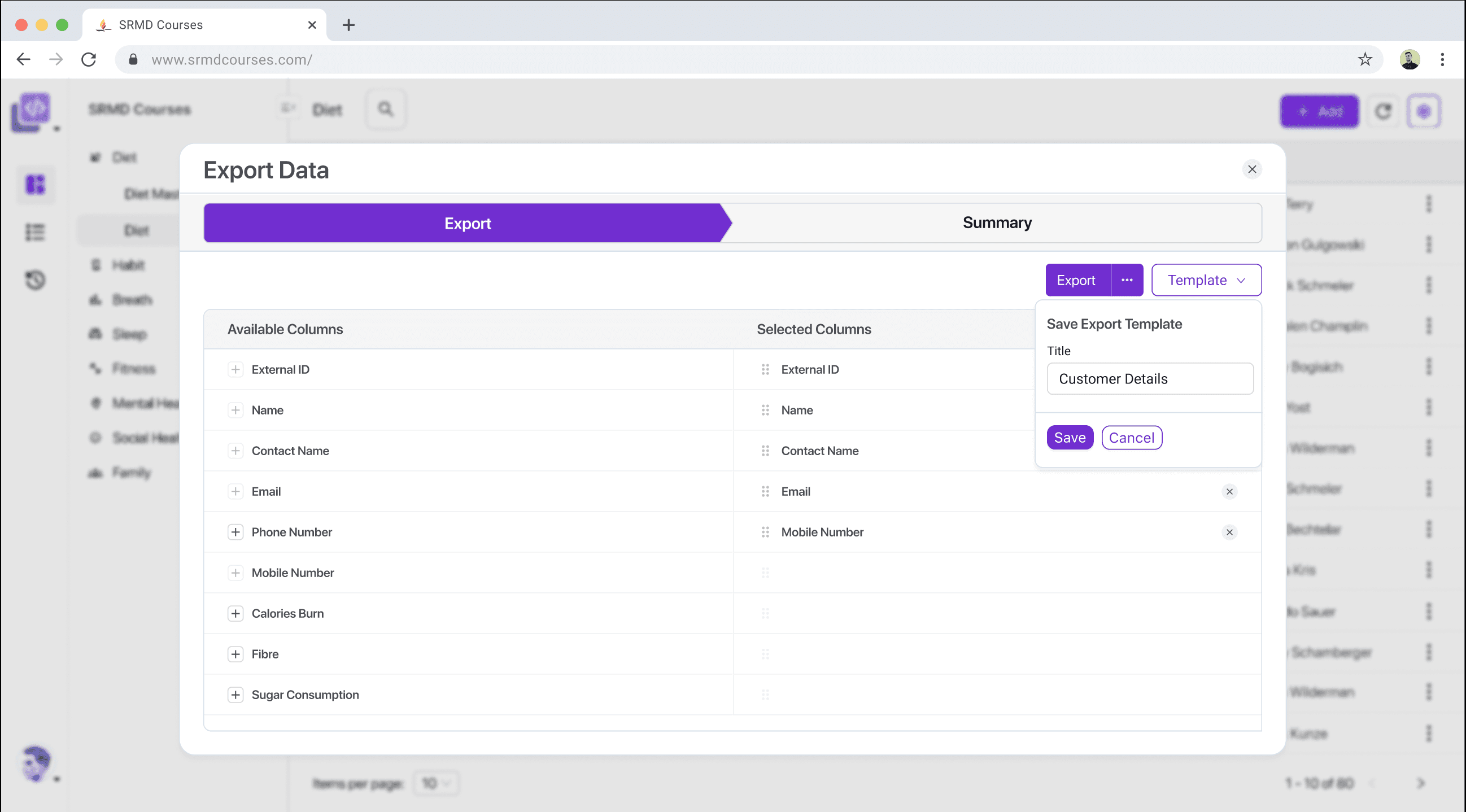
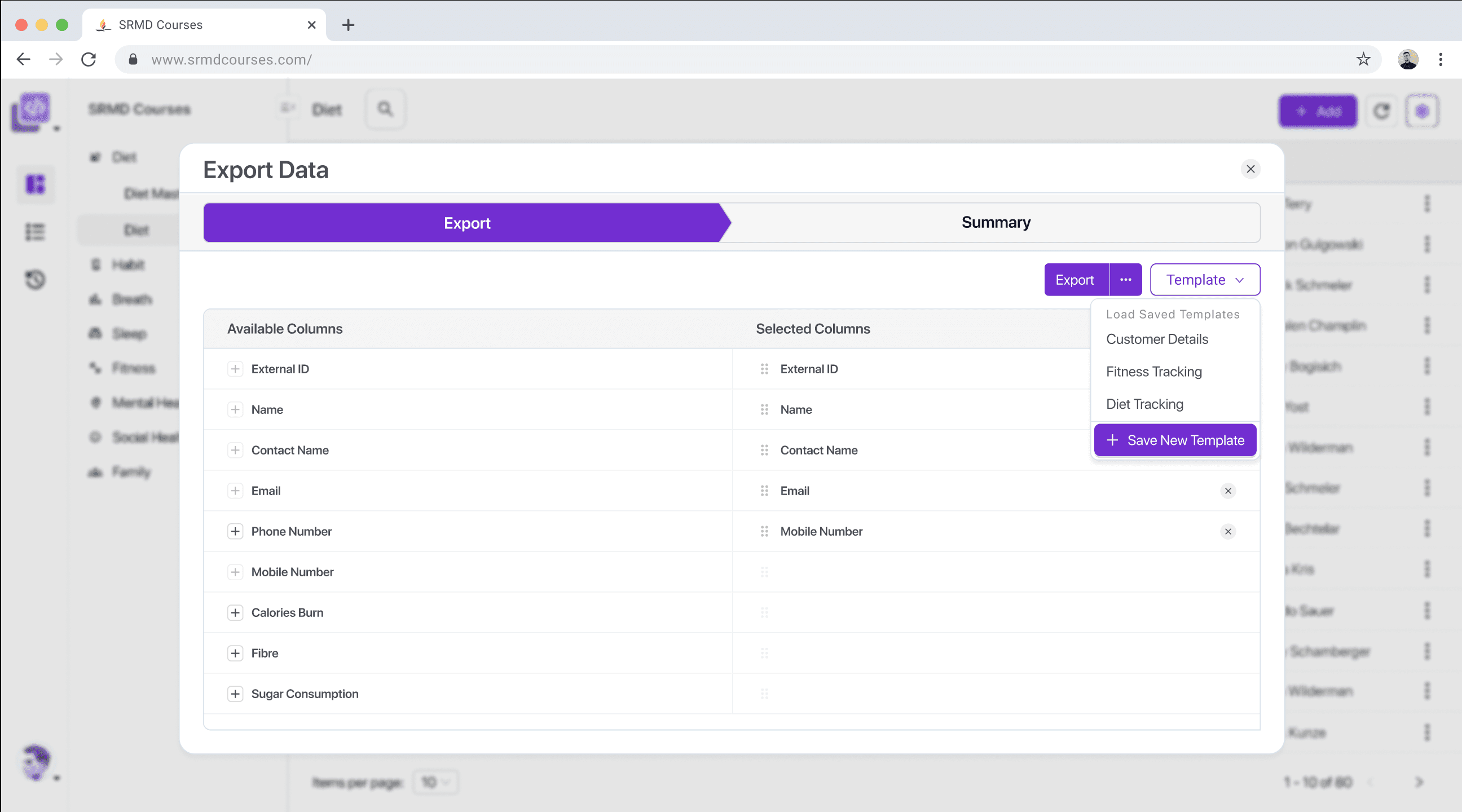
Step 4All exports in SolidX run in the background (either as a NodeJS async process) or as a message on a Queue, more on this in the recipes section. After the export is completed the export is available on the export transactions screen.
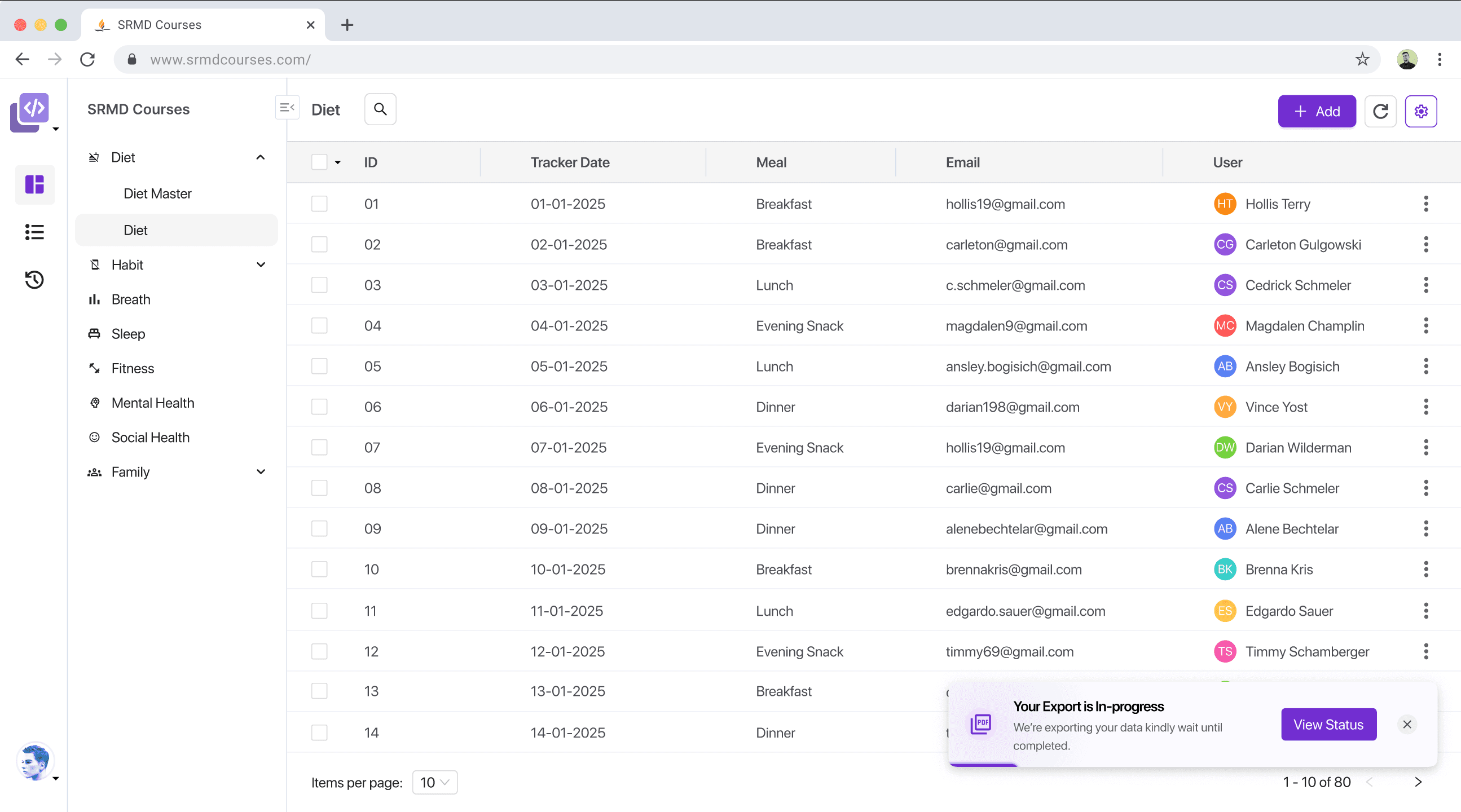
TODO: Show a screenshot of the export transactions screen and how the user can download it.
Import
Users can import records in bulk via structured files. Field mapping, validations, and error handling are supported out of the box. The import functionality is completely dynamic and metadata driven based on how you have configured your model & fields.
Step 1One can access the import functionality from the cog wheel on the list view.
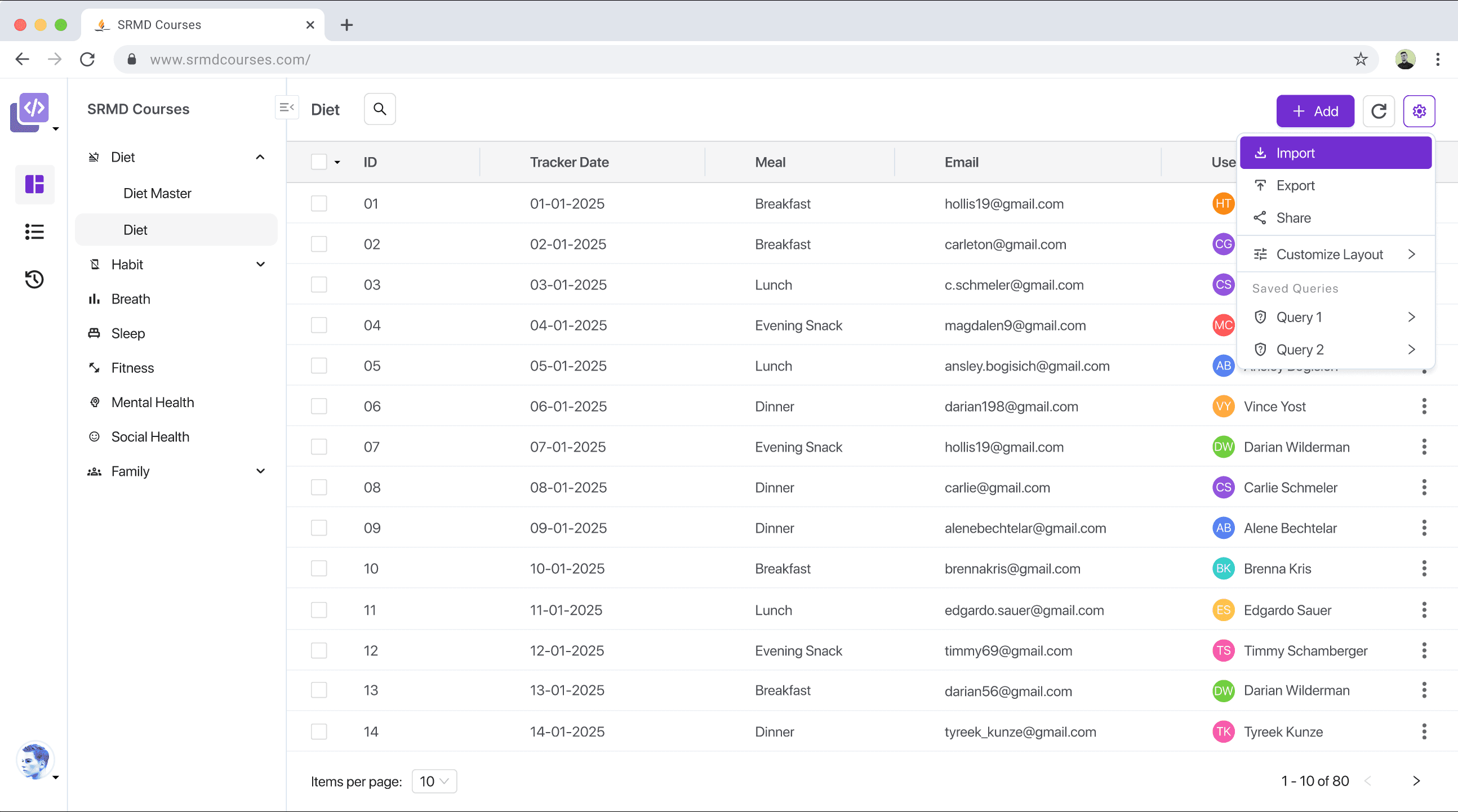
DEV TODO: Make import button access controlled by roles & permissions. We should have a custom permission called export in all models I believe?
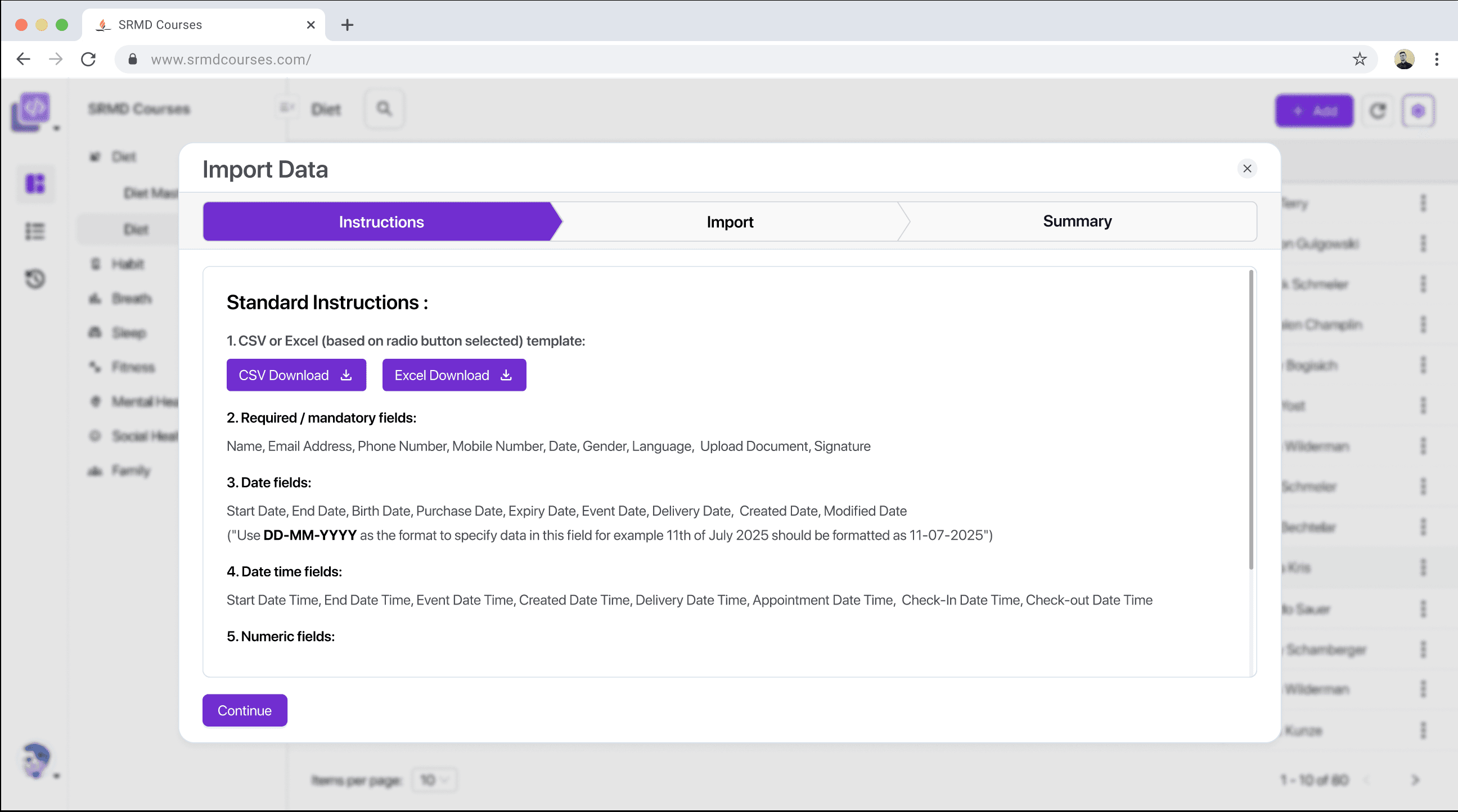
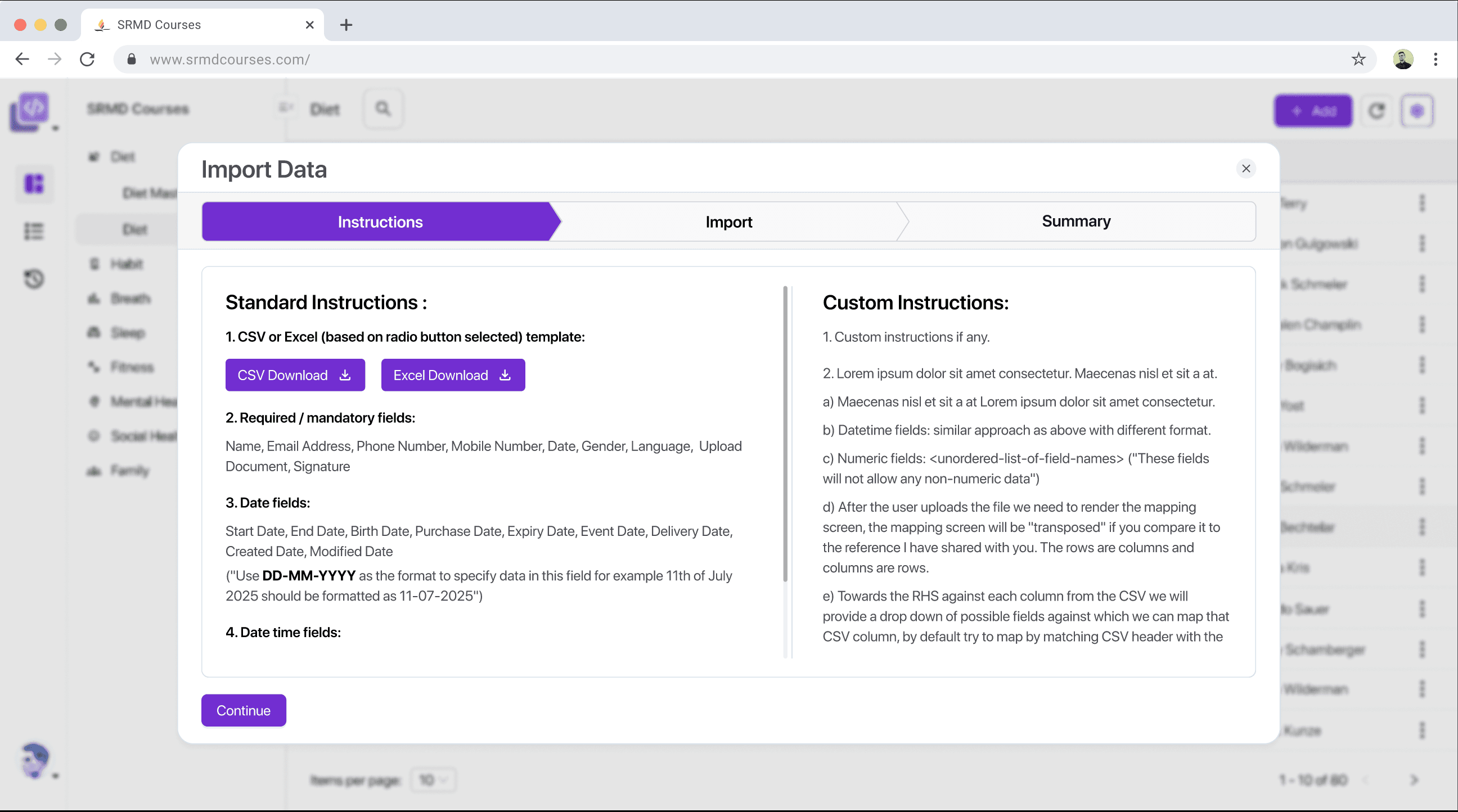
Step 2As the first step of the import process SolidX provides a pre-built excel template that can be used to import the data. This template is automatically generated based on the model & field metadata. This screen also displays other instructions around validations etc that will be applied when the excel is imported.
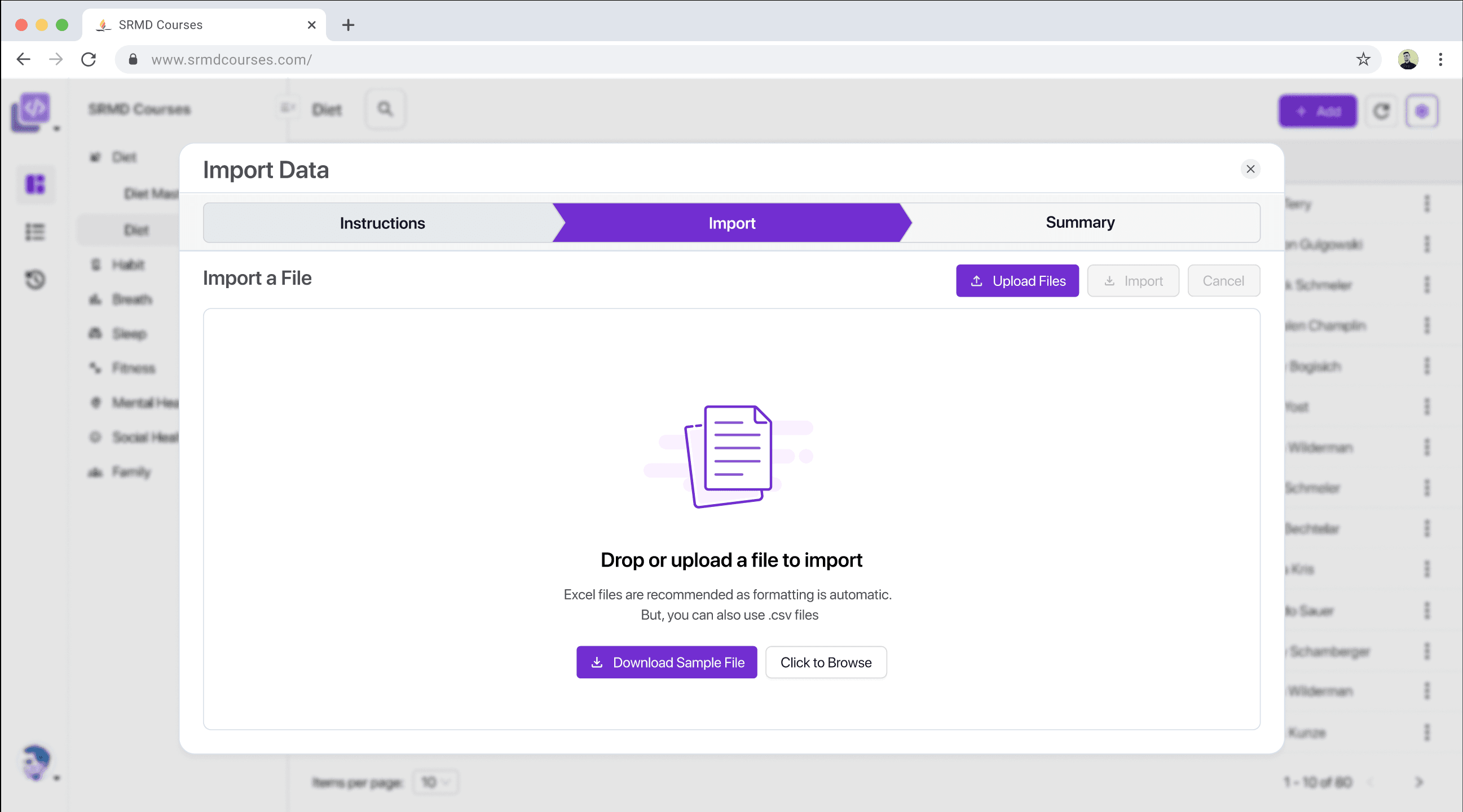
Step 3Here we upload the actual file which is to be imported.
Step 4Step 5All imports in SolidX run in the background (either as a NodeJS async process) or as a message on a Queue, more on this in the recipes section. After the import is completed the export is available on the import transactions screen.
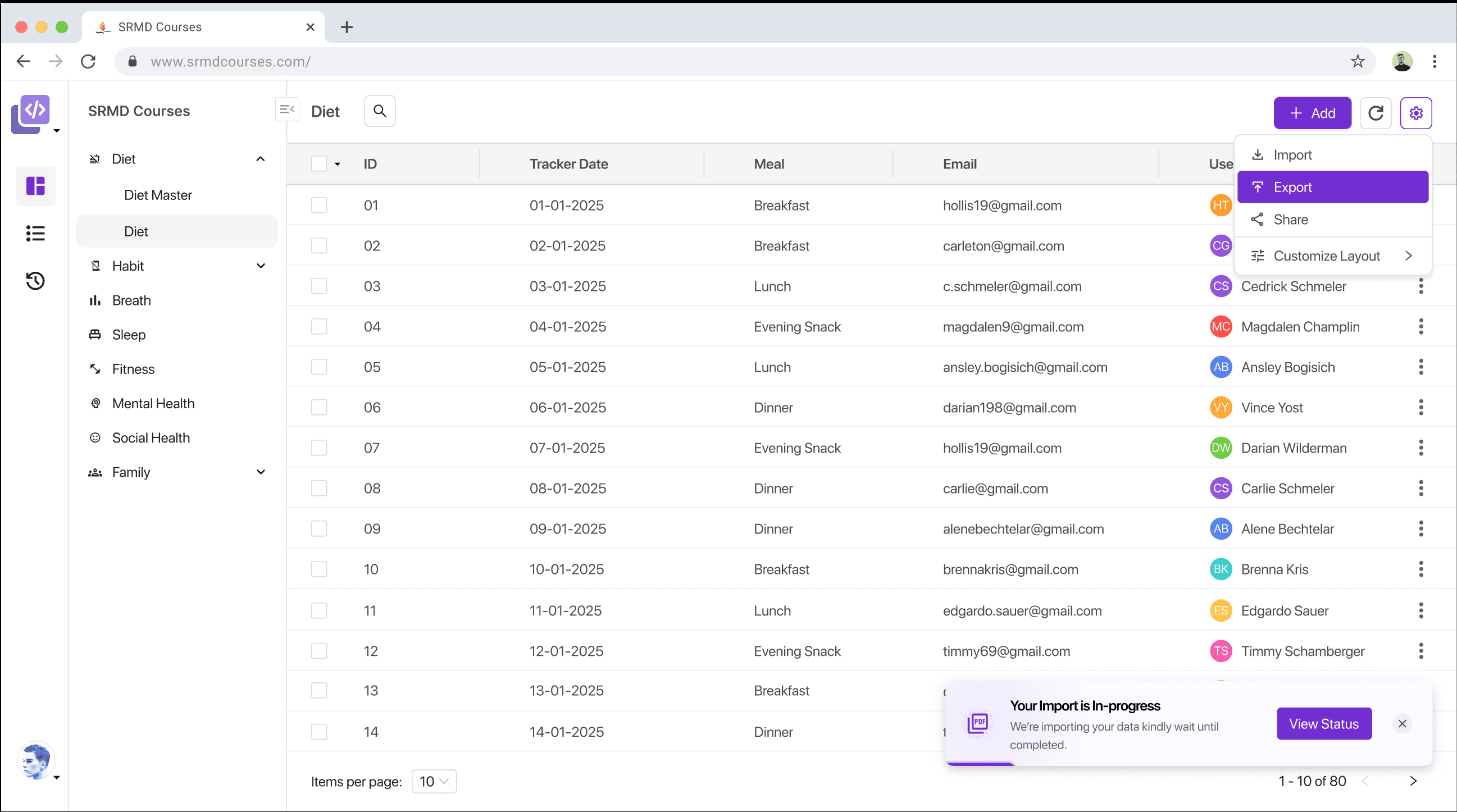
TODO: Show a screenshot of the import transactions screen and how the user can download it.
Action Buttons
Standard CRUD actions (create, edit, delete) can be enabled per model via layout attributes. You can also add custom action buttons tied to server-side logic, workflows, or external integrations.
These custom buttons can be added to the list view header or against each row.
TODO: More details can be found on the Action Buttons Recipe page.
TODO: Screenshots pending from Sapphire or anywhere we have action buttons on the list view.
Saved Filters
The SolidX list view lets you apply custom filters and then save them using saved filters.
Step 1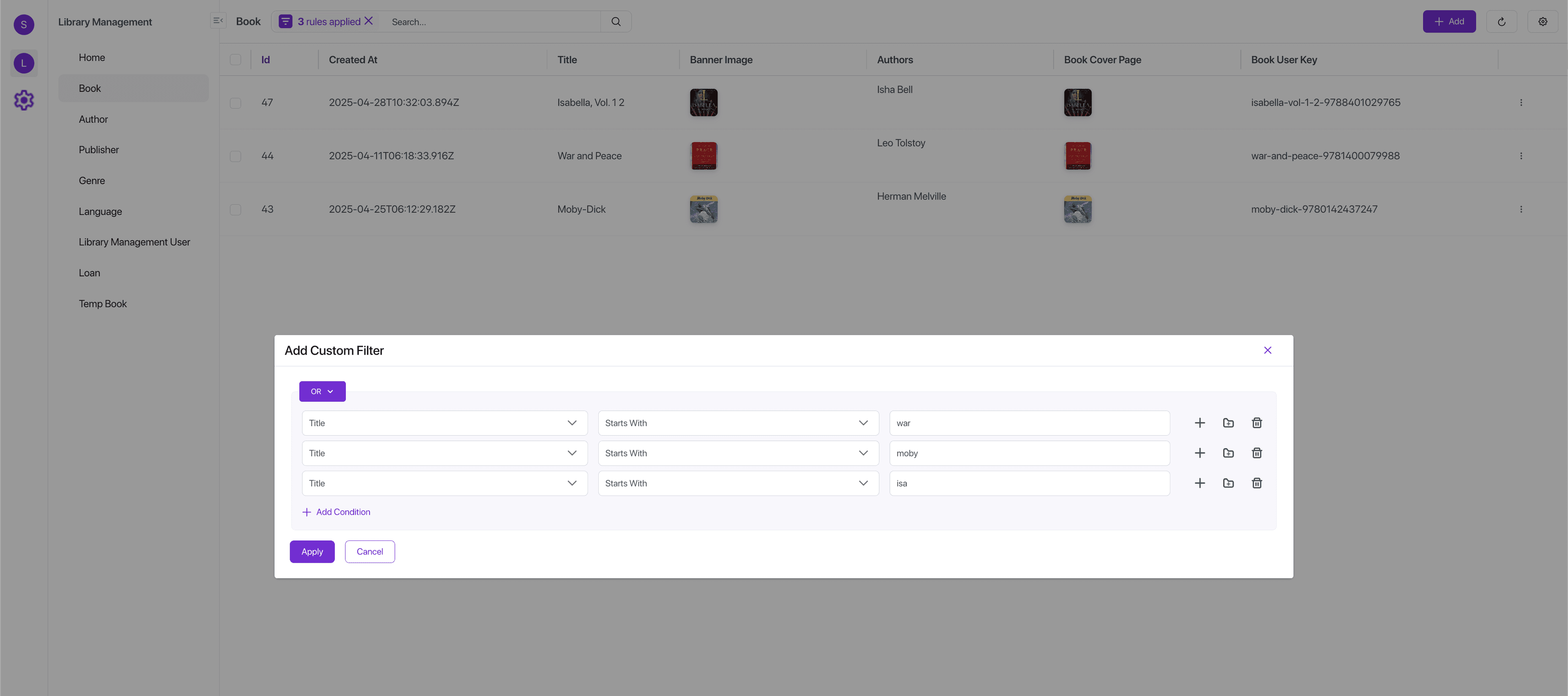
Step 2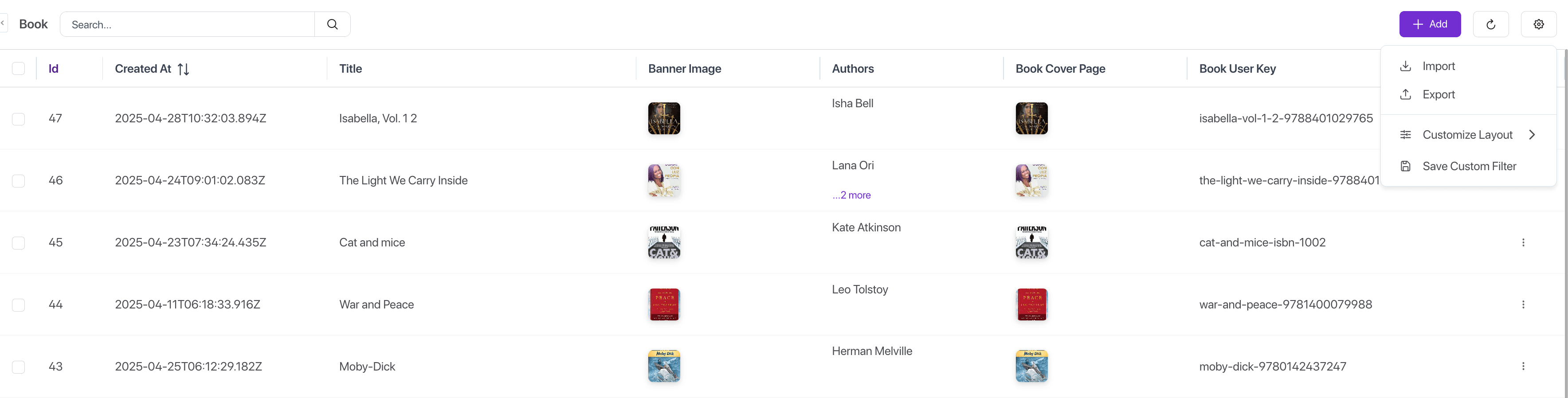
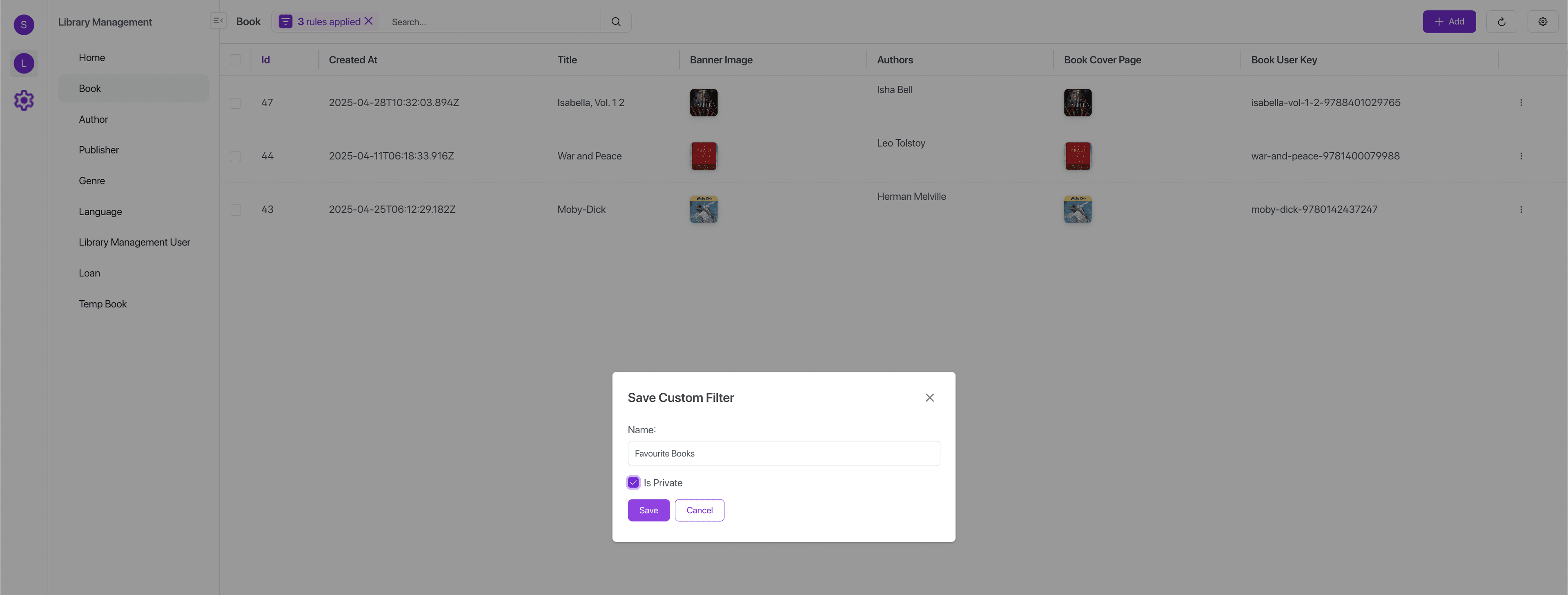
Step 2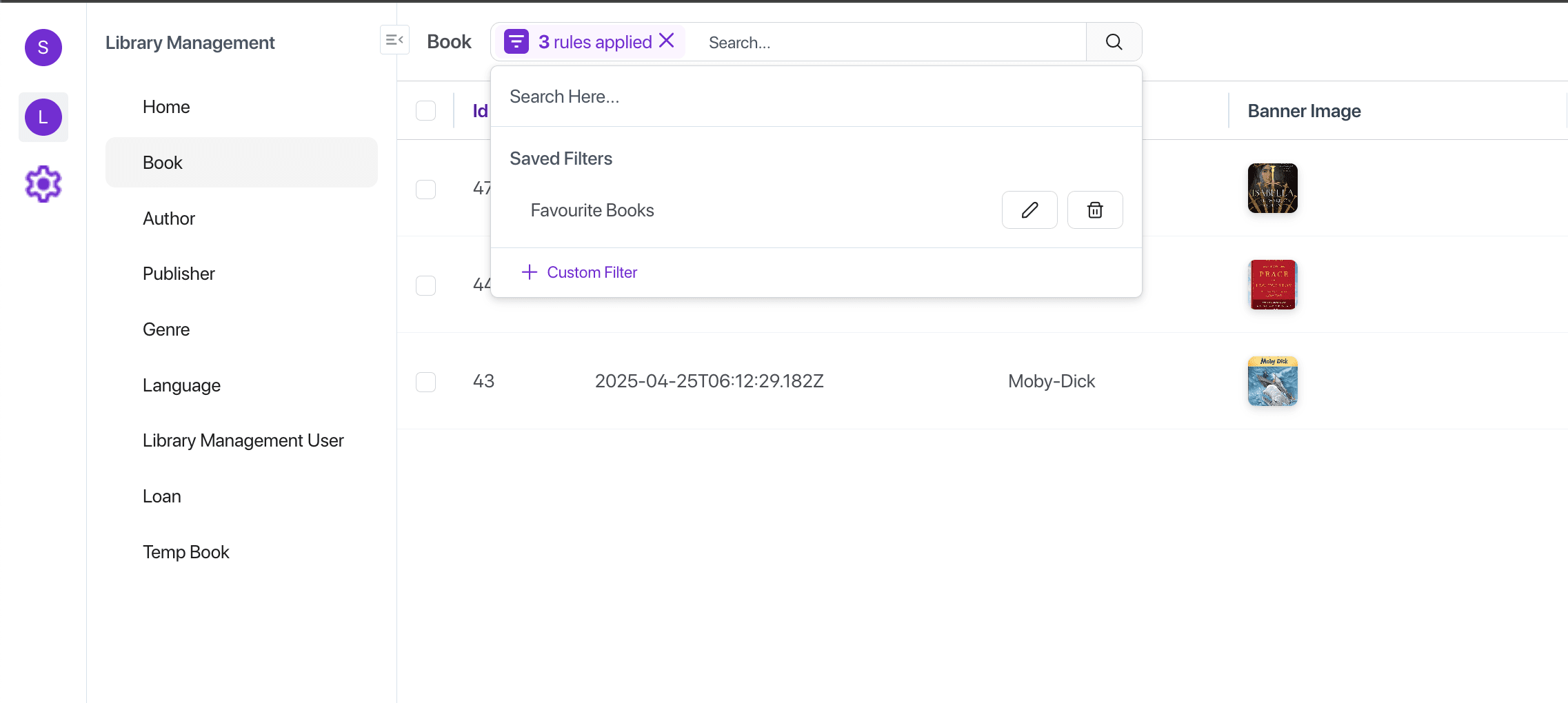
Change Layout
You can use the cog wheel in the upper right corner to change which all columns are currently displayed in the list view.
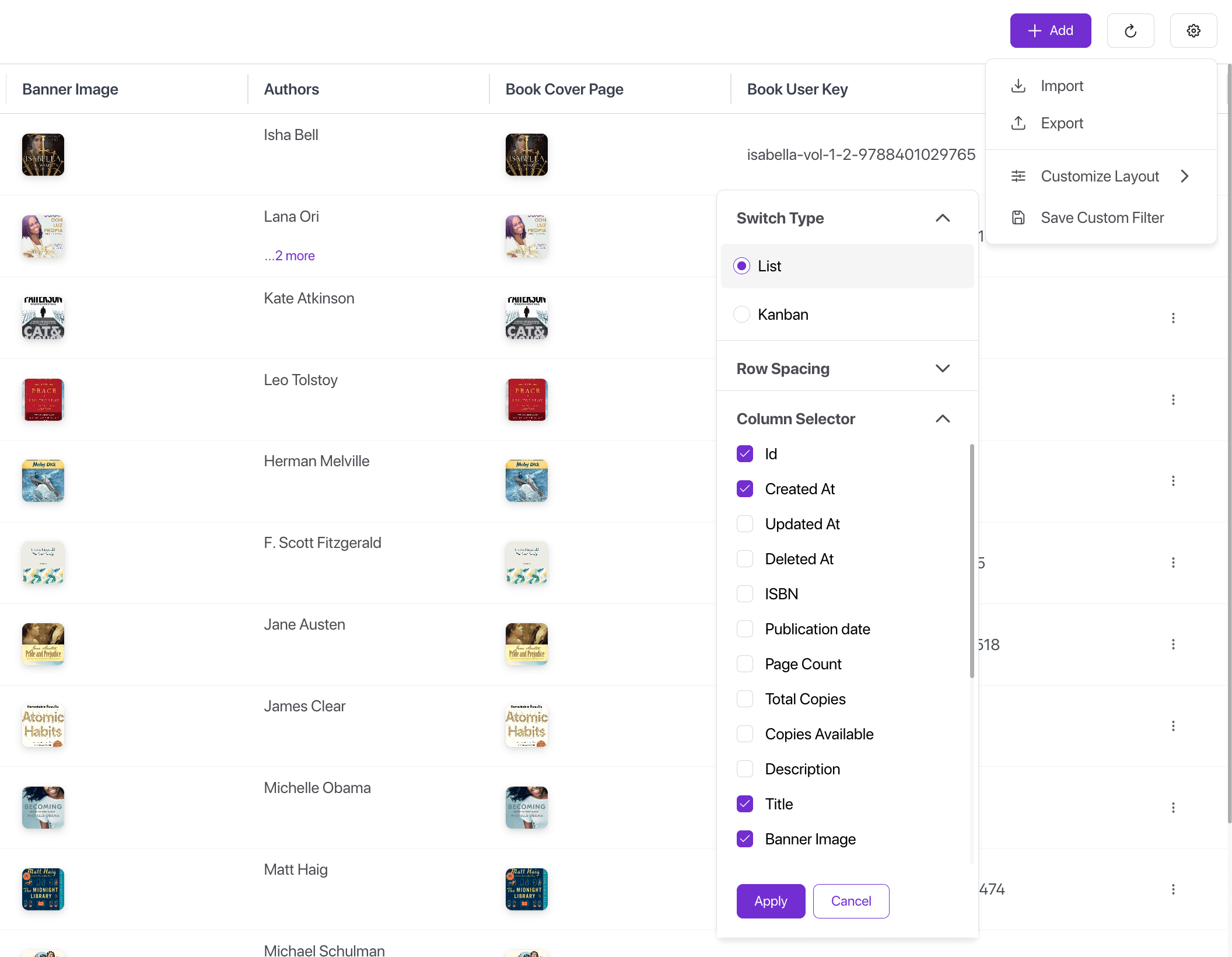
Switch Layout
When configured you can switch between the 2 collection views currently supported by SolidX viz. List & Kanban.
If enabled you will see this option enabled in the "Customize Layout" option that opens after clicking on the cog wheel in the upper right corner.
Related Recipes
- Configure Redis Based Exports: All exports in SolidX run in the background, we also have the provision to run large exports as a background job on a queue using our queues abstraction. This recipe talks about how to do this with Redis as the message broker.
- Configure Custom Import Instructions
- Configure A Custom Widget: In this recipe we will see how we can customize the display and behavior of a column in the list view.
- Configure Switch Layout: In this recipe we will see how we can enable the list view to enable view switching.