

List View
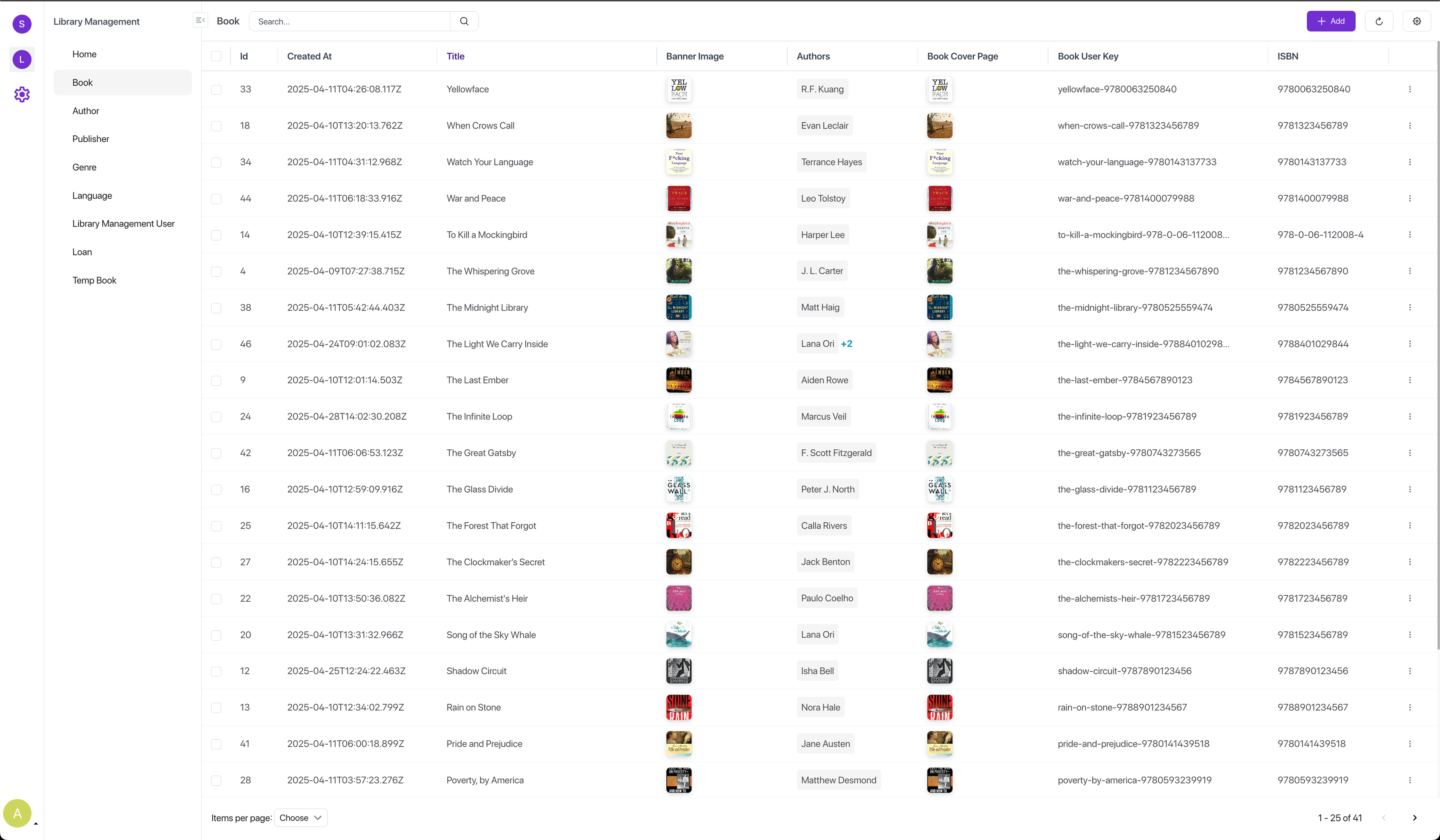
The List View in SolidX is a powerful, metadata-driven interface that presents model records in a tabular format. It is auto-generated based on the model and field definitions and is fully configurable through a structured JSON layout.
This view supports robust features such as searching, filtering, sorting, pagination, data import/export, and custom actions-making it ideal for managing large collections of data with ease and flexibility.
JSON Layout
The List View is defined using a JSON layout that is automatically generated when a new model is created. This layout describes how fields should be displayed and interacted with on the List View interface.
Here's an example layout for a model named Book:
{
  "type": "list",
  "attrs": {
    "pagination": true,
    "pageSizeOptions": [10, 25, 50],
    "enableGlobalSearch": true,
    "create": true,
    "edit": true,
    "delete": true,
    "allowedViews": ["list", "kanban"]
  },
  "children": [
    {
      "type": "field",
      "attrs": {
        "name": "id",
        "label": "Id",
        "sortable": true,
        "isSearchable": true
      }
    },
    {
      "type": "field",
      "attrs": {
        "name": "bannerImage",
        "sortable": true,
        "isSearchable": true
      }
    },
    {
      "type": "field",
      "attrs": {
        "name": "bookUserKey",
        "sortable": true,
        "isSearchable": true
      }
    },
    {
      "type": "field",
      "attrs": {
        "name": "title",
        "sortable": true,
        "isSearchable": true
      }
    },
    {
      "type": "field",
      "attrs": {
        "name": "publisher",
        "sortable": true,
        "isSearchable": true
      }
    },
    {
      "type": "field",
      "attrs": {
        "name": "authors",
        "sortable": true,
        "isSearchable": true
      }
    }
  ]
}
As you can see from the above the json array under children controls the sequence in which the fields are displayed.
List View Attributes (type: "list")
| Attribute | Description |
|---|---|
| pagination | Enables pagination in the list view. |
| pageSizeOptions | Array of selectable page sizes for pagination (e.g., [10, 25, 50]). |
| enableGlobalSearch | Displays a global search bar for filtering across all searchable fields. |
| create | Shows a Create button to add new records. |
| edit | Enables editing functionality for individual records. |
| delete | Allows records to be deleted from the list. |
| allowedViews | Specifies which view modes are available (e.g., list, kanban). |
Field Attributes (type: "field")
| Attribute | Description |
|---|---|
| name | Internal name or key of the field (e.g., id, title, authors). |
| label | Optional. Label to be shown in the table header; defaults to name if omitted. |
| sortable | Boolean. If true, allows sorting by this field. |
| isSearchable | Boolean. If true, includes the field in both global and field-level search. |
TODO: More details on all the different layout elements one can use in the List View have to be added here...
Key Features
Search
Enabled via enableGlobalSearch: true, this allows users to search across multiple searchable fields quickly. Fields marked with isSearchable: true participate in this feature.
More details can be found on the Modules List View page.
Filtering
Each field type supports type-specific filters:
Eg.
- Numeric : greater than, less than, between
- Date/Time : before, after, between, today, last X days
- Selection : is one of, is not one of
- Boolean : true, false
- Text : contains, does not contain
More details can be found on the Modules List View page.
Sorting
Enable sorting per field using sortable: true. Clicking column headers toggles ascending/descending order.
More details can be found on the Modules List View page.
Pagination
Paginate large datasets efficiently with options to set default and allowed pageSizeOptions. Server-side pagination is supported for performance on large datasets.
More details can be found on the Modules List View page.
Export
Data can be exported in standard formats such as CSV or Excel. This allows external analysis or record-keeping.
More details can be found on the Modules List View page.
Import
More details can be found on the Modules List View page.
Action Buttons
Standard CRUD actions (create, edit, delete) can be enabled per model via layout attributes. You can also add custom action buttons tied to server-side logic, workflows, or external integrations.
These custom buttons can be added to the list view header or against each row.
TODO: More details can be found on the Action Buttons Recipe page.
Impact of Roles
Just like on the list view Roles can be used to control the display of columns and action buttons on the kanban view also.
The default buttons viz. create, edit & delete aswell as custom header or row actions can be controlled such that they are rendered only if the currently logged in user has that role.
For example in the below layout, the column "id" will be visible only to users who have the role admin or super-admin.
{
  "type": "list",
  "attrs": {
    "pagination": true,
    "pageSizeOptions": [10, 25, 50],
    "enableGlobalSearch": true,
    "create": true,
    "edit": true,
    "delete": true,
    "allowedViews": ["list", "kanban"]
  },
  "children": [
    {
      "type": "field",
      "attrs": {
        "name": "id",
        "label": "Id",
        "sortable": true,
        "isSearchable": true,
        "roles": ["admin", "super-admin"]
      }
    },
    ...
    ...
    ...
    ...
    {
      "type": "field",
      "attrs": {
        "name": "publisher",
        "sortable": true,
        "isSearchable": true
      }
    },
    {
      "type": "field",
      "attrs": {
        "name": "authors",
        "sortable": true,
        "isSearchable": true
      }
    }
  ]
}
TODO: More details can be found on the Controlling Kanban View With Roles page.
Field Rendering
TODO: Point to developer documentation, each element of type: "field" in the List View layout can be extensively customized through its attrs object. Please refer the developer documentation to view details about each attribute.
Custom Cell Templates
One of the most powerful customization points is the ability to control how a field's cell is rendered using a custom view widget.
{
  "type": "field",
  "attrs": {
    "name": "title",
    "label": "Title",
    "sortable": true,
    "isSearchable": true,
    "viewWidget": "CustomTitleRenderer"
  }
}- viewWidget refers to a React component that you can assign to a field.
- The component must conform to a predefined interface, typically accepting props such as value , rowData and others.
- Using a custom viewWidget ,you can render a wide variety of content, including:
- Images – Display thumbnails or full-size media.
- Icons – Add visual indicators or status symbols.
- Tags – Highlight categories, labels, or statuses.
- Links – Navigate to related records or external resources.
- Badges – Show statuses, counts, or other metadata.
- Custom logic or formatting – Apply any custom rendering rules, calculations, or UI elements.
SolidX provides a default widget for each field type (e.g., Boolean → toggle icon, Media → image preview). Developers can override these defaults globally or per field.
TODO: More on this in the developer documentation & recipes Custom View Widget.
Metadata Driven
The List View automatically adapts to each field's semantic metadata.
For example:
- Password fields are masked
- Relation fields display the userkey field of the related record.
- Audit-tracked fields may have change indicators or badges.
- Private fields are excluded from the view entirely unless specifically enabled.
Changing the JSON layout changes the list view.
This means that without writing a single line of code, your List View remains consistent, secure, and tailored to your data model.
- The JSON layout is editable via the Layout Designer or programmatically.
- Developers can extend core behavior via plugin hooks or lifecycle methods.
- Actions, filters, and UI components can be customized per project or reused across modules.
Generated Code
When a new model is created, SolidX automatically creates a new layout JSON that is stored in the ss_view_metadata table.
TODO: More details on this can be found in the developer documentation section.
Related Recipes
- Adding Custom Action Buttons: This recipe talks about how you can add custom action buttons to the list view header and rows.
- Custom View Widget: This recipe talks about how you can create a custom view widget to control how a field is rendered in the list view.
- Controlling List View With Roles: This recipe talks about how you can control various visual aspects of the list view by using roles.