

Fields
Every SolidX model is composed of fields. Fields in SolidX go over and above the standard fields one expects, instead we treat fields as semantic attributes with relevance to how the users interact with that data in our admin interface.
Creating New Fields
Fields are created from the model creation form.
To create a new field:
- Navigate to the App Builder, then click on the "Model" menu item.
- This will show a list of existing models in the system.
- Find the model in which you would like to add a new field.
- Click on the model to open it in the form view.
- Click on the "Fields" tab, and then click on the "Add" button inside the Fields tab.
This will open up the "Add New Field" popup. Adding a field involves first selecting the type of field you want to add, and then providing field specific metadata.

The metadata you provide is itself split into 2 parts Basic & Advanced. Basic metadata is common for all fields, while the Advanced metadata varies based on the field type.
Below you will find detailed documentation for each field type
Basic Config
All fields need to at the minimum specify the following fields.
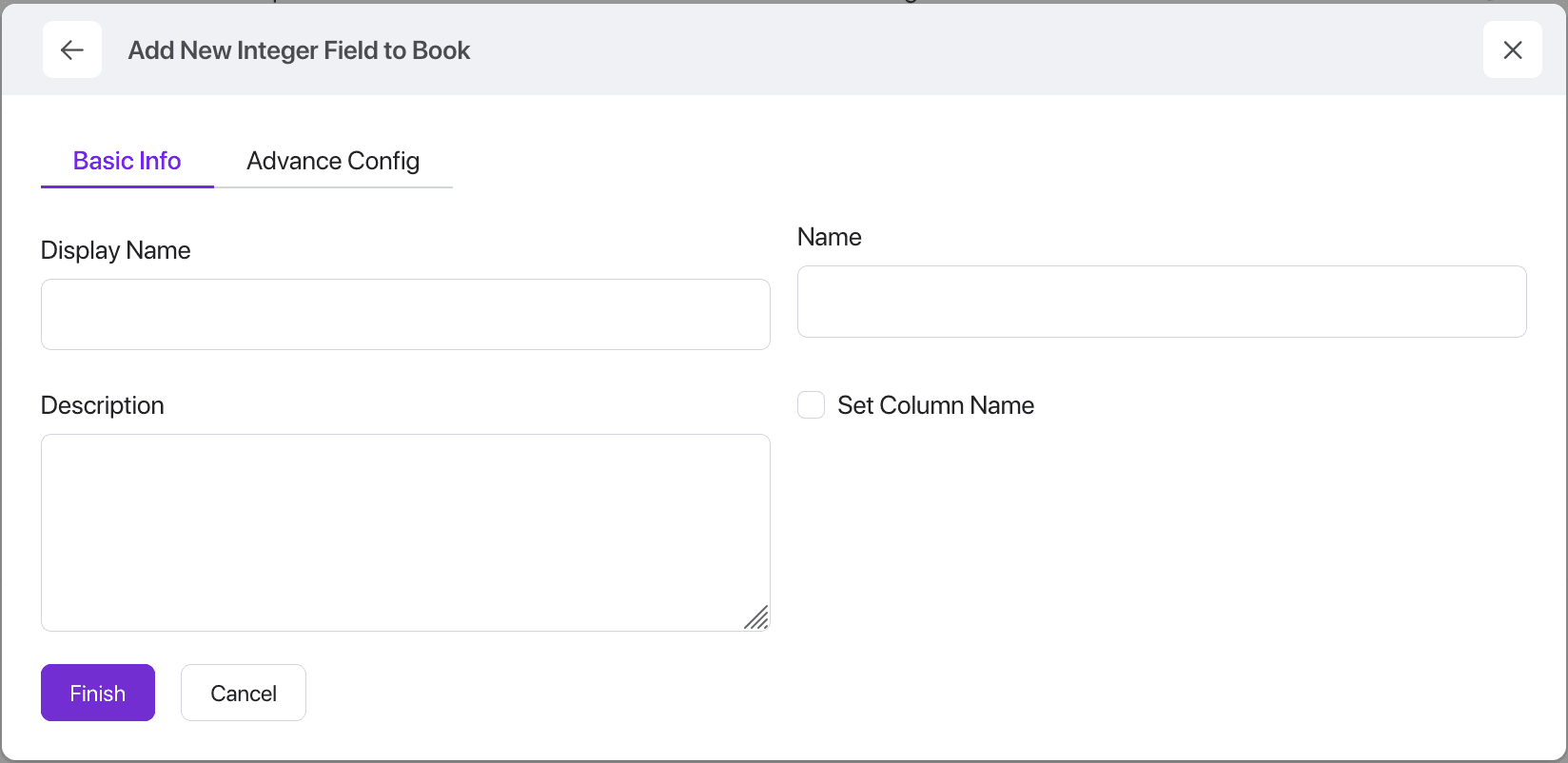
- Display Name: This is used on all SolidX views as a label wherever the field is used.
- Name: This is the internal name of this field.
- Description: Whatever you write here will be used as help text tooltip on all SolidX views.
- Set Column Name: By default SolidX generates the column name for you, if you want to control the column name then enable this option and specify the column name.
Advanced Config
This section allows you to add metadata specific to each field type.
Under advanced config you will find a set of metadata fields which are repeated and they have a common semantic meaning wherever they are used irrespetive of field types.
Defaults
- You can define a default value that will be automatically applied if no value is provided.
Validations
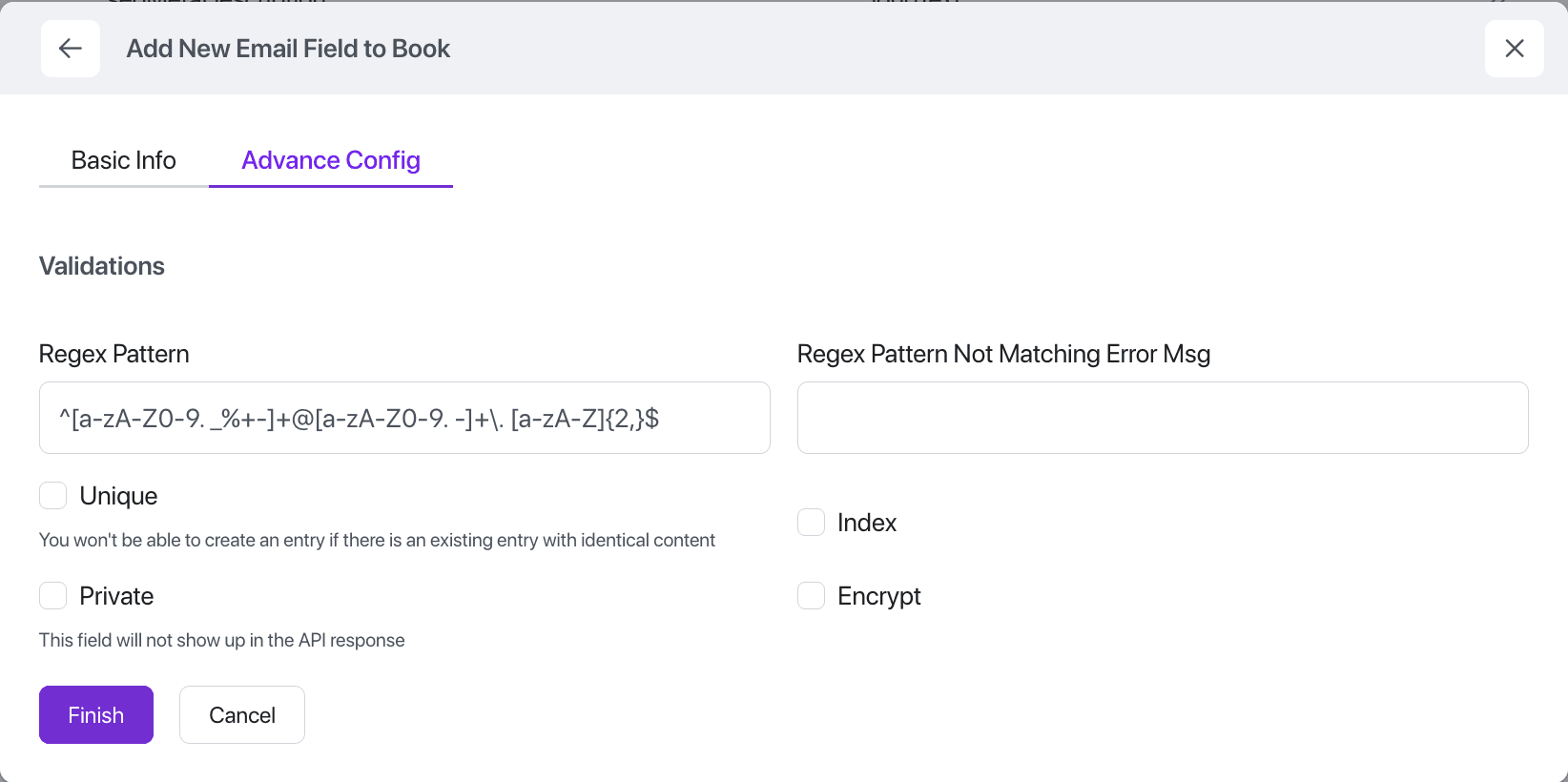
- Regex: Allows applying regular expressions to text based fields.
- Regex not matching error: The error message to display if a fields value does not confirm to the Regex provided.
Additional Settings
- Required: Ensures the field must be filled in before saving.
- Unique: Enforces that each record has a distinct value for this field.
- Indexed: Optimizes query performance when filtering or sorting by this field.
- Private: Excludes the field from API read responses to protect sensitive data.
- Encrypted: Stores the field securely in the database using encryption, and decrypts it automatically when retrieved.
- Audit Tracking Enabled: Tracks all updates to this field in the audit log, showing who changed it and when.
Beyond this settings that are specific to each field type, will be cover in detail below.
Integer
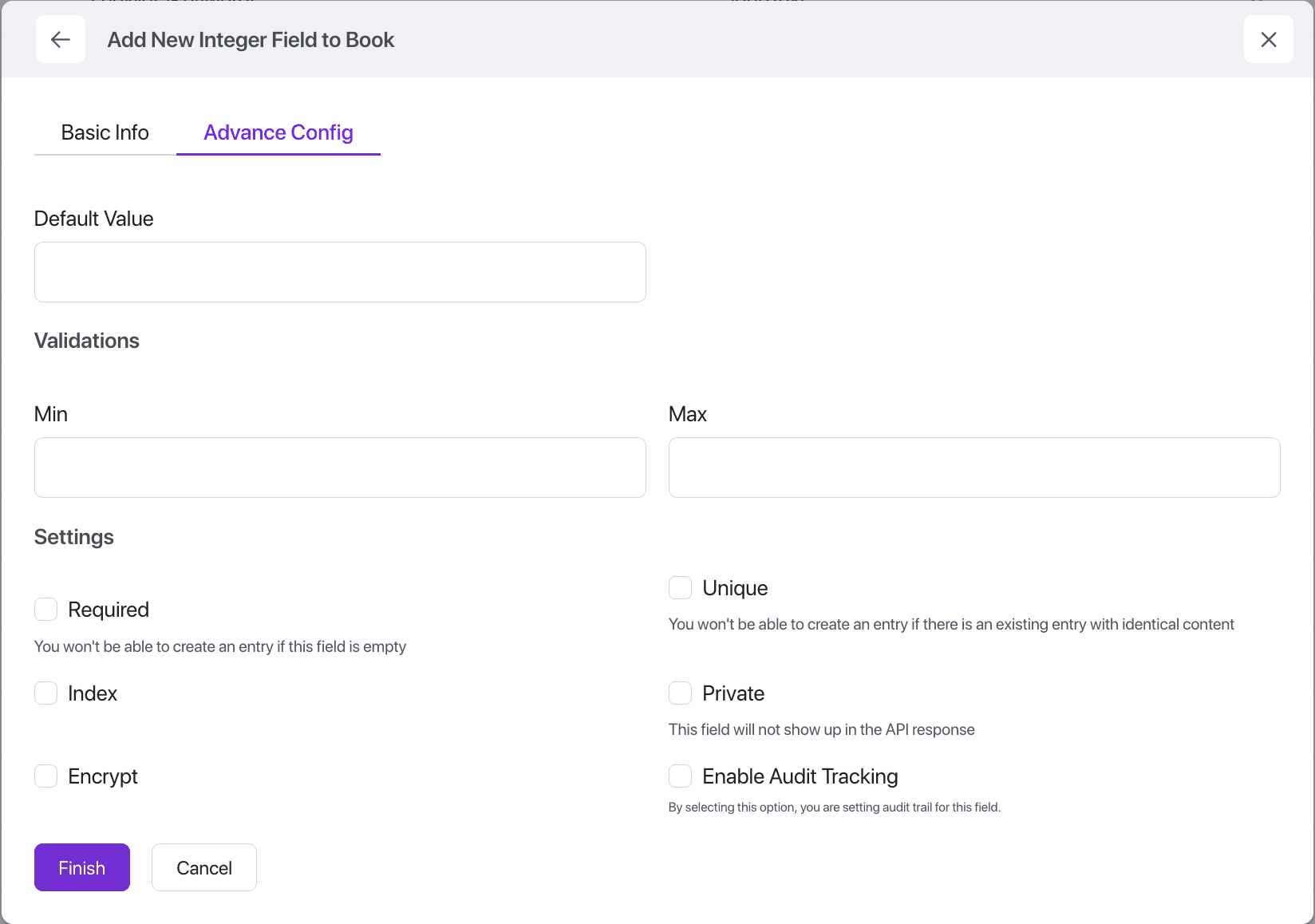
The Integer field type in SolidX is designed to be flexible, secure, and highly configurable. It supports a range of built-in options that make it easy to enforce data integrity, enable advanced features, and respect security boundaries.
Validation
- Set a minimum and/or maximum value to restrict acceptable input ranges.
- Ensures only valid data is saved based on your defined constraints.
Big Integer
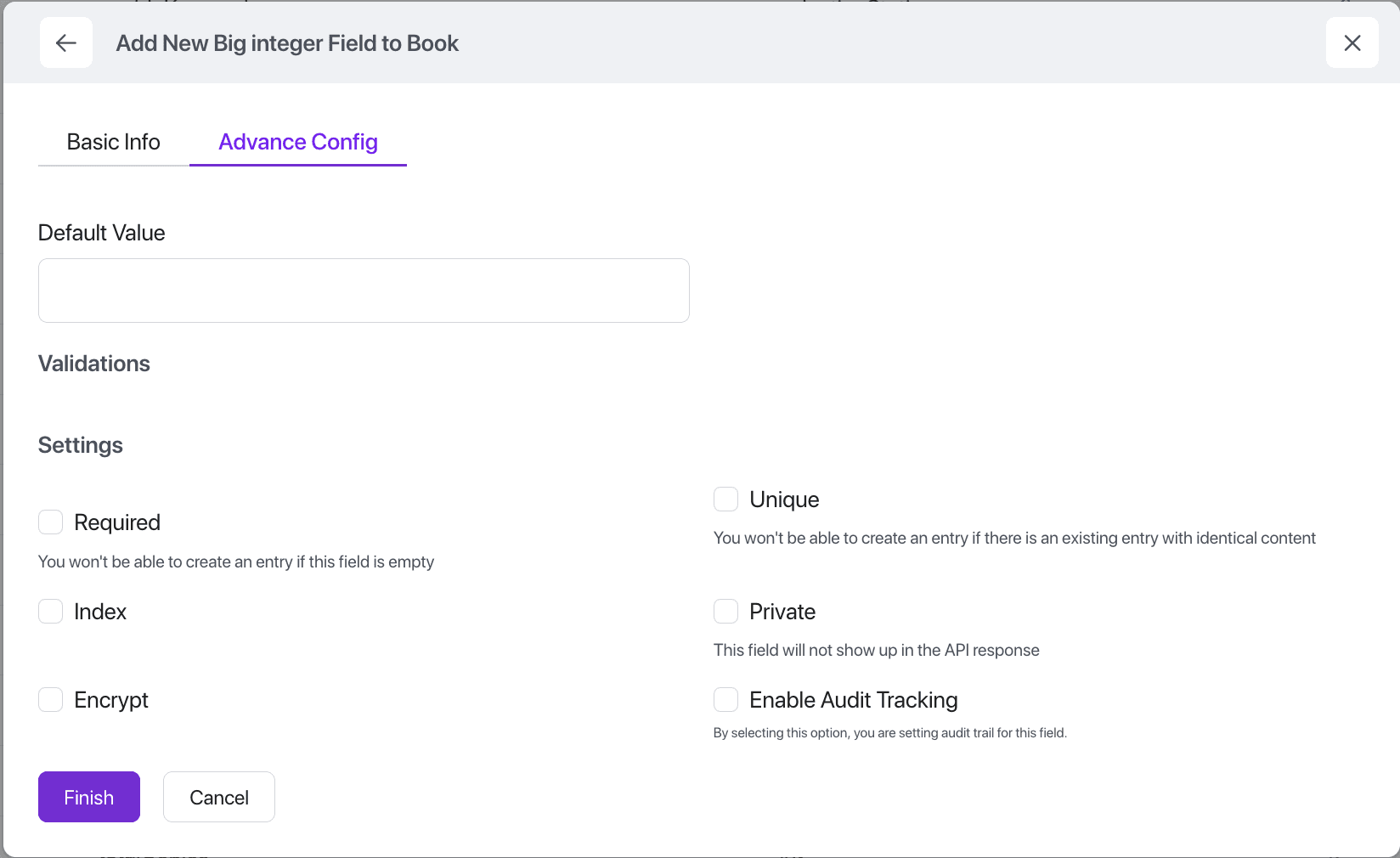
Big Integer fields are designed to store very large whole numbers beyond the limits of standard integers, ideal for high-precision IDs or large counters.
Decimal
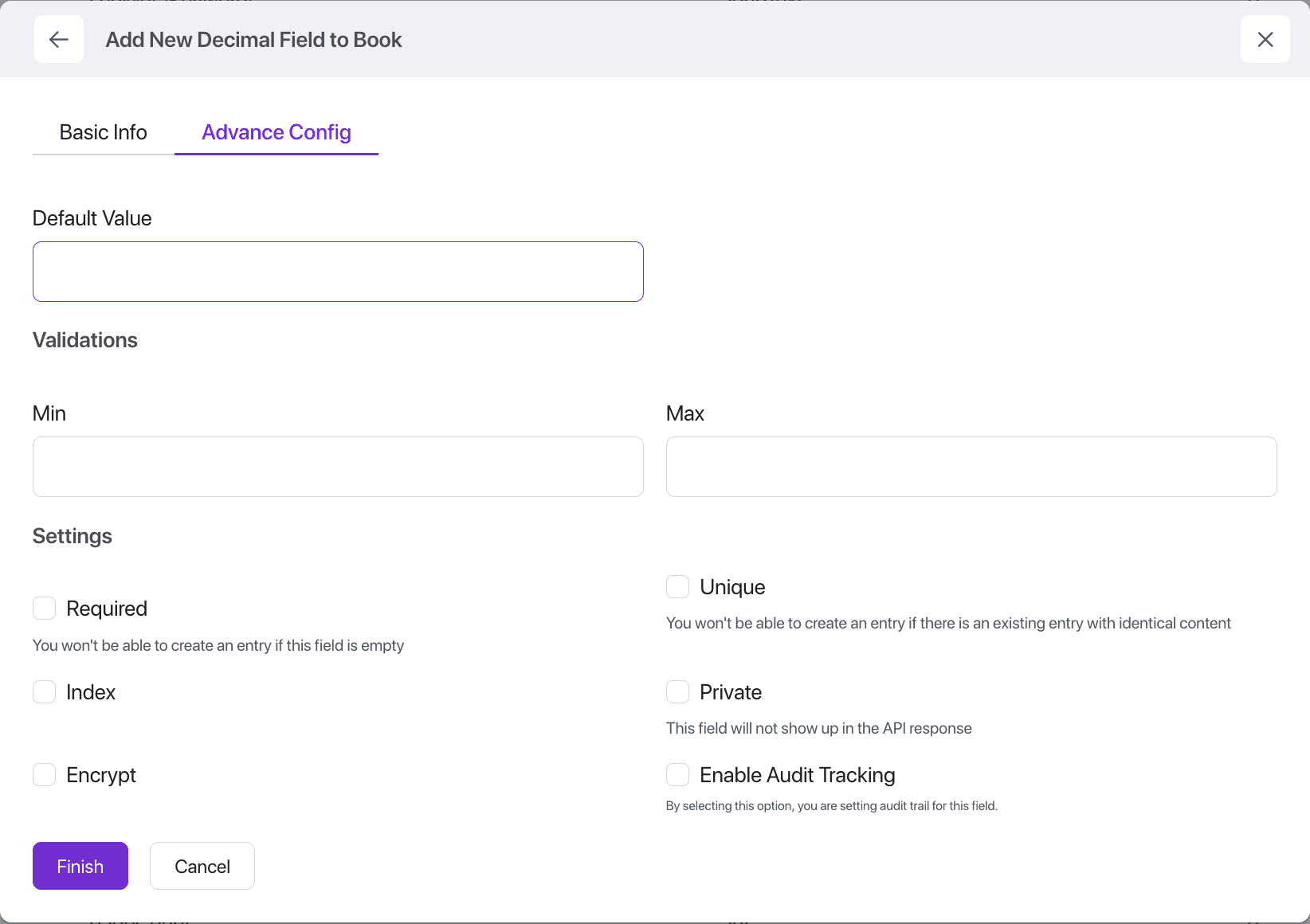
Decimal fields are used to store precise numeric values with fixed decimal places, making them ideal for financial data, measurements, and other use cases where accuracy is critical.
Validation
- Set a minimum and/or maximum value to restrict acceptable input ranges.
- Ensures only valid data is saved based on your defined constraints.
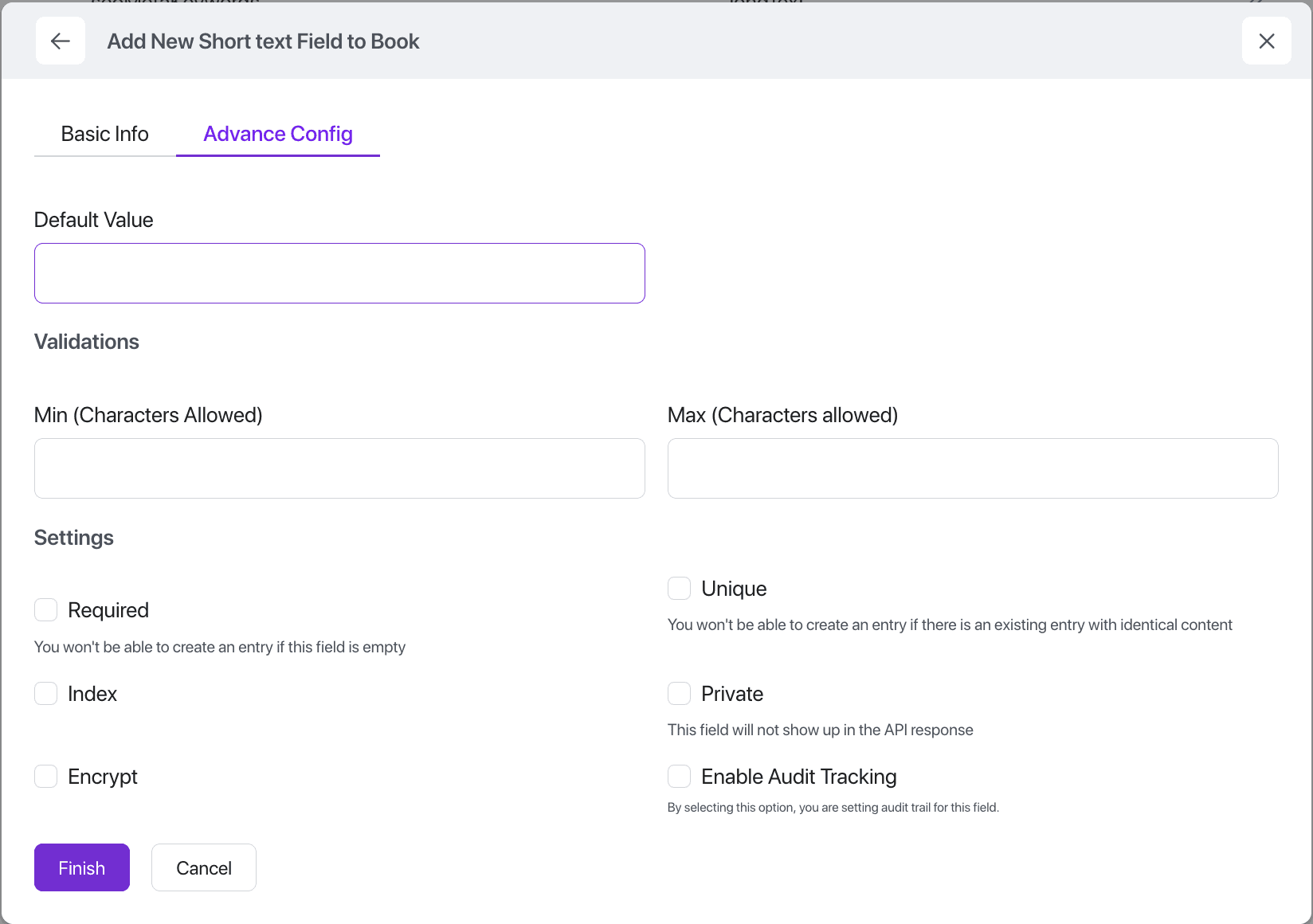
Short Text
Short Text fields are used to store brief strings of text, such as names, titles, or labels, with configurable length limits and validation options.
Validation
- Set a minimum and/or maximum number of characters allowed to restrict acceptable input ranges.
- Ensures only valid data is saved based on your defined constraints.
Long Text
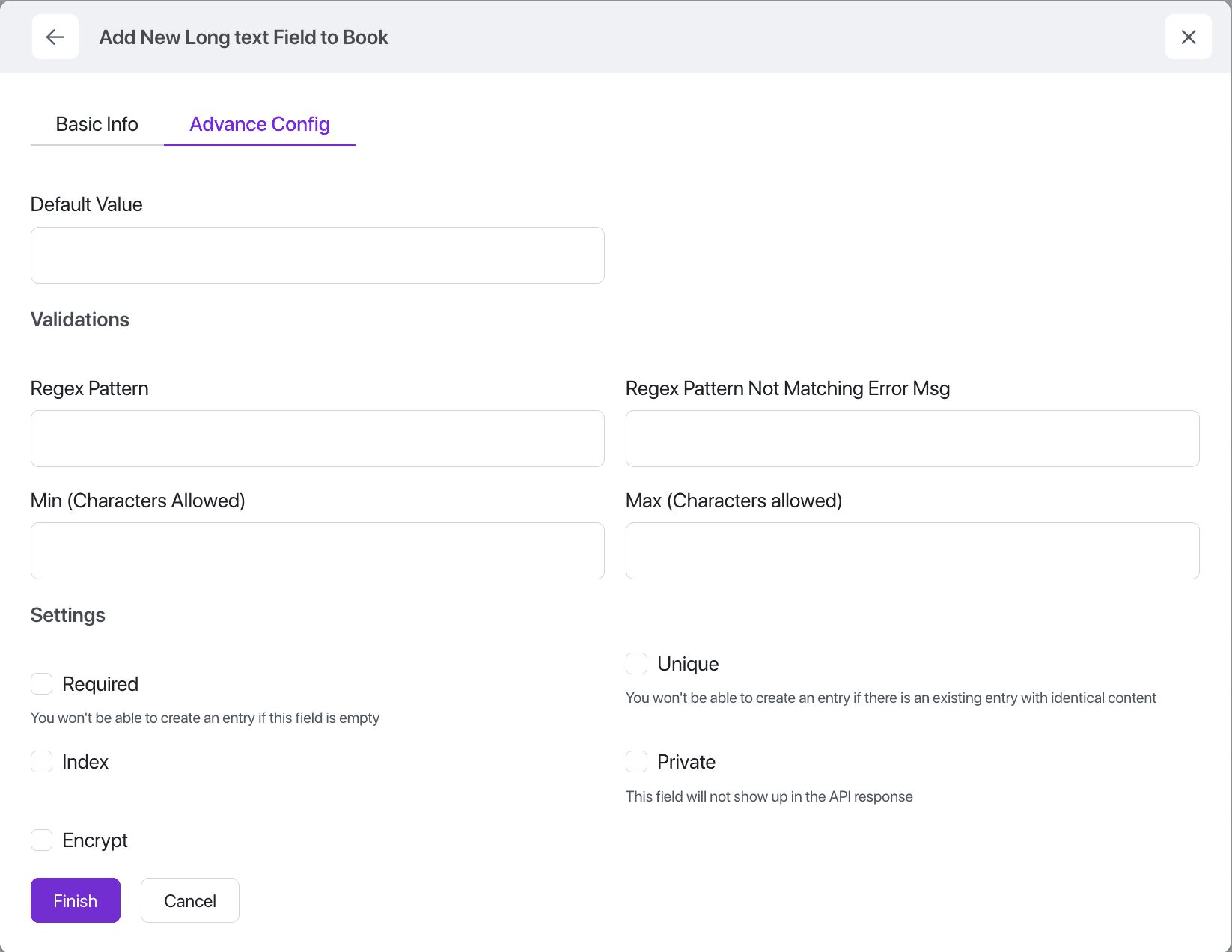
Long Text fields are designed to store larger bodies of text, such as descriptions, notes, or comments, and support extended character limits.
TODO: Remove the validations & regex fields from this field.
Rich Text
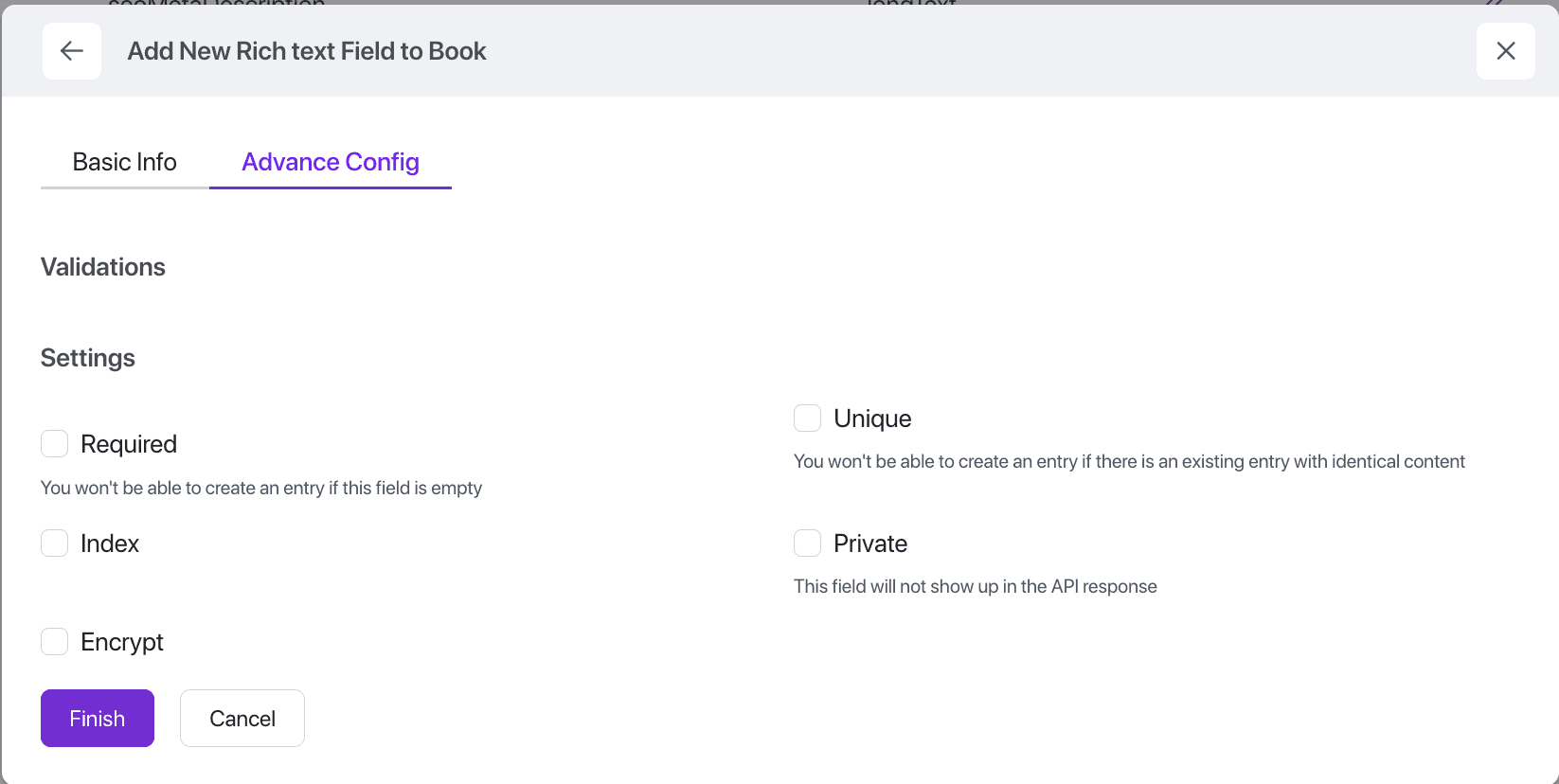
Rich Text fields allow users to input and store formatted content-including bold, italics, lists, links, and more-making them ideal for articles, documentation, or any content that requires styling.
JSON
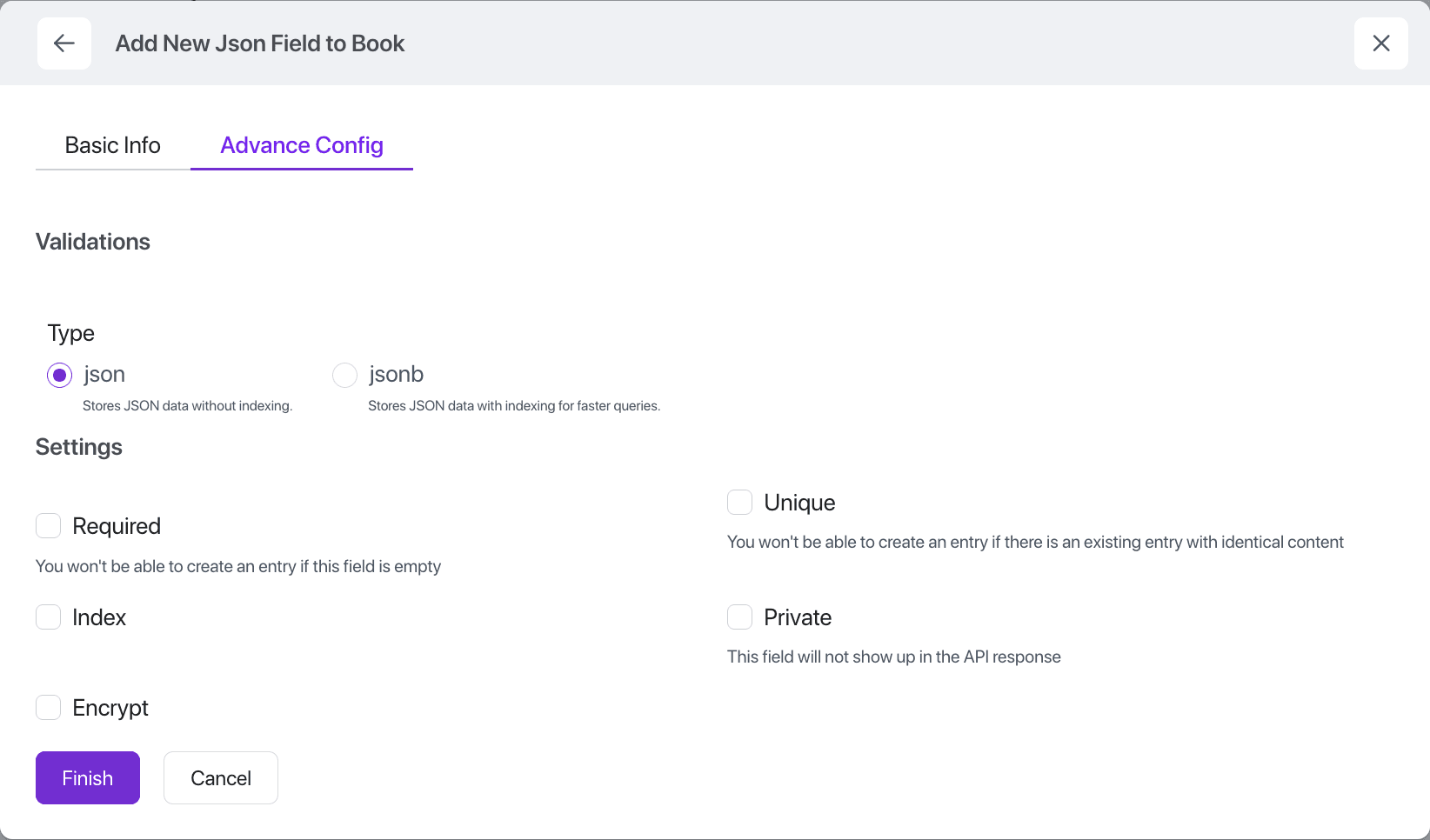
JSON fields are used to store structured data as key-value pairs. They support both json and jsonb storage formats-where jsonb allows efficient indexing and querying, making it ideal for advanced filtering and partial matching of nested data.
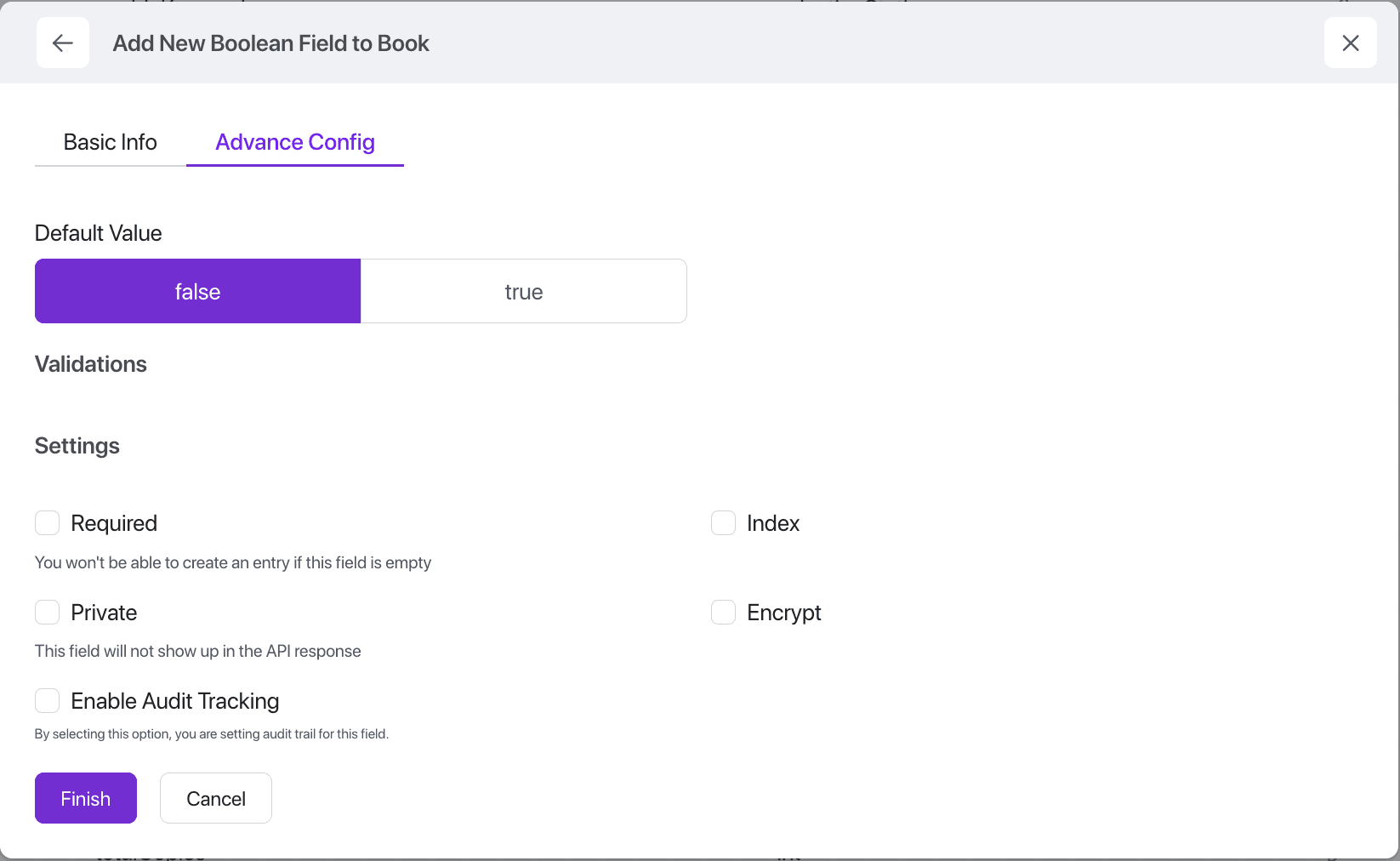
Boolean
Boolean fields store true or false values, commonly used for toggles, flags, or status indicators within your data model.
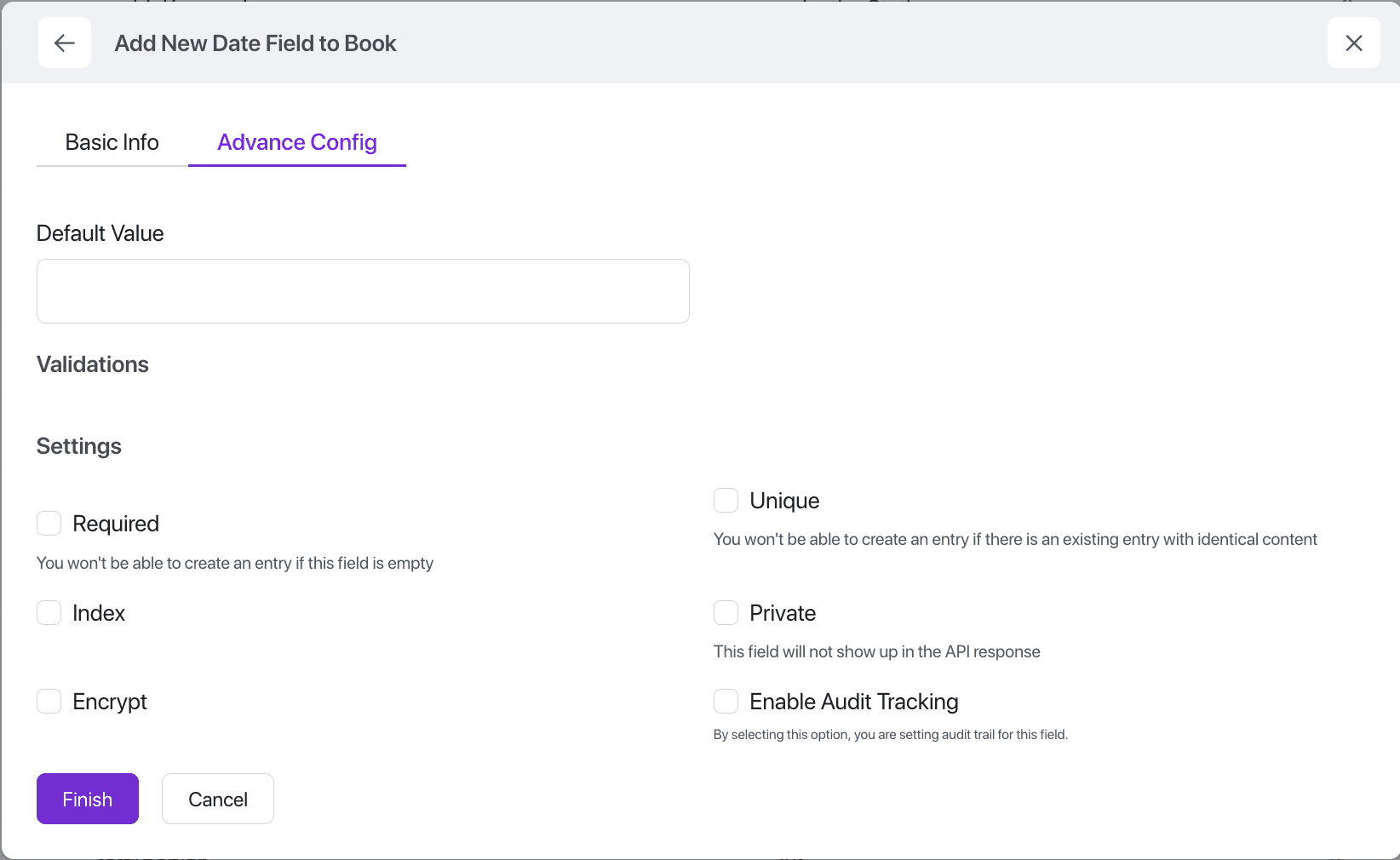
Date
Date fields are used to store calendar dates (without time), ideal for representing birthdays, deadlines, or scheduled events.
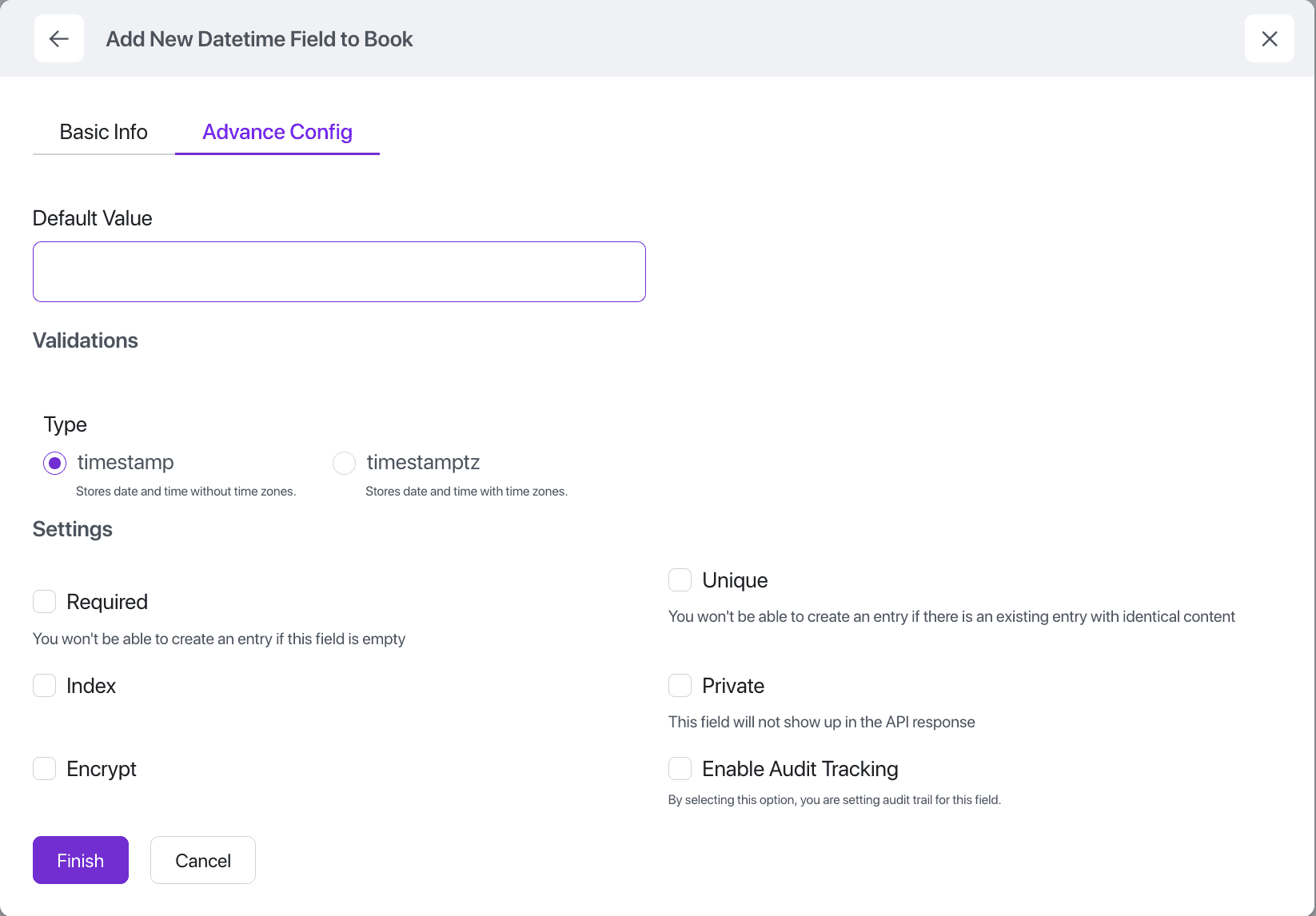
Datetime
Datetime fields store both date and time information, making them ideal for timestamps, scheduling, and tracking events with precise timing.
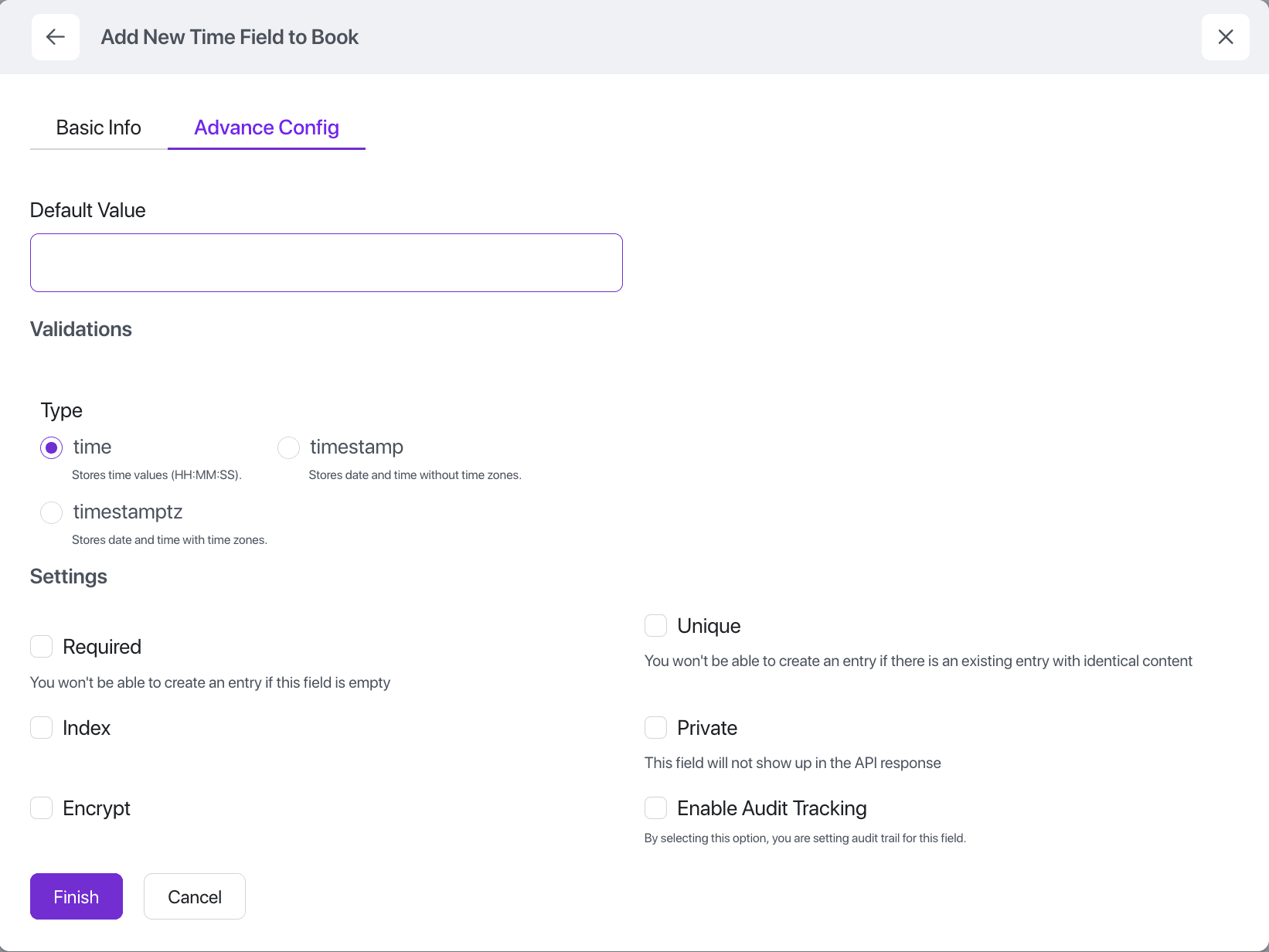
Time
Time fields store time-of-day values without a date, useful for representing hours and minutes such as business hours or appointment times.
Relation
Relation fields are used to define connections between different models, enabling you to represent real-world relationships between entities in SolidX. This core feature supports various types of associations, including many-to-one, one-to-many, and many-to-many, allowing flexible and powerful data modeling.
1. Many to one
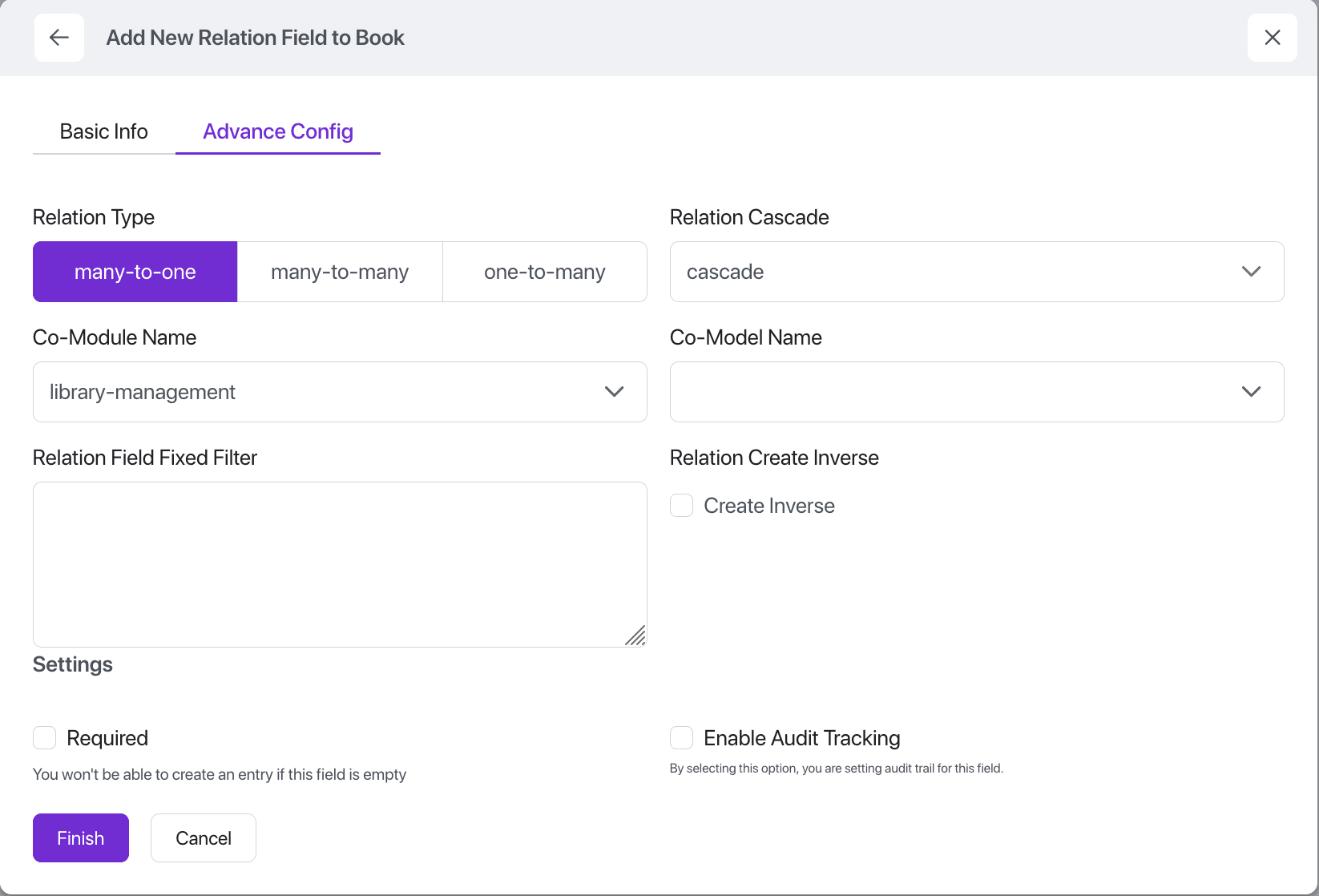
When you create a many-to-one relation field in SolidX, you can configure the following options to define and control the behavior of the relationship:
- Co-Module Name: This specifies the SolidX module where the related model (co-model) resides. SolidX supports relations across different modules, allowing you to connect entities even if they belong to separate modules. Example: If your Country model is in a module called Geography, and your State model is in a module called Regions, you would set the co-module name to Geography when adding the country relation to State.
- Co-Model Name: This is the target model that the relation points to. It usually represents the “one” side of the many-to-one relationship and is considered the strong side. Example: In the State model, adding a country field of type many-to-one points to the Country model, indicating that each state belongs to one country.
- Relation Cascade:
Defines what happens to the related records when the referenced record is deleted or updated. Common options include:
- Set Null: When the related record (e.g., a country) is deleted, the relation field in the dependent record (e.g., state) is set to null. Example: If a country is deleted, the country field in all related states will be cleared, but the states themselves remain.
- Restrict: Prevents deletion of the related record if there are dependent records pointing to it. Example: You cannot delete a country if there are states associated with it. You must first remove or reassign those states.
- Cascade: Automatically deletes dependent records when the related record is deleted. Example: If a country is deleted, all its associated states will also be deleted.
- Relation Create Inverse When enabled, SolidX automatically creates the inverse relation on the co-model to complete the bidirectional relationship. Example: If you add a many-to-one country field to the State model and enable this option, SolidX will create a one-to-many states field on the Country model. This allows you to easily access all states belonging to a country from the country’s side.
- Relation Field Fixed Filter When the many-to-one relation field is shown on a form (typically as an autocomplete dropdown), a fixed filter restricts which records are visible/selectable. This helps enforce business rules or contextual constraints. Example: Suppose you have multiple continents and want to restrict the country dropdown on the state form to only show countries from a specific continent (e.g., Europe). You could apply a fixed filter so only countries where continent = 'Europe' appear in the autocomplete dropdown for the country field on the state form.
2. Many to many
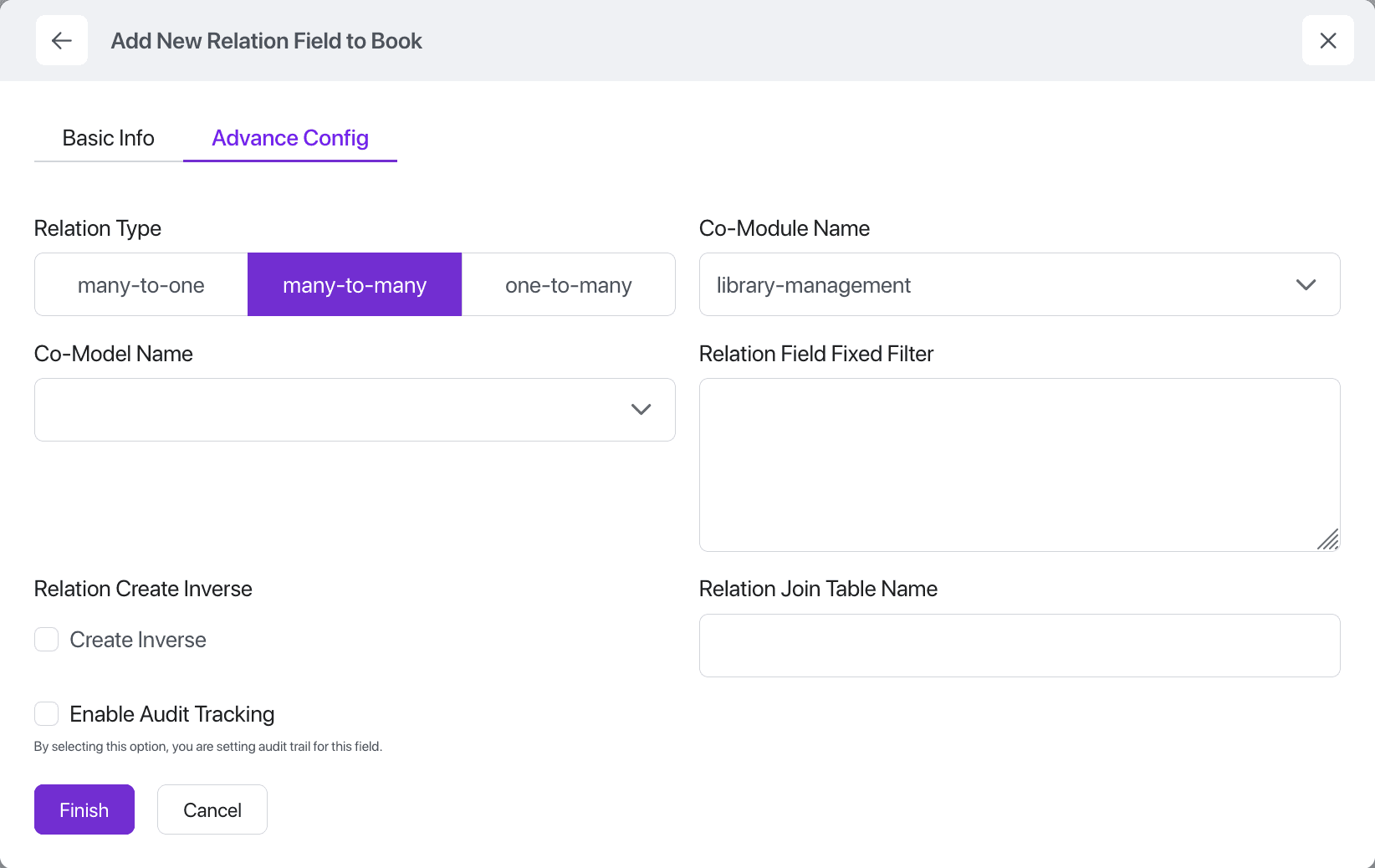
The many-to-many relation field in SolidX allows you to model scenarios where multiple records in one model can be related to multiple records in another. This is especially useful for representing complex, bidirectional relationships between entities.
- Co-Module Name Specifies the SolidX module where the related model (co-model) is defined. This enables relations across modules for better modularity. Example: If a Student model exists in the Academics module and a Course model in the Learning module, you can create a many-to-many relation between them.
- Co-Model Name The model to which this field creates a relation. This becomes the other side of the many-to-many association. Example: In the Student model, a many-to-many courses field would relate to the Course model.
- Join Table Name This is the name of the intermediate table that SolidX will use to manage the many-to-many relationship. Example: For a relation between Student and Course, you might specify a join table name like student_courses to store the links between student and course IDs.
- Relation Create Inverse When enabled, SolidX will automatically create a reciprocal many-to-many field on the co-model. Example: If a courses field is added to the Student model and this option is enabled, SolidX will also create a students field on the Course model, enabling easy navigation in both directions.
Use Case Example: In a school system, a student can enroll in multiple courses, and each course can have multiple students. A many-to-many relation field with a join table like student_courses is the most efficient and normalized way to model this relationship in SolidX.
3. One to many
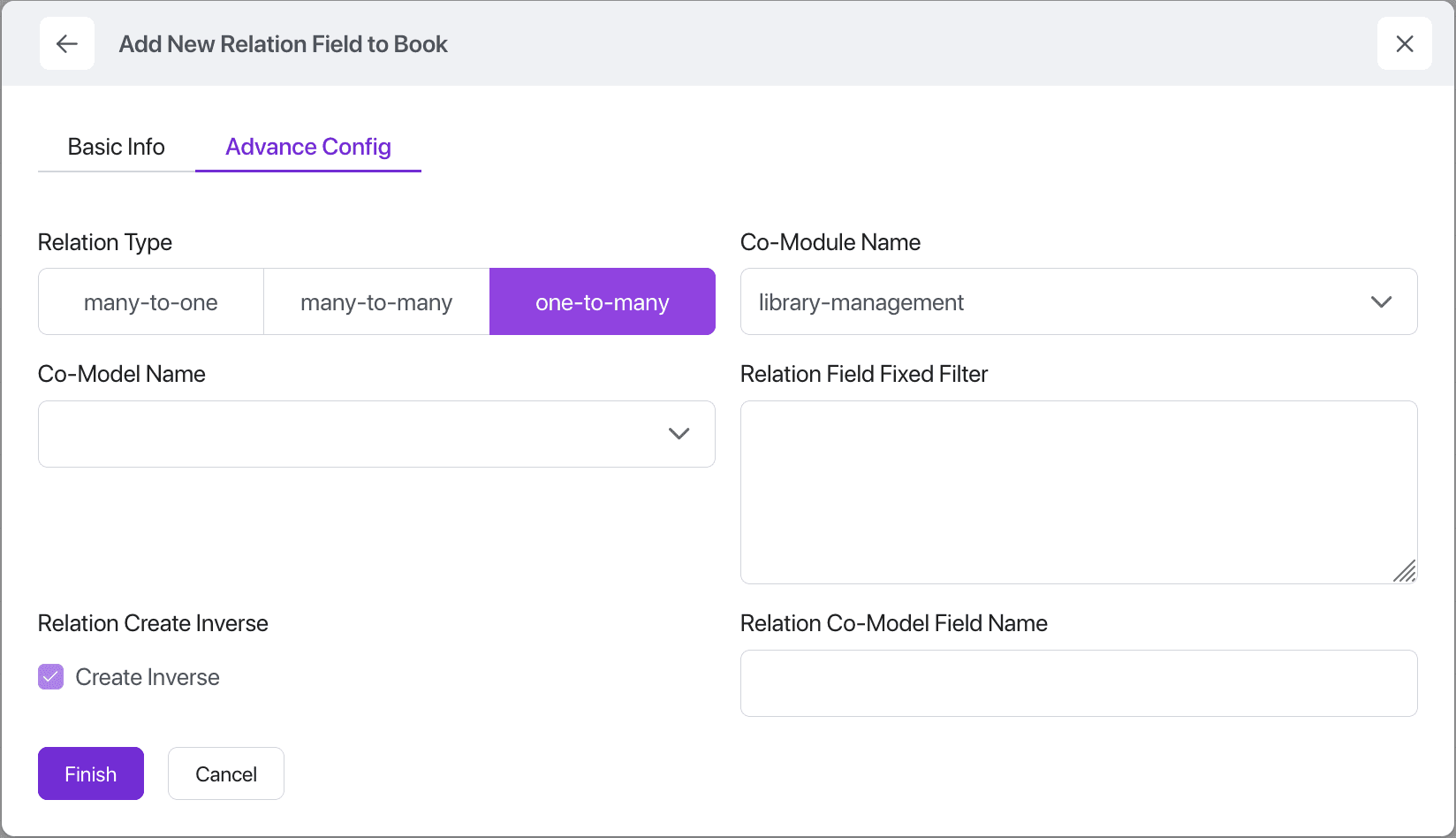
The one-to-many relation field in SolidX allows a single record in one model to be linked to multiple records in another model. It's commonly used to model parent-child relationships, where the "one" side acts as the parent and the "many" side as the child.
- Co-Module Name Specifies the SolidX module where the related model (co-model) is located, enabling relationships across modular boundaries. Example: If Country exists in the Geography module and State in the Regions module, a one-to-many relation from Country to State can span these modules.
- Co-Model Name Indicates the model on the "many" side of the relation. Example: In the Country model, a states field of type one-to-many would point to the State model, meaning a country can have multiple states.
- Relation Field Name (in Co-Model) This is the name of the corresponding many-to-one field in the co-model that this one-to-many relation points to. It ensures the relationship is correctly mapped. Example: In the Country model's states one-to-many field, this would typically point to the country field in the State model.
- Relation Create Inverse When enabled, SolidX will automatically generate the many-to-one field on the co-model if it doesn’t already exist. Example: Adding a states one-to-many field to the Country model will also create a country many-to-one field in the State model, if not already present.
Use Case Example: A Country can have many States, but each State belongs to only one Country. A one-to-many relation field on the Country model enables fetching all states under that country, while the reverse link is managed via a many-to-one country field in the State model.
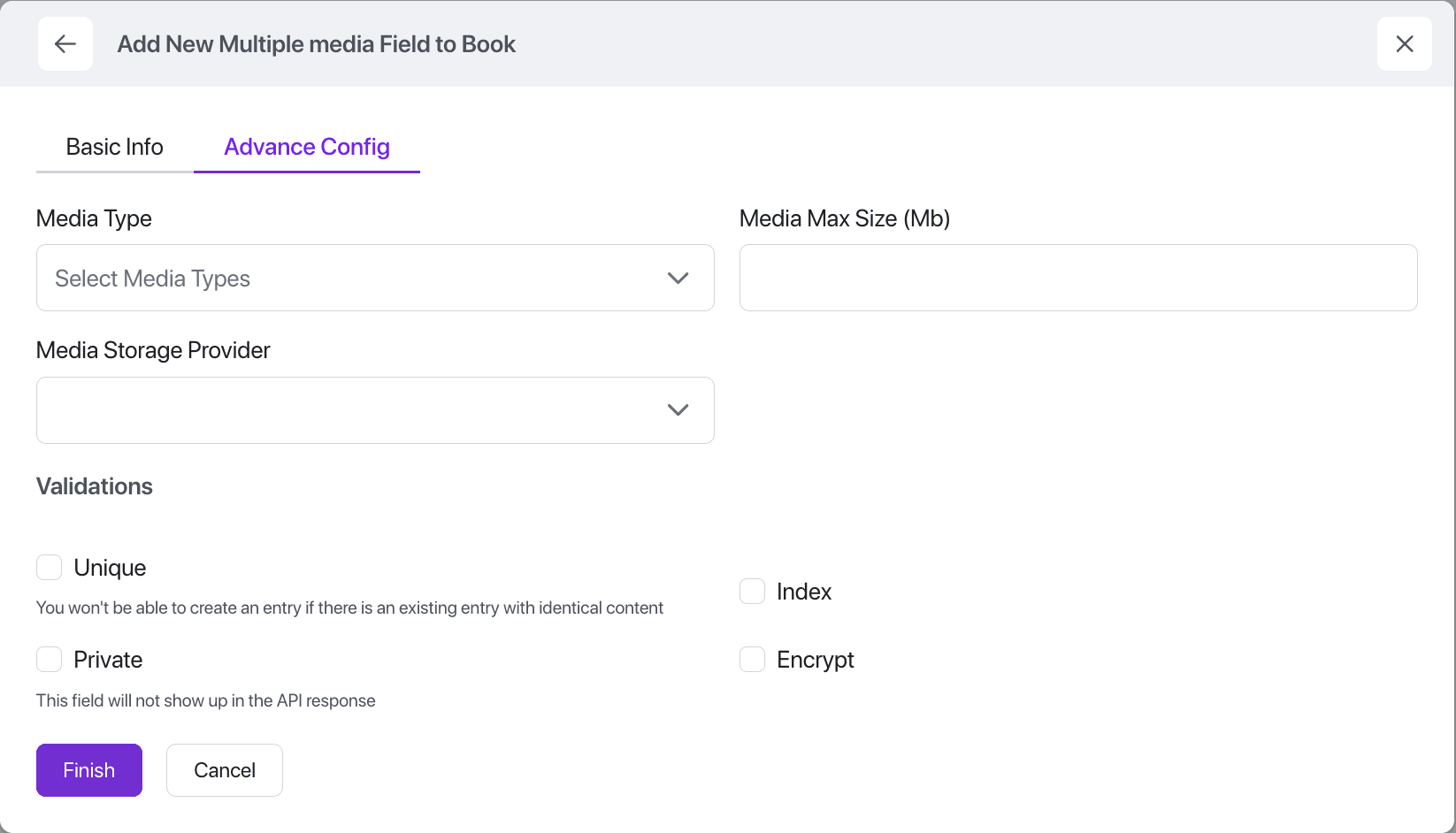
Single Media
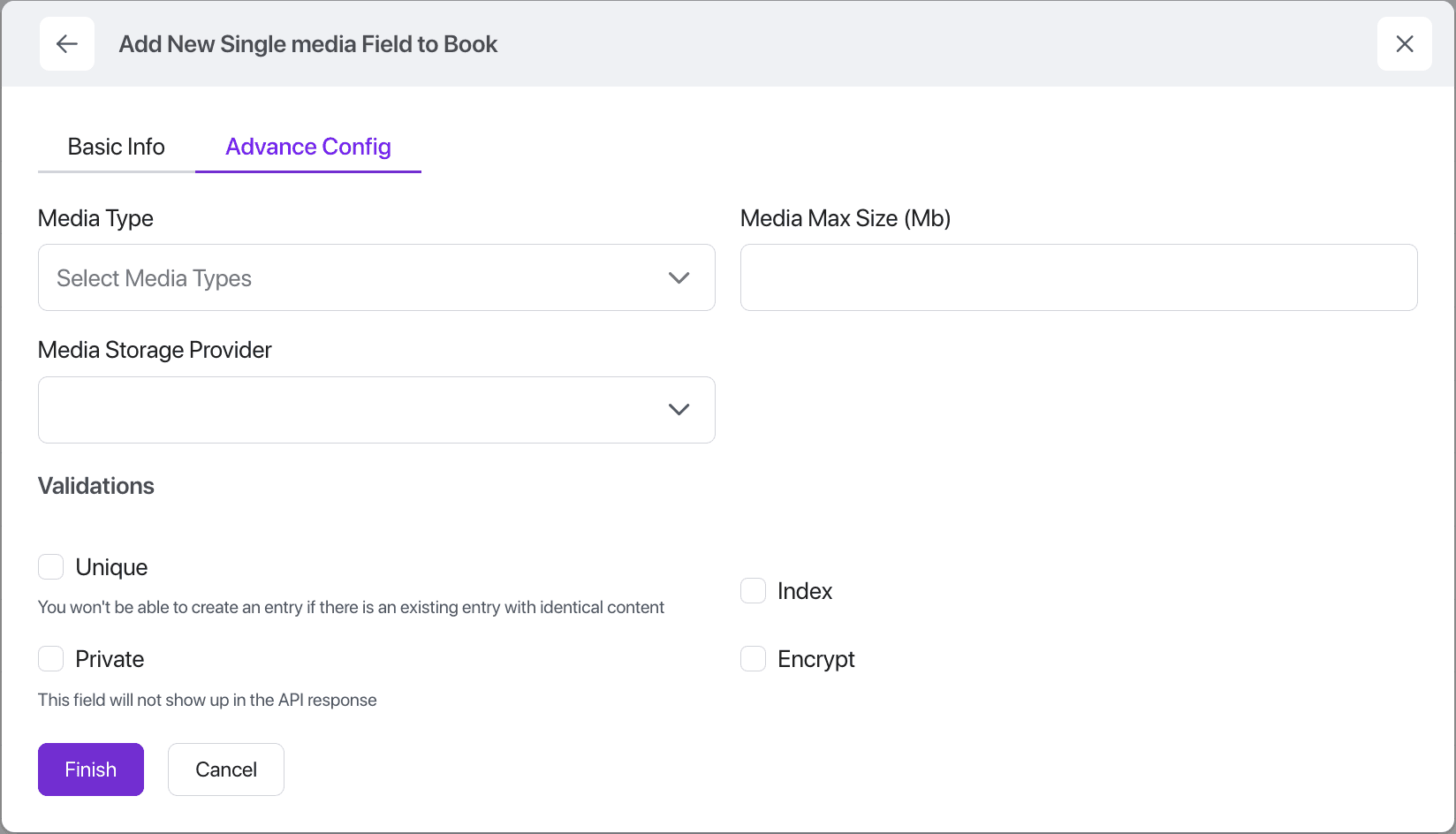
The Single Media field in SolidX allows users to upload and attach a single file to a record. It supports a wide range of file types and offers powerful configuration options to suit diverse application needs.
-
Allowed File Types Define which types of files can be uploaded. Multiple file categories can be selected, including:
- Image
- Audio
- Video
- Documents
-
Maximum File Size Set a maximum upload size (in megabytes) to restrict file size and ensure optimal storage and performance.
-
Media Storage Provider SolidX provides a flexible media storage provider abstraction, allowing files to be stored using different backends. This enables seamless integration with various storage systems. This abstraction is designed to be extensible, allowing future support for additional providers (like Google Cloud Storage, Azure Blob Storage, etc.) with minimal changes to your model or application logic.
- File System: Store files locally on the server's disk.
- AWS S3: Store files securely and scalably in Amazon's S3 cloud storage.
Use Case Example: Attach a user's profile picture, a scanned document, or a product video using the Single Media field, with full control over file type, size, and storage location.
Multiple Media
The Multiple Media field in SolidX enables attaching multiple files to a single record, making it ideal for use cases that require storing galleries, document sets, or file bundles.
All options available for Media Single fields are also applicable to the Media Multiple field.
Use Case Example: Use the Multiple Media field to attach a product image gallery, upload multiple reference documents to a case record, or associate several audio clips with a lesson.
The Email field in SolidX is designed to store valid email addresses with built-in validation to ensure data correctness.
Password
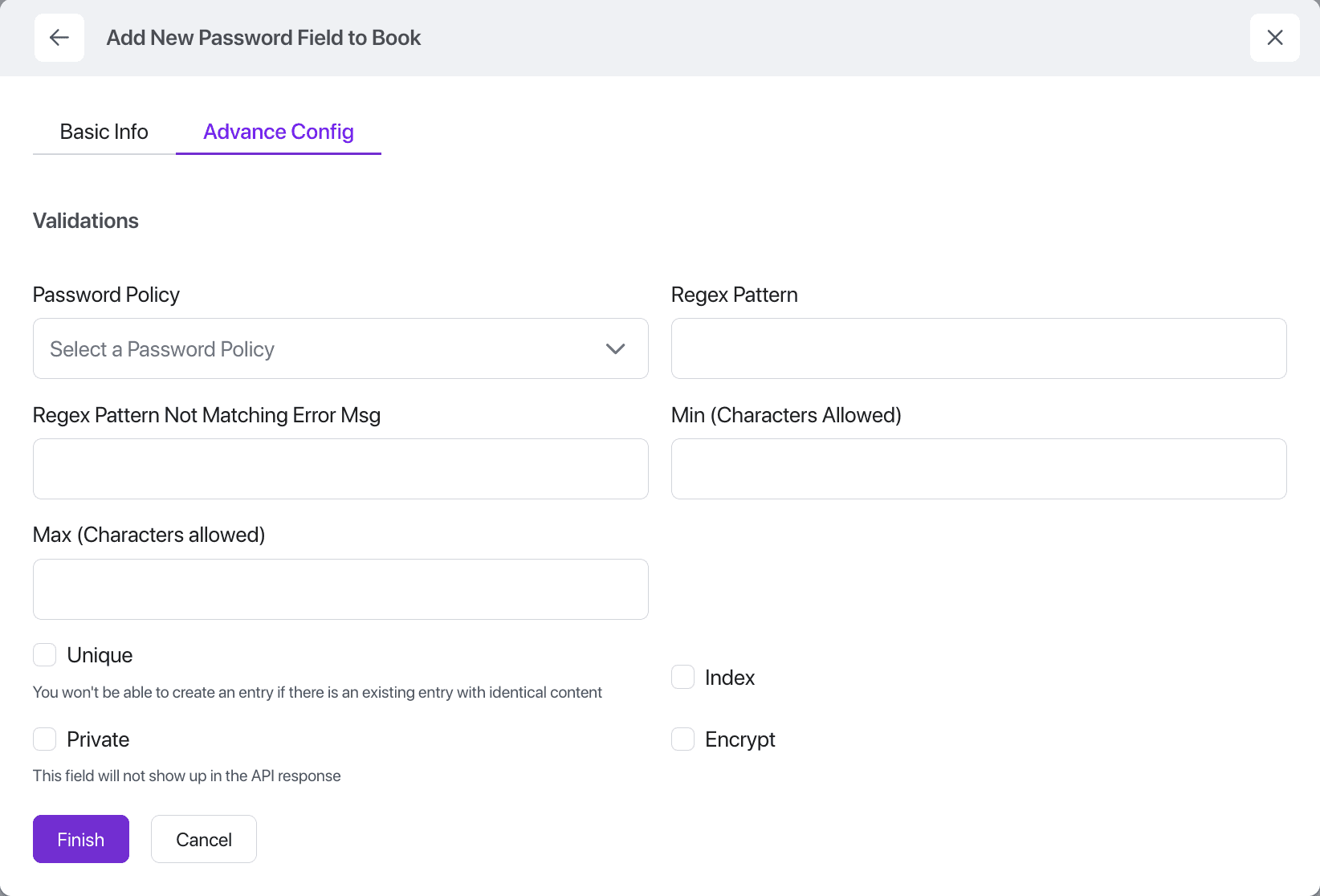
The Password field in SolidX is designed for securely capturing and validating user passwords, with built-in UI enhancements and configurable password policies.
Key Features:
- Automatic Confirm Password Handling When rendered in the form view, the Password field automatically includes a “Confirm Password” input and validates that both entries match before submission.
- Password Policy Options
Enforce strong password requirements by choosing from predefined policies or defining your own:
- Lowercase and Uppercase Alphabets Required: Ensures the password includes both lowercase and uppercase letters.
- Lowercase, Uppercase, and Numbers Required: Ensures the password includes letters (both cases) and at least one digit.
- Lowercase, Uppercase, Numbers, and Special Characters Required: Enforces a strong password with a mix of cases, numbers, and symbols.
- Custom: Define your own regular expression and a custom validation message to fit unique security requirements.
- Secure Storage Passwords are automatically hashed before being stored in the database, never saved in plain text.
Use Case Example: Use the Password field for user registration or authentication forms, with built-in security practices and configurable policies to enforce strong password standards.
Static Selection
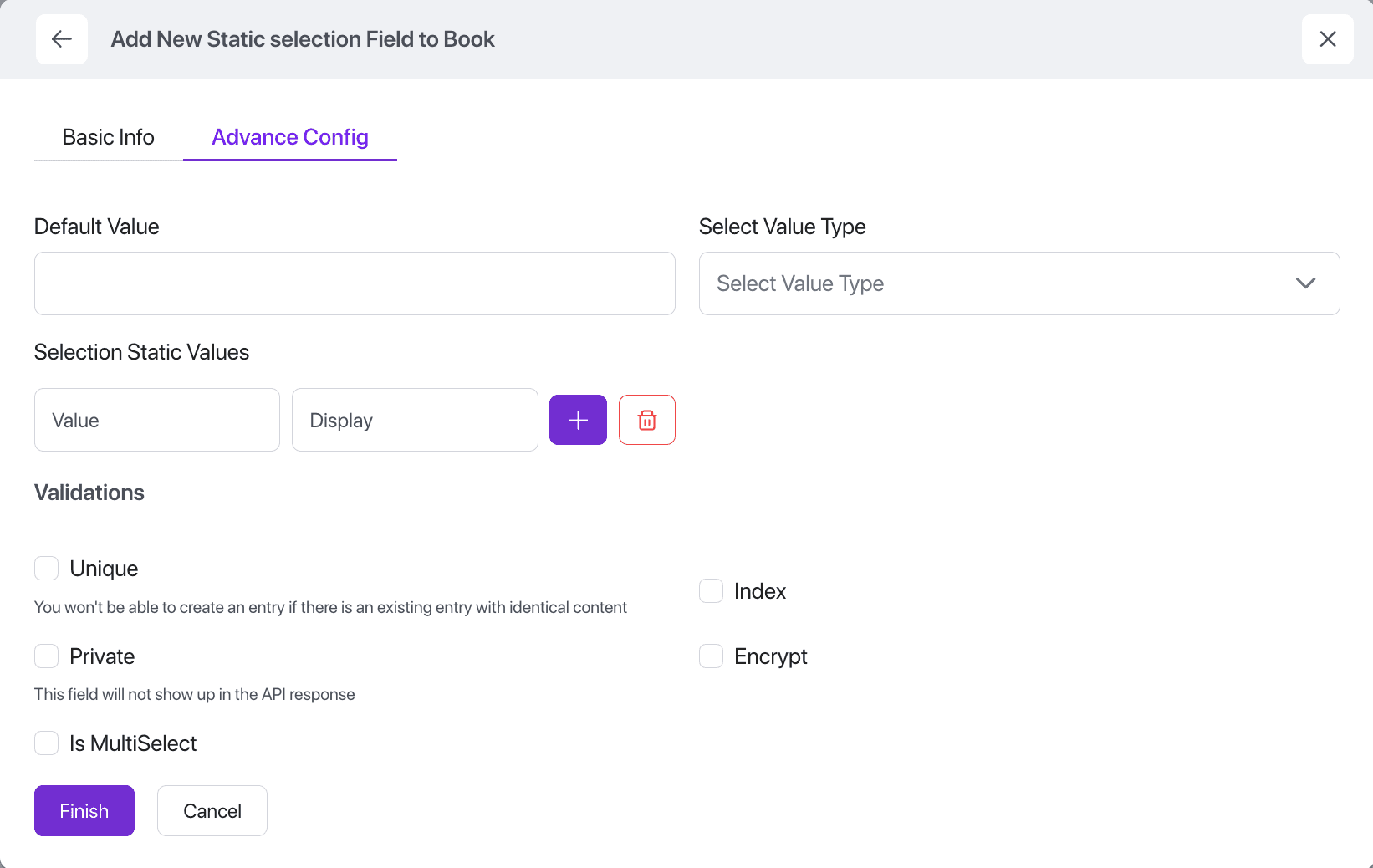
The SelectionStatic field in SolidX allows users to choose a value from a predefined, fixed list of options. It’s ideal for dropdowns, radio buttons, or selection lists where the choices are known and unchanging.
- Static List of Options Define a set of options as label–value pairs. Example:
[
  { "label": "Active", "value": "active" },
  { "label": "Inactive", "value": "inactive" }
]-
Configurable Value Type: Choose the data type for the stored value:
- String: e.g., "active", "pending"
- Integer: e.g., 1, 2, 3
-
Form Rendering Automatically rendered as a dropdown or selectable list in the form view, providing a clean and user-friendly experience. By default rendered as a dropdown, however one can control the render mode by specifying a different widget.
Use Case Example: Use a SelectionStatic field to store a user's status (Active/Inactive), a priority level (High, Medium, Low), or any other field where the choices are limited and predefined.
Dynamic Selection
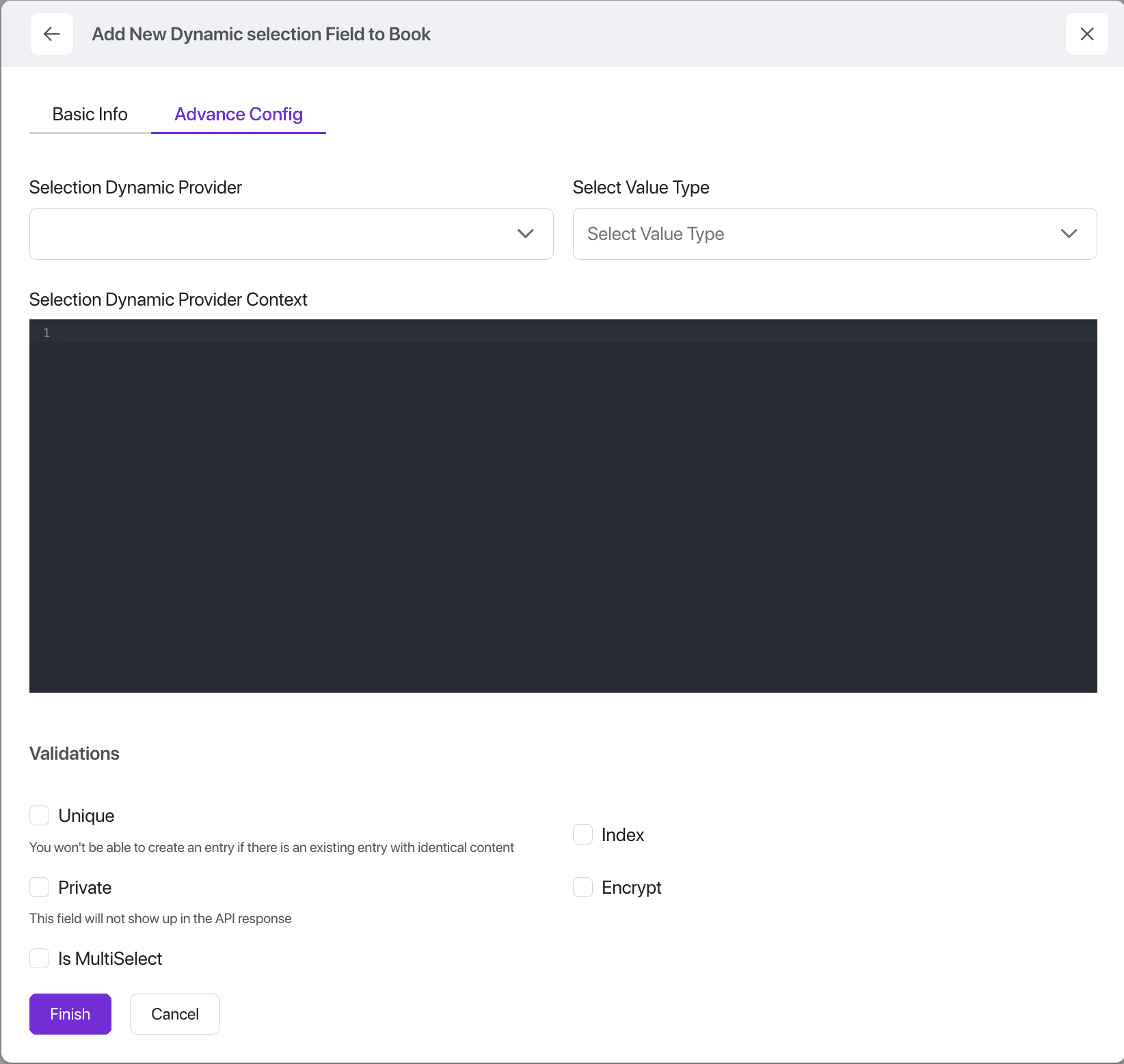
The SelectionDynamic field provides all the usability of a dropdown or selectable list-just like the SelectionStatic field-but with dynamic, runtime-driven values sourced from backend logic.
Key Features:
- Dynamic Data Source: Values are fetched at runtime from a backend SelectionDynamicProvider, a NestJS service class that implements a standard interface defined by SolidX. This enables integration with external APIs, databases, or complex business rules.
- Context Support: A JSON object can be passed to the provider to supply runtime context-such as the current user, form data, or other filters-to dynamically control which options are returned.
- Type Safety & Flexibility: The returned options follow the familiar label-value format, and the value type can be configured as either a string or integer.
Advanced Use Case Example: Let's say you're building an event management app in SolidX. When creating a new session, you want to select a speaker for that session-but only from a list of available speakers who are:
- Assigned to the same event
- Not already booked in another session at the same time
Using a SelectionDynamic field:
- A SpeakerAvailabilityProvider service dynamically filters and returns eligible speakers.
- Context is passed with the event ID and session time slot, so only valid options are shown.
- The dropdown auto-updates if the form data changes (e.g., time slot is updated).
Note: Developers can create and register custom SelectionDynamicProvider services easily. More details and example implementations are available in the developer documentation.
Computed
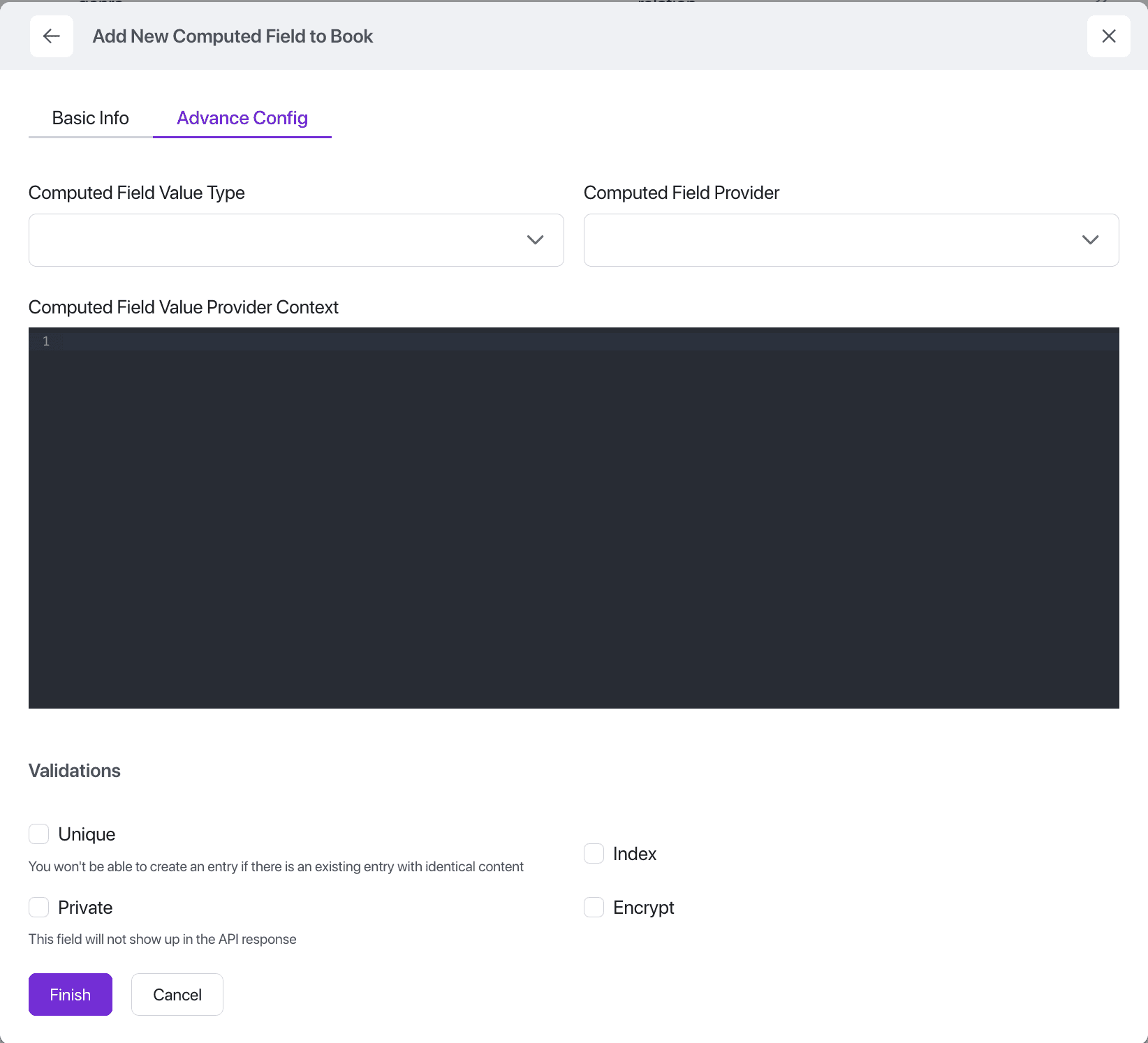
TODO: Write this after the computed field ticket is done.
UUID
TODO: Maybe we remove and replace with a computed field only...
Generated Code
Every field type has a specific impact on how the code is generated by SolidX.
TODO: More details on this can be found in the developer documentation section.