

Modules
Modules
When creating a new module in SolidX, you're defining a core building block of your application. A module is a logical container that groups together related models and functionality under a unified domain or feature area.
Creating a Module
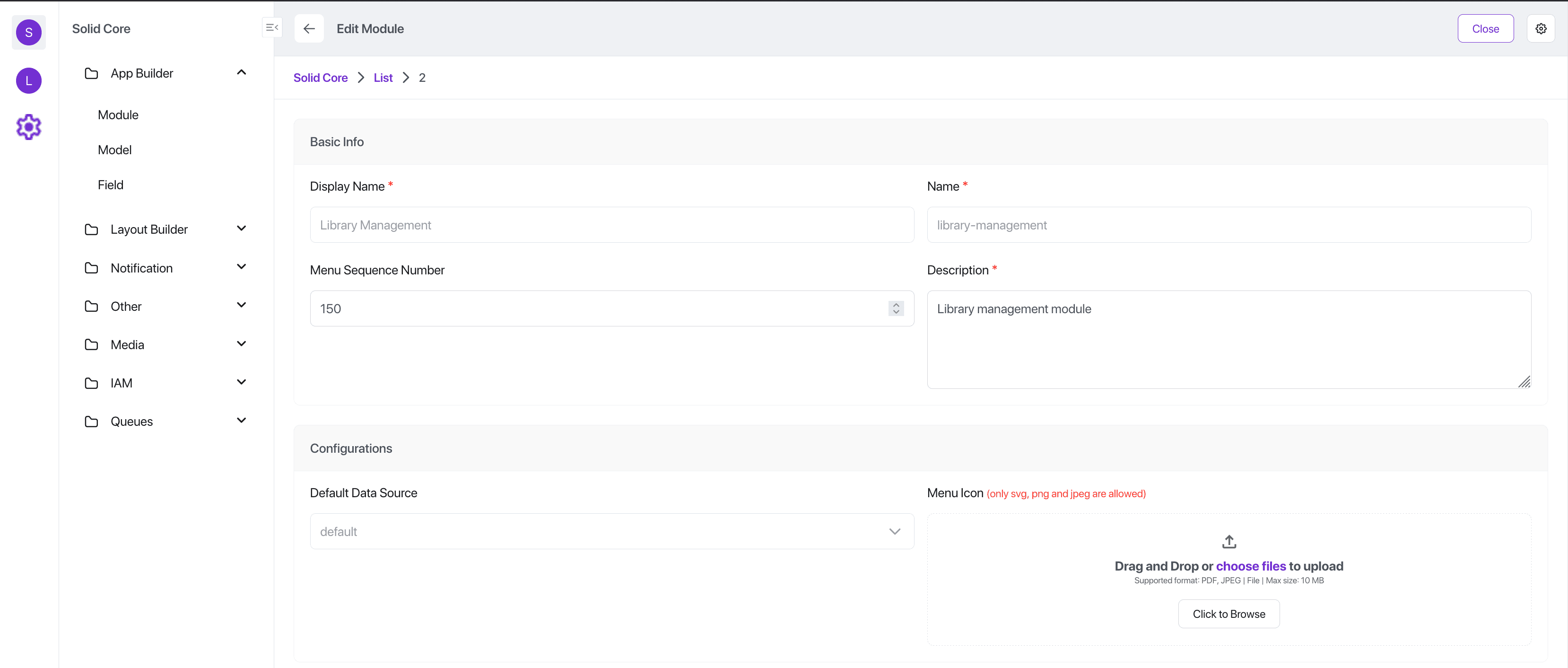
To create a new module:
- Navigate to the App Builder, then click on the "Module" menu item.
- This will show a list of existing modules in the system.
- Click on "New Module"
- To create a module, you'll be prompted to provide the following metadata:
Module Metadata
| Field | Description |
|---|---|
| Display Name | This is the human-readable name of the module that will appear in the admin panel's navigation and UI elements (e.g., "Sales Management") |
| Name | A unique identifier for the module, usually in lowercase and using underscores or dashes. This is used internally by the system and in the API (e.g., "sales") |
| Menu Sequence Number | Determines the order in which the module appears in the sidebar or navigation menu. Lower numbers appear first. |
| Description | A short summary of what the module represents or what functionality it encapsulates. Helps other team members understand its purpose at a glance. |
| Data Source | Select the default data source (from a predefined list) that the module will use to read and write its data. Read More. |
| Icon | Choose an icon to visually represent the module in the UI. This helps in quickly identifying modules in the navigation pane. |
Once you've entered the above details, saving the module will register it in SolidX and allow you to start defining models within it.
Generate Module
After creating the module Metadata you need to click on the "Generate Module" action button.
You can find this action button in the list view context menu for each row.
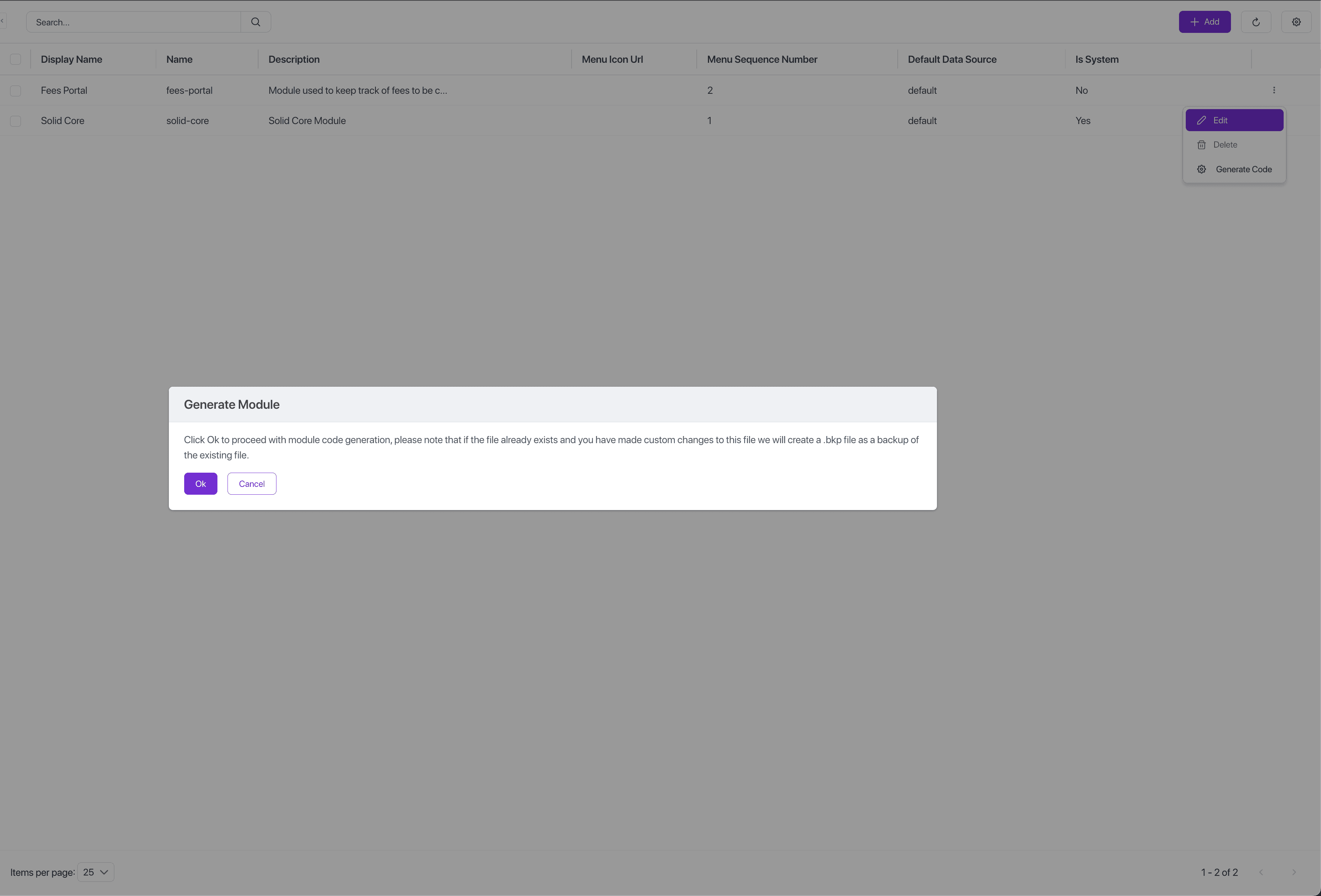
Generated Code
After you click on "Generate Module" in the background SolidX does the following.
-
Makes an entry in the ss_module_metadata table. This is a solid core table which contains the details that we just entered.
-
Create the module folder. A folder is created at this location
<project-root>/solid-api/<module-name>. This folder will contain a single file called<module-name>.module.ts. Keeping in line with our design goal of following industry best practices we have simply generated a standard NestJS module. -
Register the module. Since we are using NestJS modules, SolidX also automatically registers this module in the main app.module.ts file.
Datasource Configuration
When the SolidX project is bootstrapped by default we expect at-least one data source to be configured.
This is taken care of when a new project is bootstrapped using solidctl create-app
As part of this bootstrapping a default data source is pre-configured in the file <project-root>/solid-api/src/app-default-database.module.ts
import { Module } from '@nestjs/common';
import { TypeOrmModule } from '@nestjs/typeorm';
import * as SolidCoreModuleExports from '@solidxai/core';
import { DatasourceType, getDynamicModuleNames, ISolidDatabaseModule, SolidDatabaseModule } from '@solidxai/core';
import { WINSTON_MODULE_PROVIDER } from 'nest-winston';
import { join } from 'path';
import { getMetadataArgsStorage } from 'typeorm';
import { SnakeNamingStrategy } from 'typeorm-naming-strategies';
import { Logger } from 'winston';
import { WinstonTypeORMLogger } from '@solidxai/core'; // Assuming you have this custom logger

function getEntitiesFromExports(exports: Record<string, any>) {
    const metadataStorage = getMetadataArgsStorage();
    return Object.values(exports).filter((item) =>
      metadataStorage.tables.some((table) => table.target === item)
    );
}
const coreEntities = getEntitiesFromExports(SolidCoreModuleExports);

@Module({
    imports: [
        TypeOrmModule.forRootAsync({
            useFactory: (logger: Logger) => {
                const dynamicModules = getDynamicModuleNames();

                const entities = [
                    ...coreEntities,
                    ...dynamicModules.map(module =>
                        join(__dirname, `./${module}/entities/*.entity.{ts,js}`)
                    ),
                ];

                return {
                    type: 'postgres',
                    host: process.env.DEFAULT_DATABASE_HOST,
                    port: +process.env.DEFAULT_DATABASE_PORT,
                    username: process.env.DEFAULT_DATABASE_USER,
                    password: process.env.DEFAULT_DATABASE_PASSWORD,
                    database: process.env.DEFAULT_DATABASE_NAME,
                    entities: entities,
                    synchronize: Boolean(process.env.DEFAULT_DATABASE_SYNCHRONIZE),
                    logging: Boolean(process.env.DEFAULT_DATABASE_LOGGING),
                    logger: new WinstonTypeORMLogger(logger),
                    namingStrategy: new SnakeNamingStrategy(),
                }
            },
            inject: [WINSTON_MODULE_PROVIDER]
        }),
    ],
})
@SolidDatabaseModule()
export class DefaultDBModule implements ISolidDatabaseModule {
    type(): DatasourceType {
        return DatasourceType.postgres;
    }

    name(): string {
        return 'default';
    }
}
Again in keeping with our design principle of flexibility you can add as many datasources as you like, and have a module use a given datasource as its default datasource. More details on this can be found in the developer docs where we talk about configuring multiple datasources.
Related Recipes
Below is a list of recipes that are relevant to module management.
- Additional Datasources: This recipe talks about how you can add additional data sources to your application.