
Media Providers
Media Providers
Storing files is a commonly repeated activity in any enterprise application, a modern cloud native enterprise application will use a storage provider like AWS S3 for this purpose. SolidX currently supports storing and retrieving files on a traditional filesystem or on AWS S3.
In the near future we will also support Azure Blob storage.
- AWS S3: A cloud storage option using your own S3 bucket.
- Default File System: A local storage method that uses
multerto store files in the./media-uploadsdirectory.
SolidX abstracts away the complexity, allowing you to configure either of these with just a few steps. We'll first walk through how to enable AWS S3 as your media provider, and then how to set up the default local file system.
Enable S3 as a media provider
To enable media uploads to AWS S3, follow these steps as a Solid Admin:
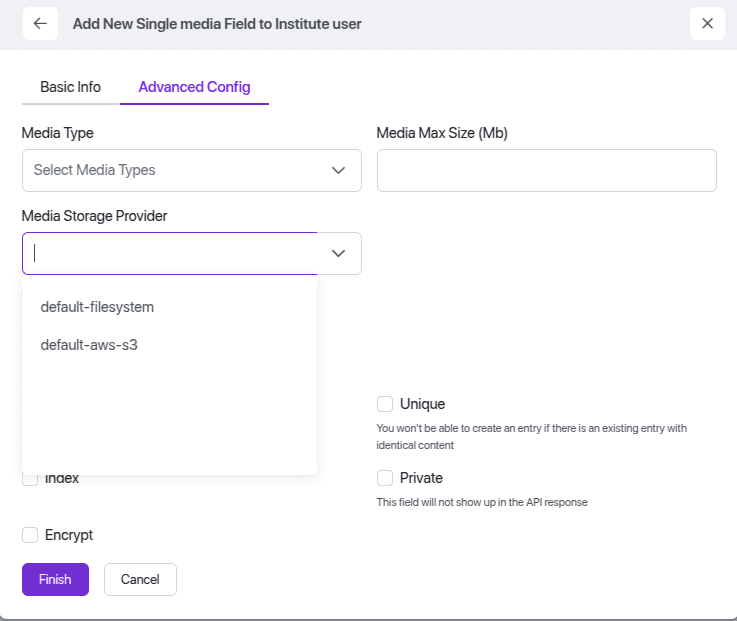
Step 1: Select Media Storage Provider
- While creating or editing a model field of type Media, scroll to the Advanced Configuration section.
- From the Media Storage Provider dropdown, select Default aws S3.
Step 2: Access Media Storage Providers
- Go to the Solid Admin panel.
- Navigate to Media → Media Storage Providers.
- You will see two storage options:
- AWS S3 List
- Default File System
Step 3: Edit the AWS S3 Configuration
-
Click Edit on the AWS S3 List item.
-
Fill in the following required fields:
- Region: Your AWS region (e.g.,
us-east-1) - Bucket Name: The name of your S3 bucket
- Region: Your AWS region (e.g.,
-
If your AWS S3 bucket is private, also set the Signed URL Expiry value (in minutes). This defines how long the signed URL will remain valid when retrieving media files from the private bucket.
-
Click Save to store the configuration.
Step 4: Update Environment Variables
Ensure your .env file includes the following keys:
S3_AWS_ACCESS_KEY=your-access-key
S3_AWS_SECRET_KEY=your-secret-key
S3_AWS_REGION_NAME=your-region-name
Enable Filesystem as a media provider
To store media files on the local File System, follow the steps below while configuring your model:
Step 1: Select Media Storage Provider
- While creating or editing a model field of type Media, scroll to the Advanced Configuration section.
- From the Media Storage Provider dropdown, select Default File System.
This setting ensures that uploaded media for this field will be stored on the server's local file system instead of an external service like AWS S3.
All uploaded files will be physically stored inside the media-uploads/ folder.
Step 2: Set Base URL in Environment File
In your .env file, make sure to include the base URL for accessing locally stored media:
BASE_URL=http://your-domain.com/media