

Microsoft OAuth
Guide to configuring Microsoft OAuth authentication
Overview
This document provides a guide on how to configure and use Microsoft OAuth authentication. The implementation uses Microsoft Entra ID (formerly Azure Active Directory) to allow users to sign in with their Microsoft accounts.
Microsoft Entra ID Configuration (Azure Portal)
To use Microsoft OAuth, you must register an application in the Microsoft Entra admin center.
1. Register an Application
- Log in to the Microsoft Entra admin center (formerly Azure Portal).
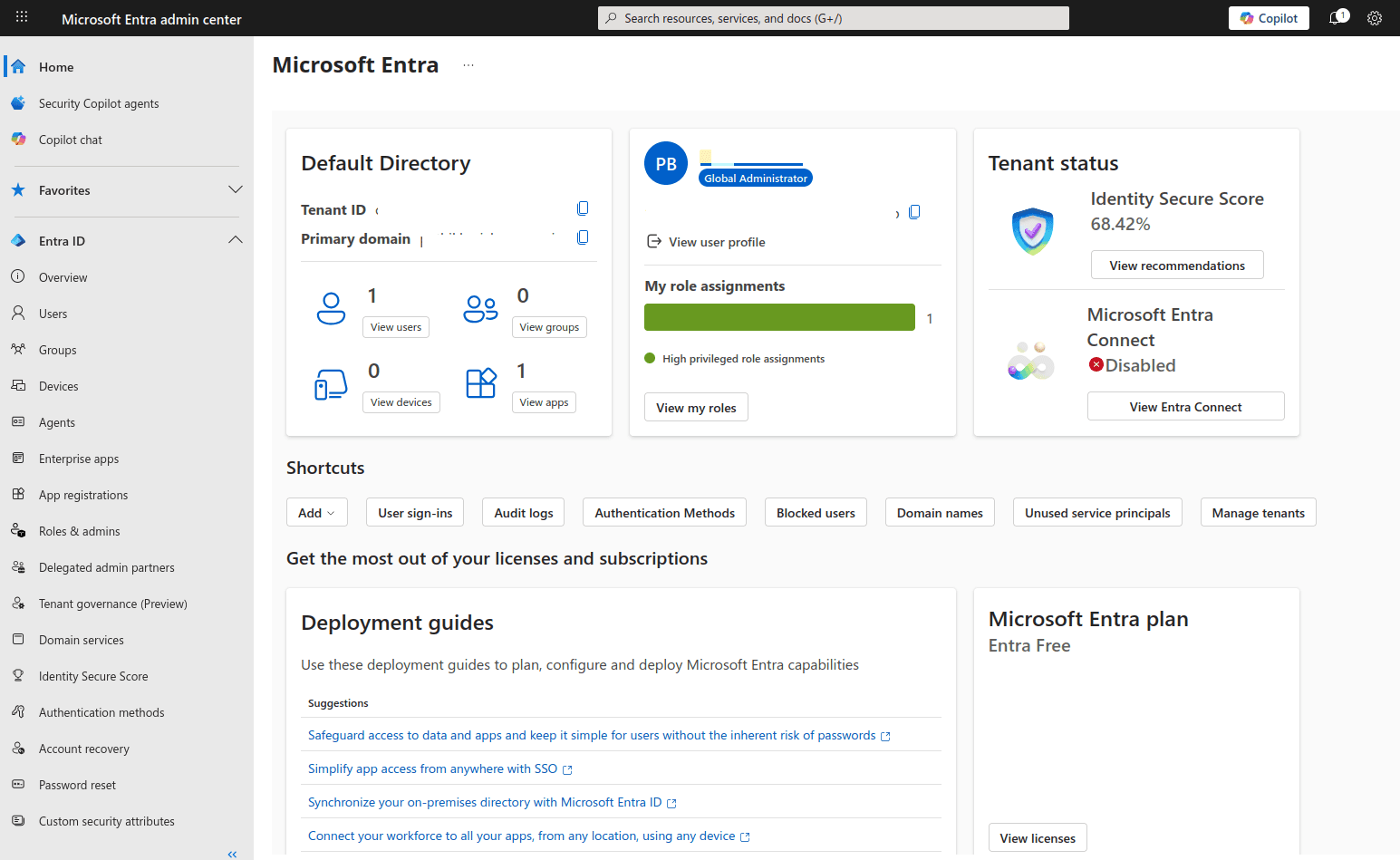
- Click on App registrations.
- Click New registration.
- Enter a name for your application (e.g.,
SolidCore-App).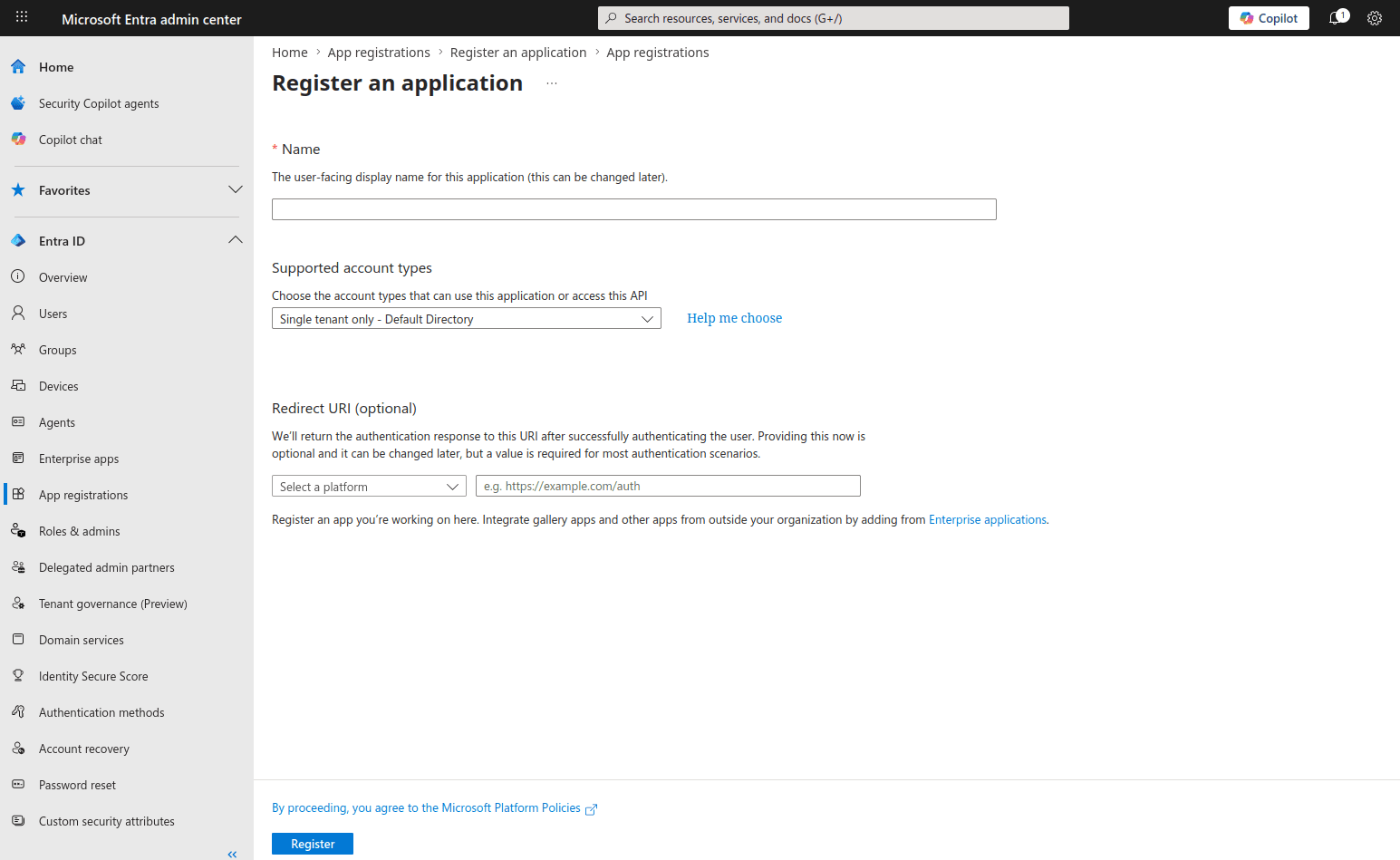
- Choose the Supported account types (e.g., "Accounts in any organizational directory and personal Microsoft accounts").
- In the Redirect URI section, select Web and enter your callback URL:
- Development:
http://localhost:3000/api/iam/microsoft/connect/callback - Production:
https://your-api-domain.com/api/iam/microsoft/connect/callback
- Development:
- Click Register.
2. Get Application and Tenant IDs
- After registration, you will be on the application's Overview page.
- Copy the Application (client) ID.
- Copy the Directory (tenant) ID.
3. Create a Client Secret
- Navigate to Certificates & secrets > Client secrets.
- Click New client secret.
- Add a description and set an expiration time.
- Click Add.
- IMPORTANT: Copy the secret Value immediately. You will not be able to see it again.
Configuration (Environment Variables)
Add the following environment variables to your .env file:
# Microsoft OAuth Configuration
IAM_MICROSOFT_OAUTH_CLIENT_ID=your-application-id
IAM_MICROSOFT_OAUTH_CLIENT_SECRET=your-client-secret
IAM_MICROSOFT_OAUTH_TENANT_ID=common
IAM_MICROSOFT_OAUTH_CALLBACK_URL=http://localhost:3000/api/iam/microsoft/connect/callback
IAM_MICROSOFT_OAUTH_REDIRECT_URL=http://localhost:4200/auth/microsoft/callback
Authentication Flow
User clicks the Microsoft sign-in button in the application.
The application redirects to Microsoft's login page for authentication.
User logs in with their Microsoft account and grants the application permission to access their email and profile.
Microsoft sends back a confirmation that the user is authenticated.
The application receives the confirmation and creates an internal session for that user.
The application logs the user in and grants access to the app.