

Module Package Import & Export
Module Package Import & Export
SolidX modules can be packaged into portable .sldx archives and moved between instances. This lets you share a completed module with other teams, back up your work, or distribute pre-built modules without recreating them from scratch.
A .sldx file is a zip archive containing the module's API source files, UI source files, and a manifest.json that describes the package structure and records file checksums.
Not available in production
Module import and export are disabled when the environment is set to ENV=prod. These operations are intended for development and staging environments only.
Exporting a Module
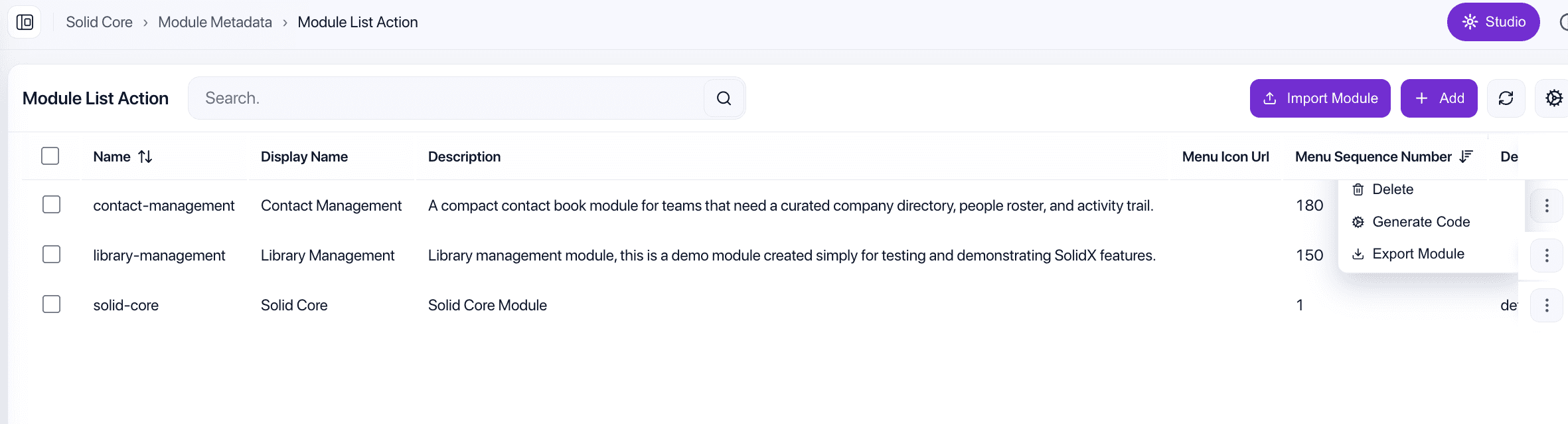
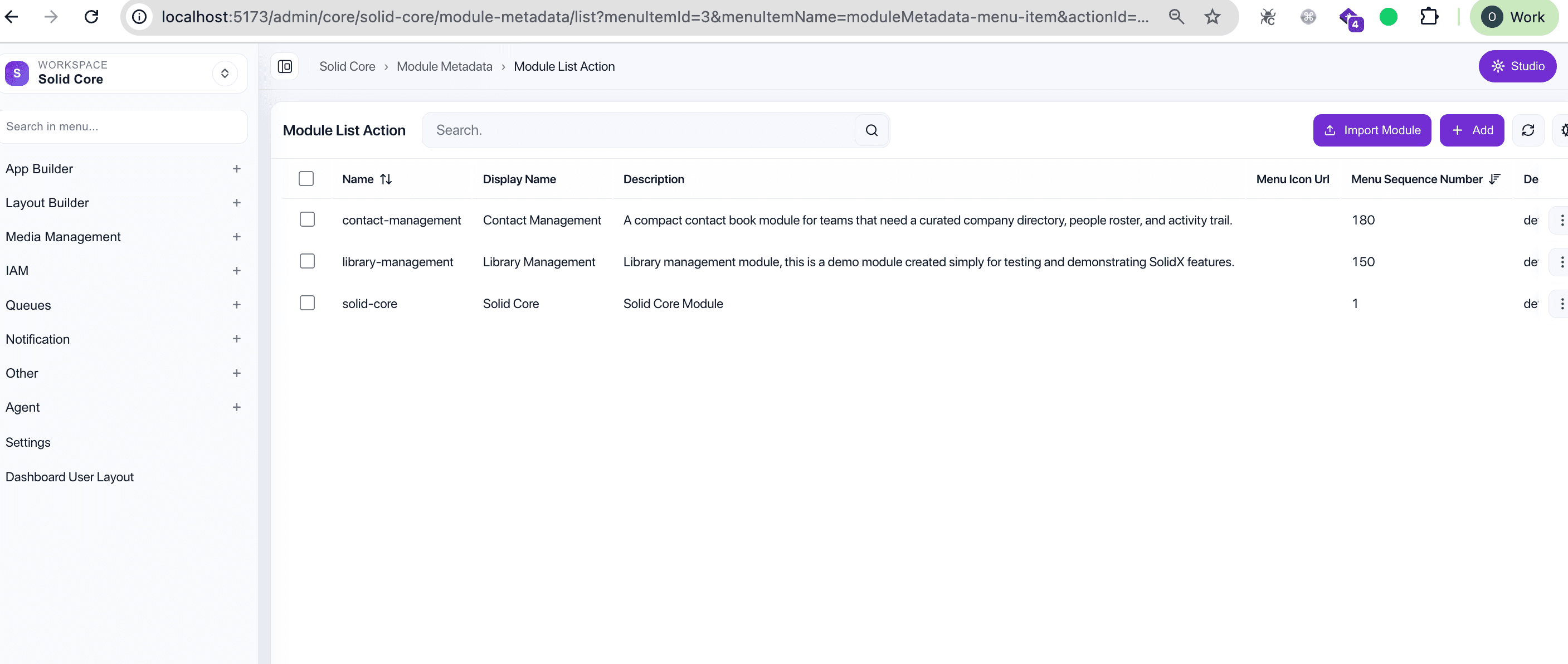
- Navigate to Solid Core → Module Metadata in the sidebar.
- In the module list, open the row context menu (the
⋮icon) for the module you want to export. - Click Export Module.
- The browser downloads a file named
{moduleName}.sldx.
The archive contains:
| Path in archive | Contents |
|---|---|
manifest.json | Package metadata, checksums, schema version |
solid-api/src/{moduleName}/ | NestJS API source for the module |
solid-ui/src/{moduleName}/ | React UI source for the module |
solid-api/src/{moduleName}/metadata/{moduleName}-metadata.json | Module metadata definition |
Importing a Module

Import is a four-step wizard. Click Import Module in the top-right corner of the Module Metadata list to open it.
Step 1 - Preview
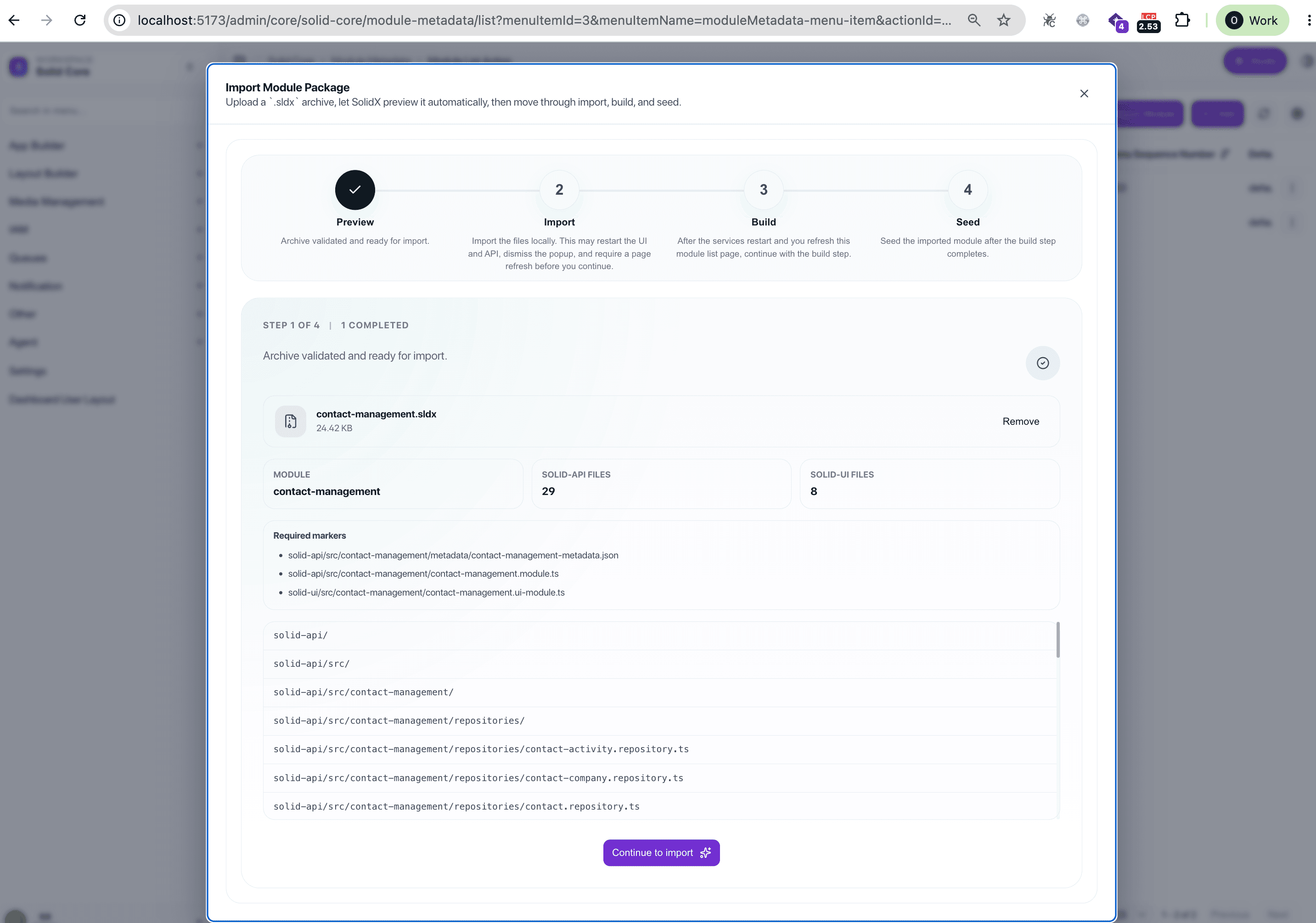
Upload a .sldx archive using the Browse archive button. SolidX validates the archive automatically and shows a preview:
- MODULE - the module name embedded in the manifest
- SOLID-API FILES - number of API source files in the archive
- SOLID-UI FILES - number of UI source files in the archive
- Required markers - the three key files that must be present for a valid package
- Full file tree of all archive contents
Once validation passes, click Continue to import to proceed.
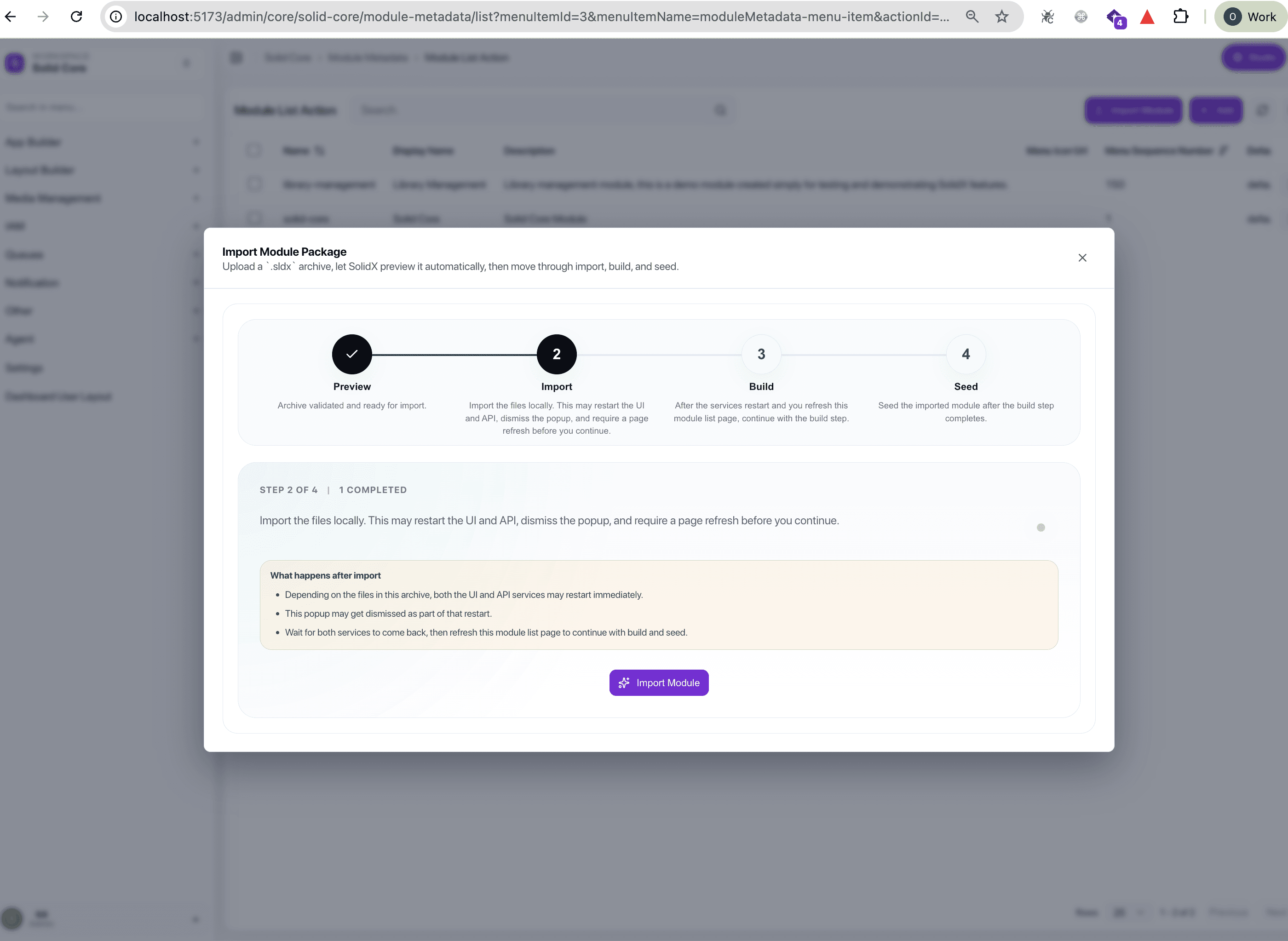
Step 2 - Import
SolidX copies the module files into the project directories:
- API files →
solid-api/src/{moduleName}/ - UI files →
solid-ui/src/{moduleName}/
Services may restart
Copying new source files can trigger a restart of both the UI and API services. If the popup is dismissed during this step, wait for both services to come back online, then refresh this page and reopen the Import Module dialog - the in-progress transaction will be automatically resumed.
Click Import Module to start the file copy.
Step 3 - Build
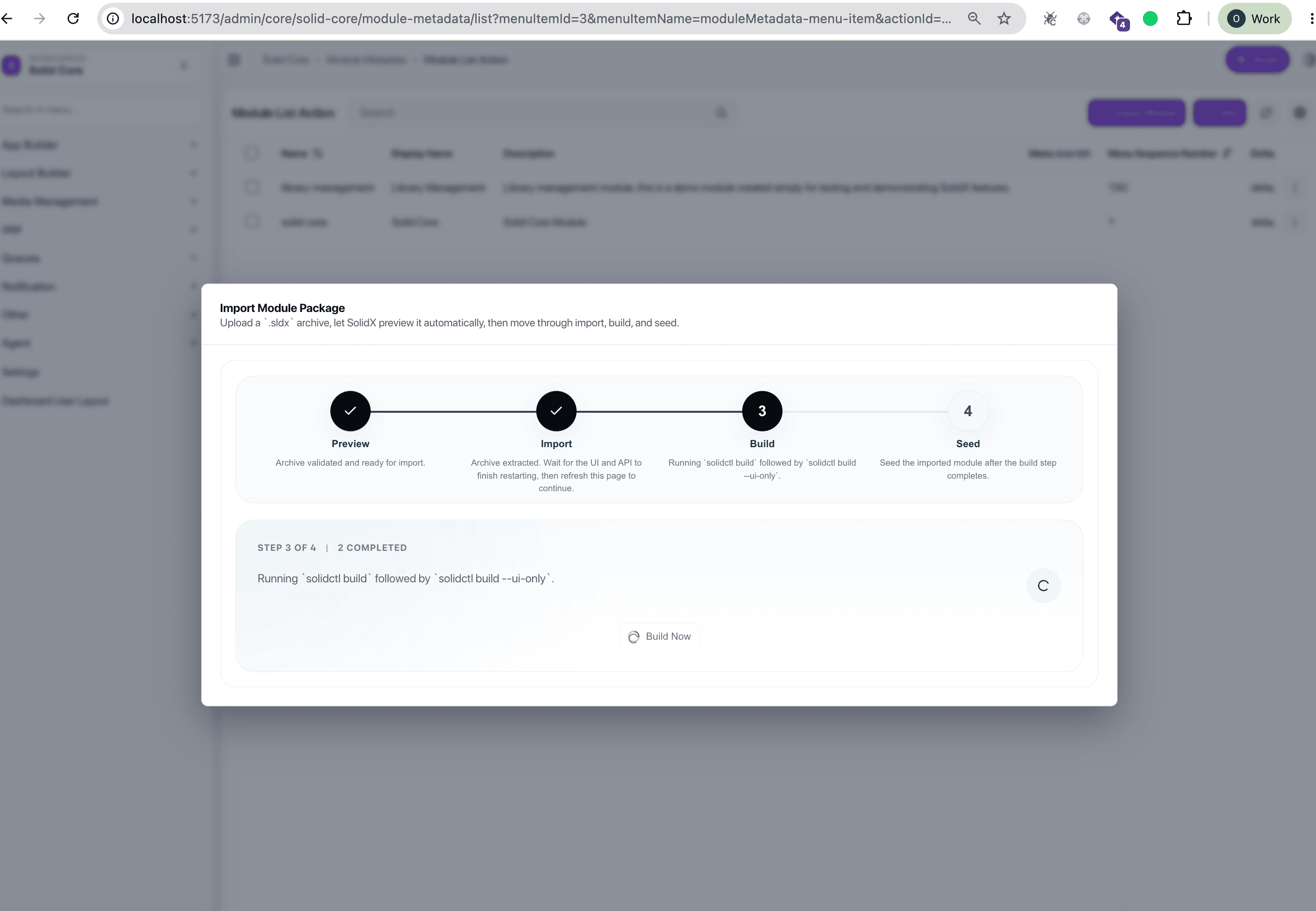
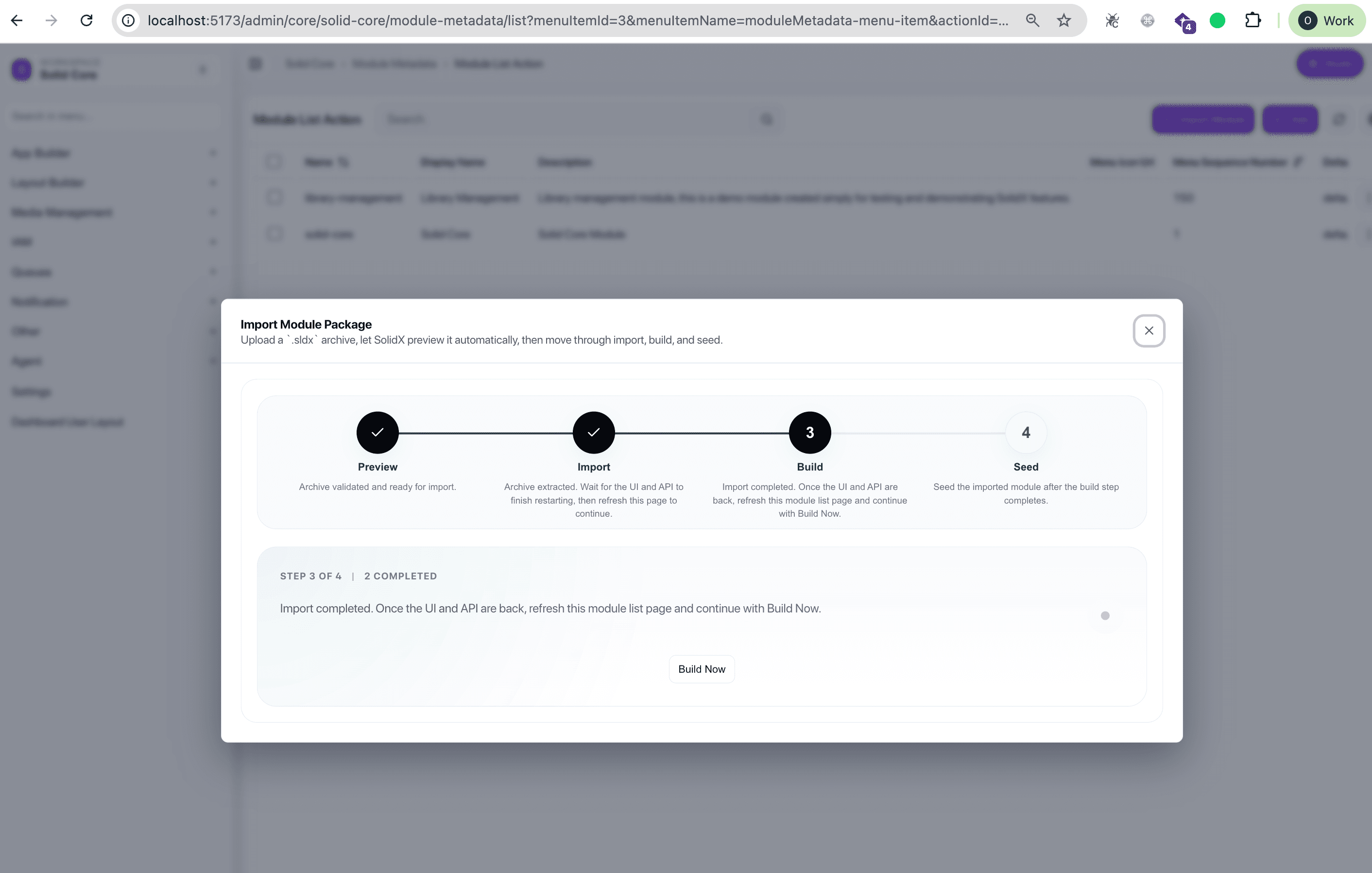
After the import step and any service restarts, click Build Now. SolidX runs two builds in sequence:
solidctl build
solidctl build --ui-only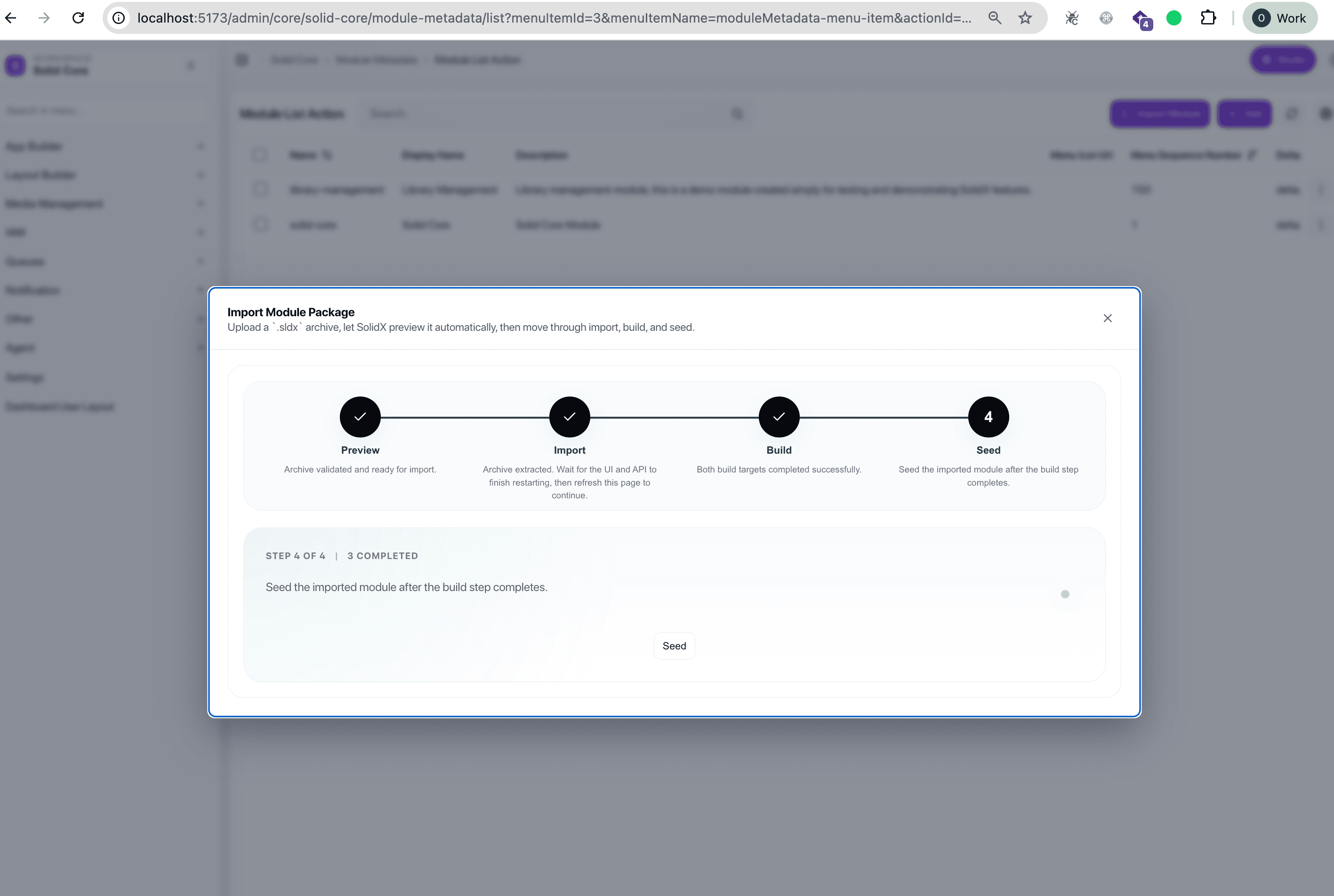
Wait for both builds to report success before moving on. Build output is streamed in the dialog so you can monitor progress.
Step 4 - Seed
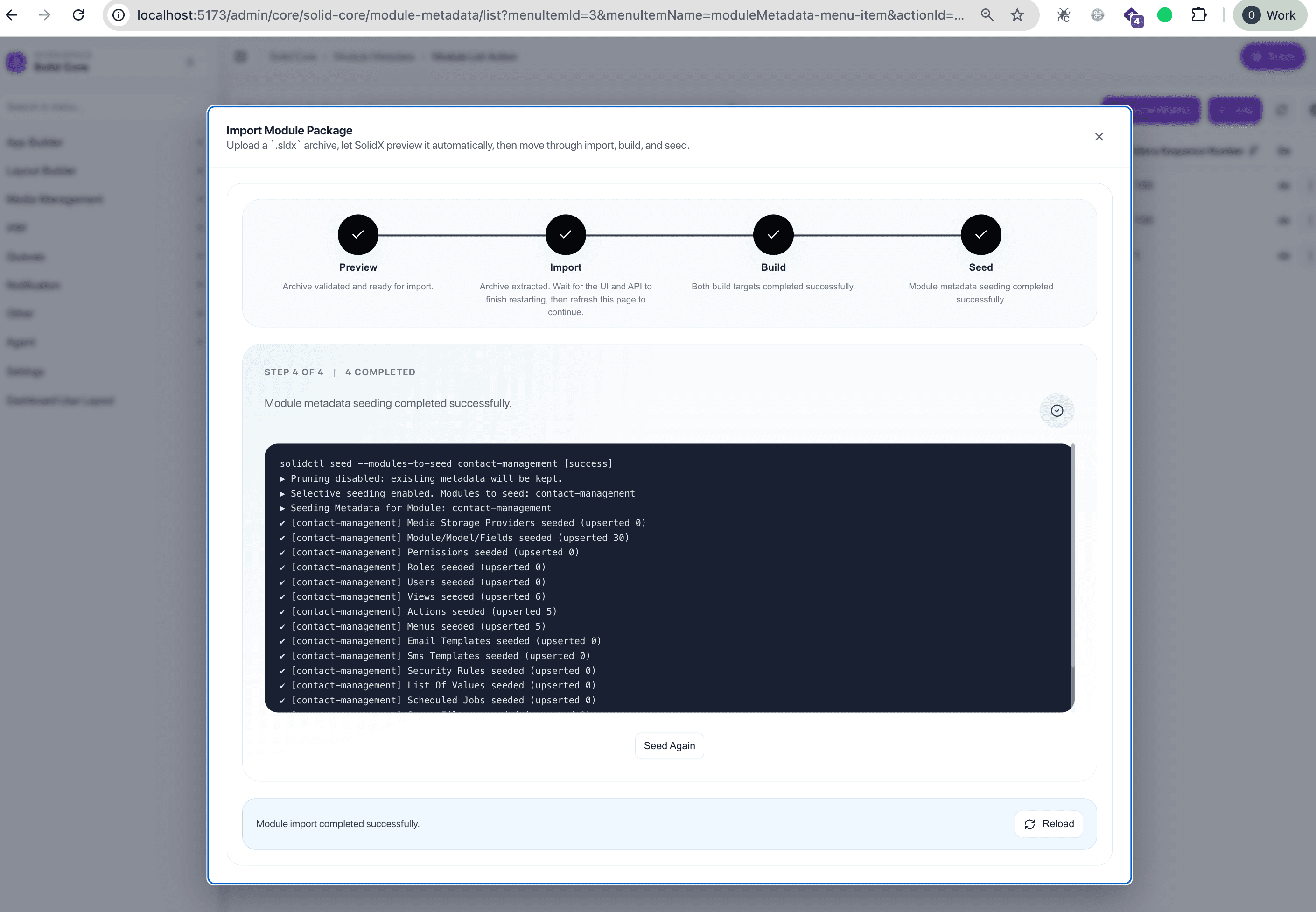
Click Seed to load the module's metadata into the database. SolidX runs:
solidctl seed --modules-to-seed {moduleName}The seed output is displayed in the dialog. A successful run looks like:
solidctl seed --modules-to-seed contact-management [success]
▸ Selective seeding enabled. Modules to seed: contact-management
▸ Seeding Metadata for Module: contact-management
✓ [contact-management] Module/Model/Fields seeded (upserted 30)
✓ [contact-management] Views seeded (upserted 6)
✓ [contact-management] Actions seeded (upserted 5)
✓ [contact-management] Menus seeded (upserted 5)
...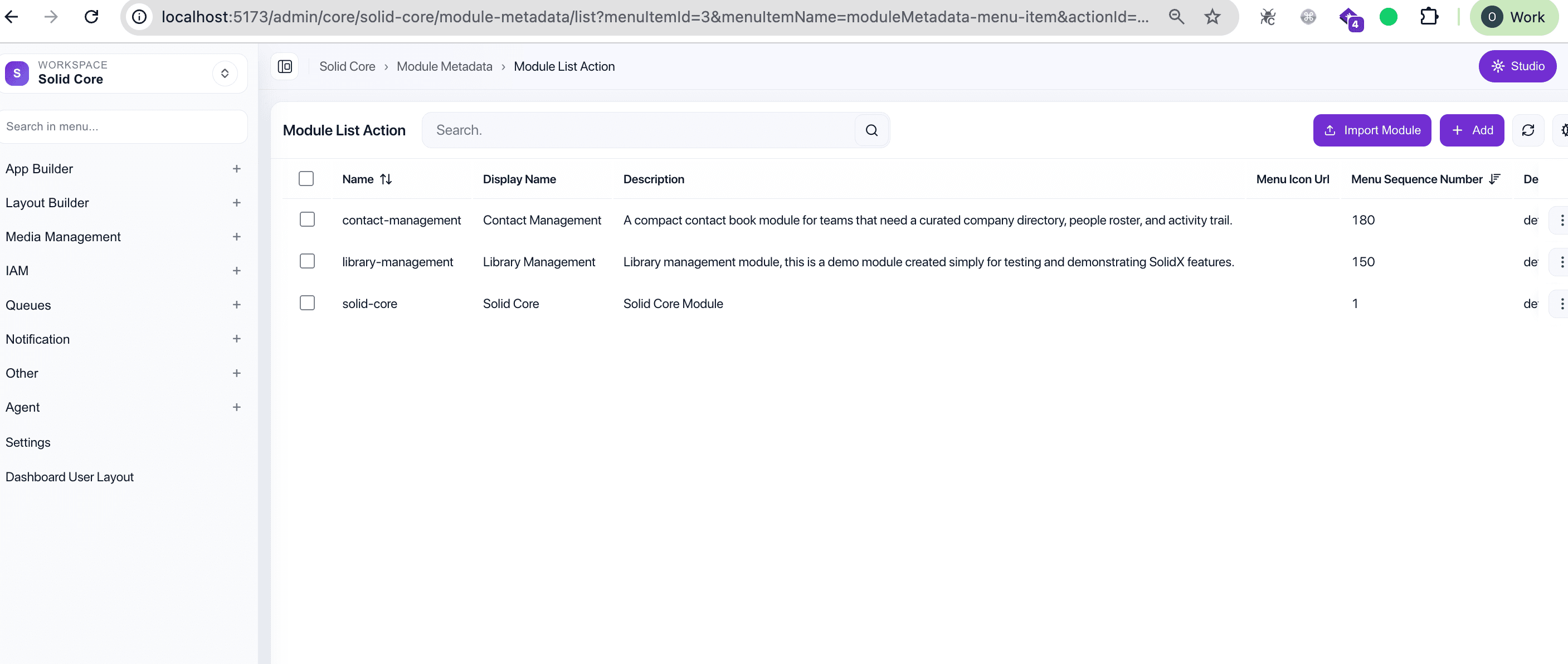
Once seeding completes, click Reload to refresh the page. The imported module will appear in the module list.
Resuming an Interrupted Import
If the import wizard is closed or the API restarts mid-flow, the transaction is preserved on disk under .solidx-runtime/module-package-imports/. The next time you open the Import Module dialog, SolidX detects the active transaction and resumes from where it left off.