

Add an Application
Add an application to Test Hub so your team can test its customer journeys.
Adding an application tells Test Hub what your team wants to test. Each application you register appears in the Applications list, with its type, labels, and the status of its most recent run.
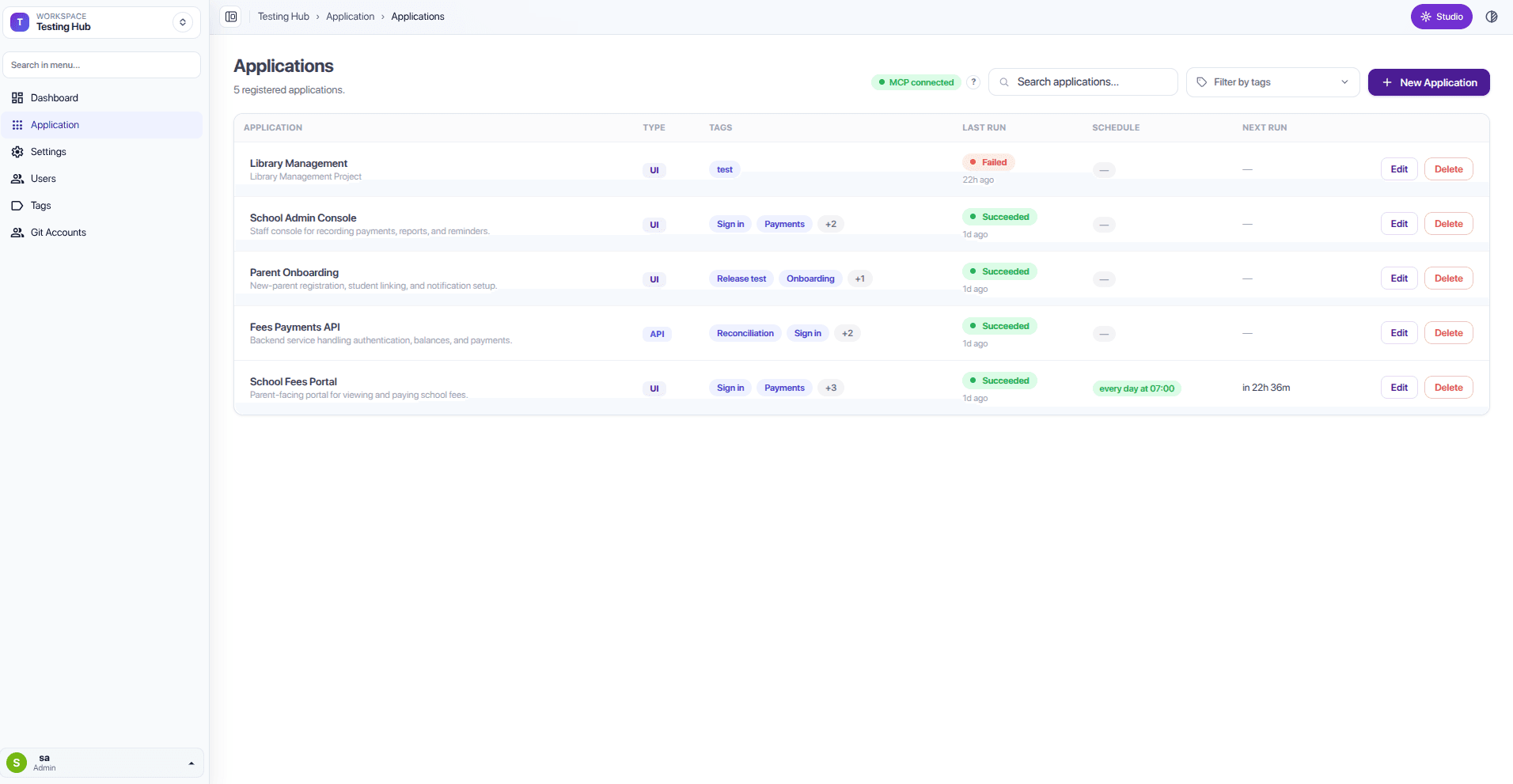
Add the application details
Select New Application to open the registration form.
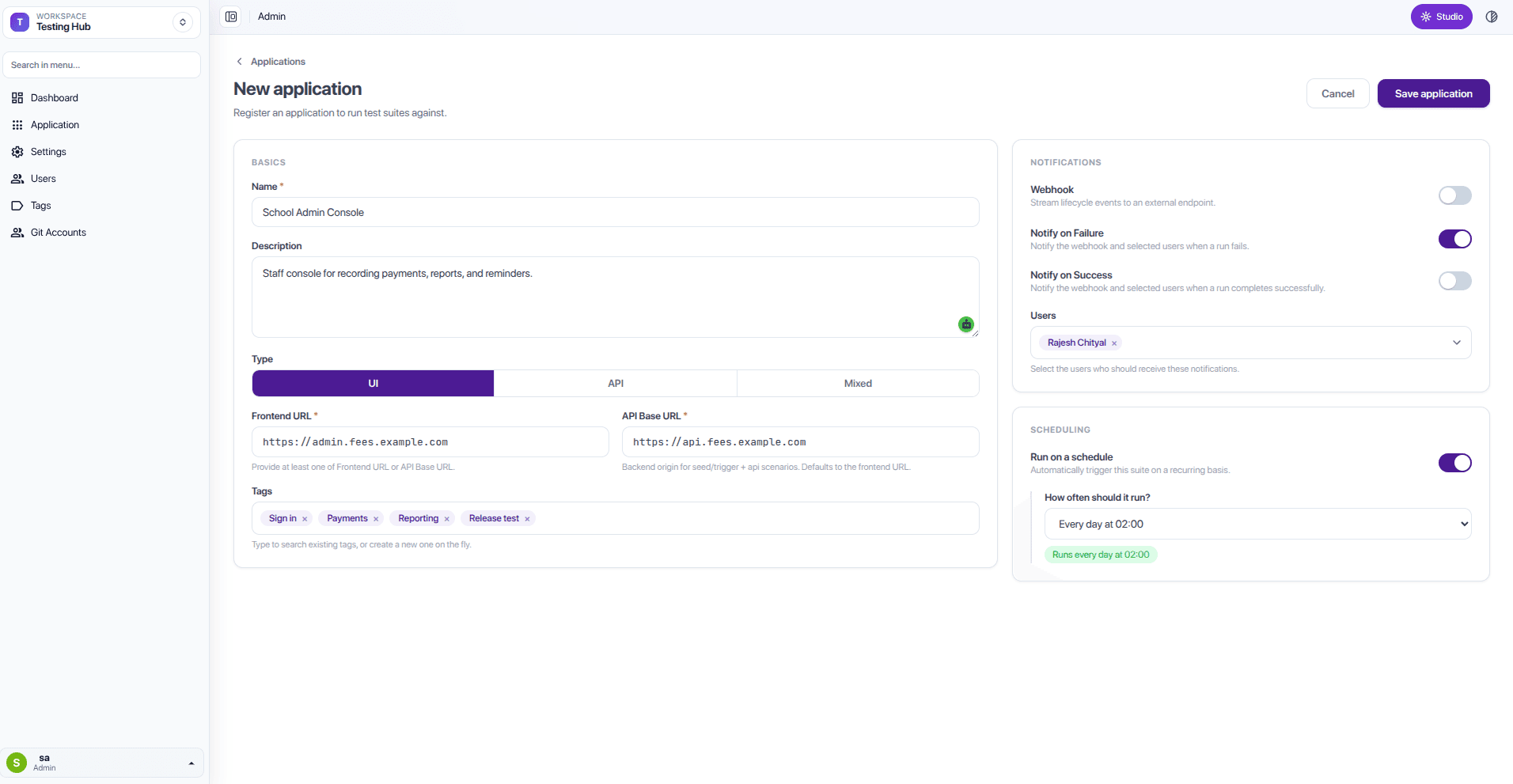
- Open Applications and select New Application.
- Enter a clear Name, for example School Fees Portal.
- Add a short description of the application or the area you want to test.
- Add the Frontend URL that people use to open the application and the Backend URL for its service.
- Add labels to organise related customer journeys, such as Sign in, Payments, or Release test.
- Choose the people who should receive email notifications when a test finishes or fails.
- Add a Webhook URL if another tool, such as Slack or Teams, should receive the test result.
- Select Save application.
What to do next
Use the connected MCP AI assistant to create test scenarios from the customer journeys that matter to your application.